
Introduction:
We all know how Microsoft flow has been popular with its ability to automate business processes through trigger and action based system.
In this blog, I will talk about how Microsoft flow can be used to create recurring journals in Dynamics 365 fin & ops, and send email to relevant stakeholders for review, approval and posting.

Let me explain each step in detail I configured for this Microsoft flow.
Schedule:
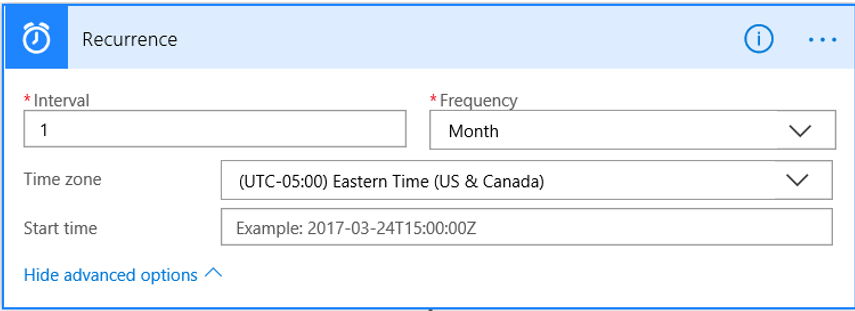
This is the trigger step to start the process, schedule can be used set up the recurrence for the flow.
The flow is setup with frequency to run once in every month. We can also setup start date and the time zone in which flow has to run.
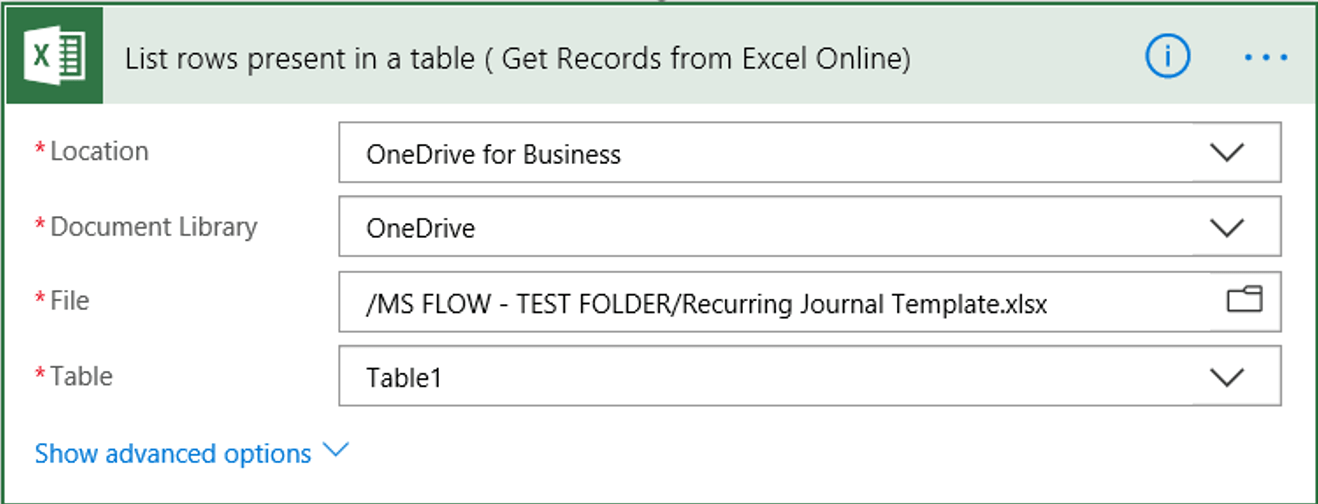
List rows present in the table
Add new action to get rows from excel online to create journal header and lines in further actions.
Specify the location, document library, file path and the Table from which the data needs to pulled from the excel online.
Important note: The data has to be formatted as table in excel online file to get the rows in MS flow.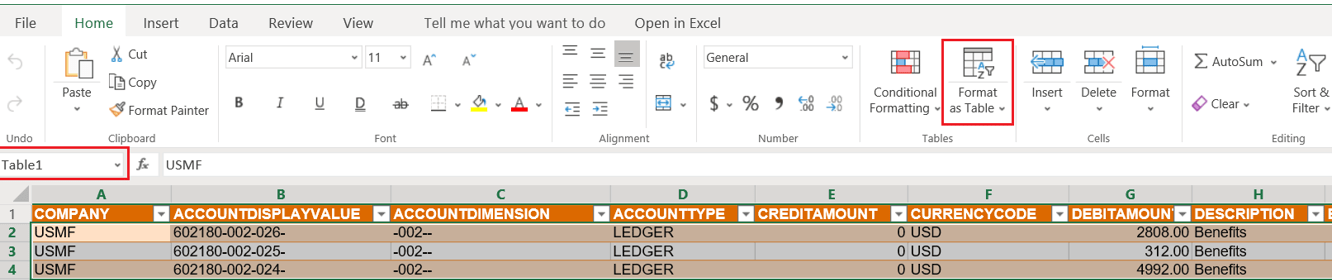 Once the data is converted as table, use the table name to specify in MS flow,
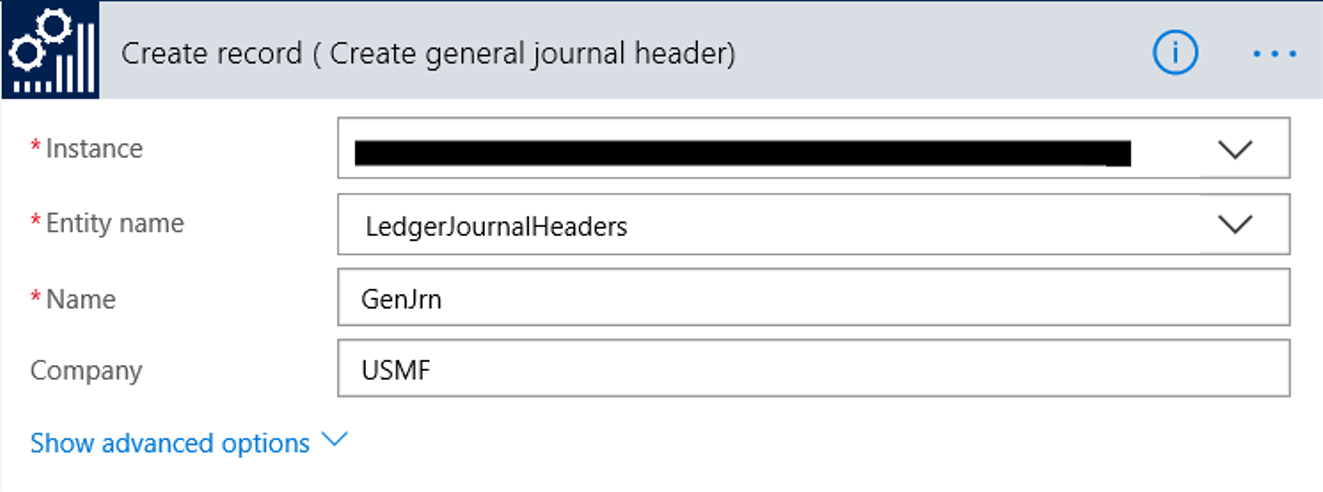
Create record (To create General journal header):
Add new action to create header record in Dynamics 365 Fin & Ops.
Specify the instance name, Entity name ‘LedgerJournalHeaders’, Journal name and legal entity to which the journal header should be created.
Apply To Each And Compose Actions:
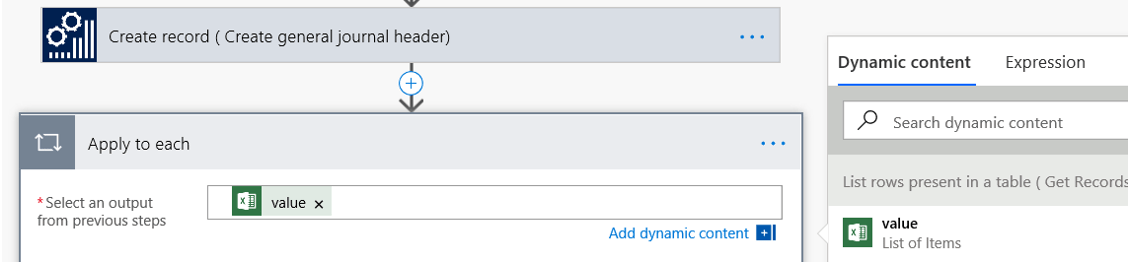
Use the ‘Apply to each’ action control to use the values from previous actions dynamically.
On the Dynamic content bar, select ‘value’ to retrieve the all the values used in excel online.
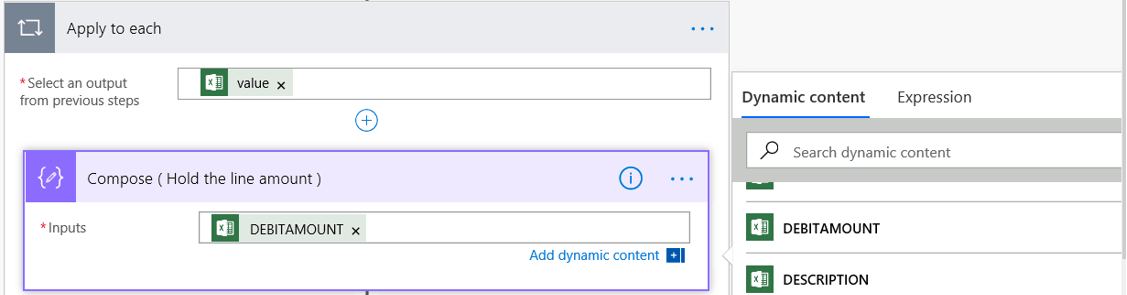
Then add compose action and use the dynamic content to hold the Debit amount from excel online
Add one more compose action and an expression to convert the debit amount to float, this step is mandatory to convert the amount into acceptable decimal values in Dynamics 365 Fin & Ops.
float (outputs(‘Compose_(_Hold_the_line_amount_)’))
Note: There are more expressions to convert the amount fields into acceptable decimal values with one digit or two digits.

Create record (To create general journal lines):
Add an action to create general journal lines records in Dynamics 365 Fin & Ops.
Specify the instance name and entity name ‘LedgerJournalLines’. Use the dynamic content option and map the fields from excel online to fields in entity.
Here are the key fields to be mapped apart from excel online dynamic content
Journal batch number: From create general ledger header action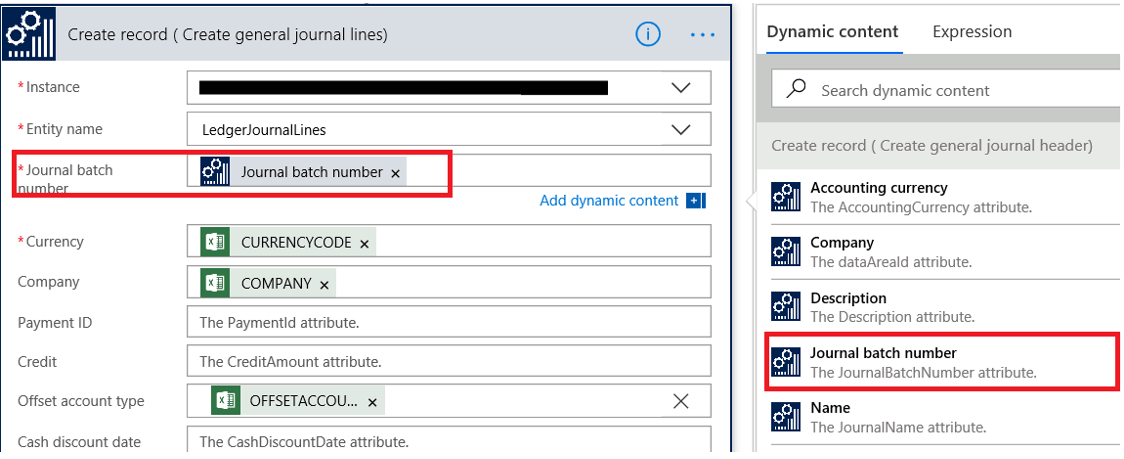
Debit amount: From compose action (converted to float).

Send email (Office 365 outlook):
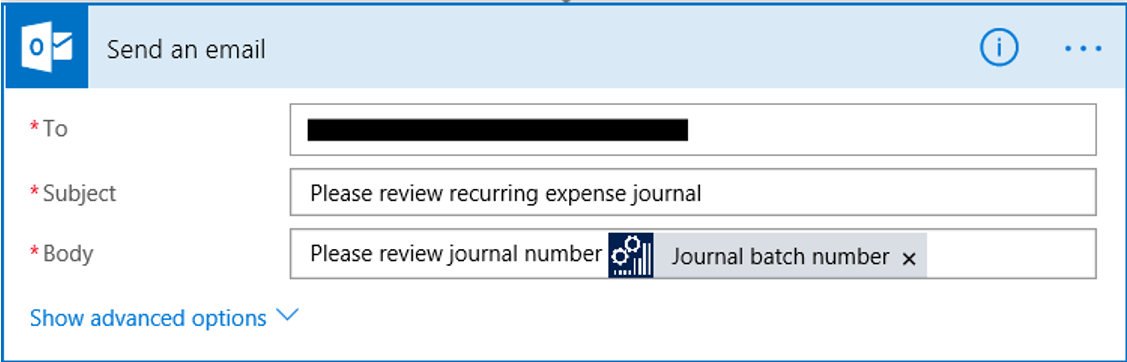
Specify the email address, subject and body of the email, use the dynamic content in a subject or email body if required.
Journal batch number is used as an dynamic content in this flow, this helps the recipient to review and approve the appropriate journal created in Dynamics 365 fin & ops.
Run the Flow:
Now let’s test the flow and see the results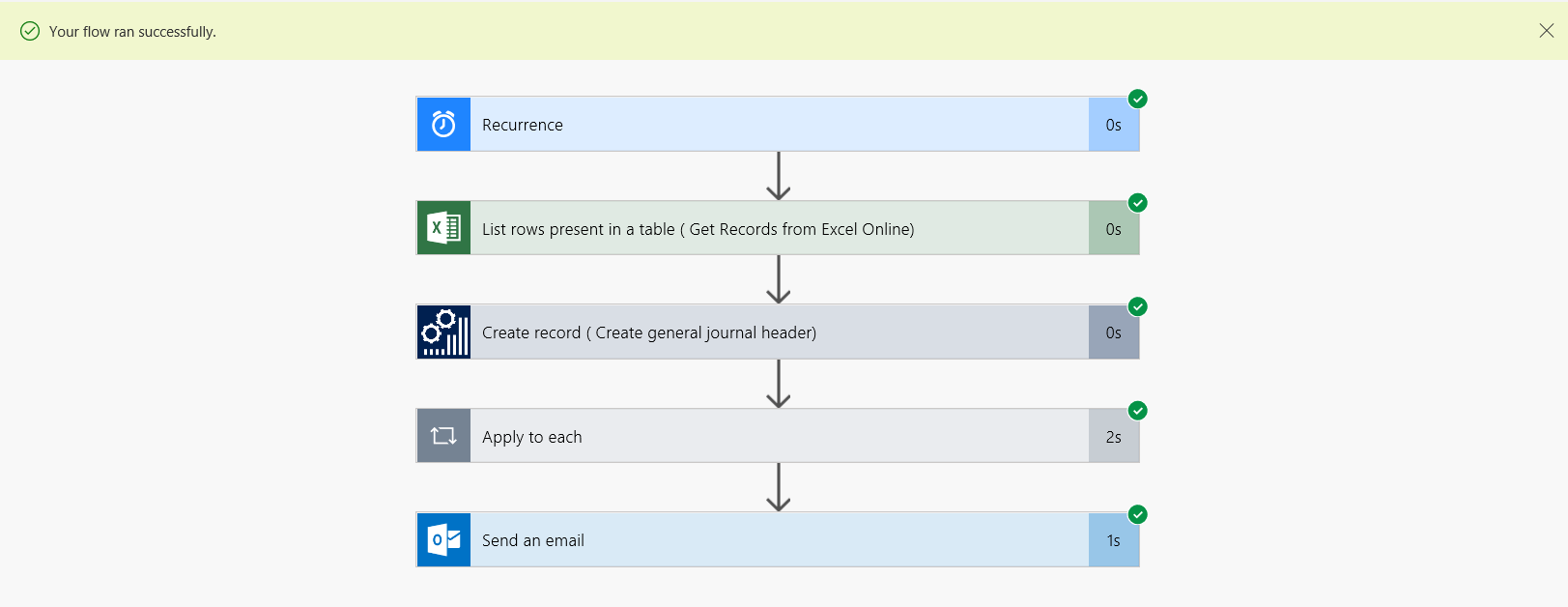
Recipients will get the email once the flow is executed successfully,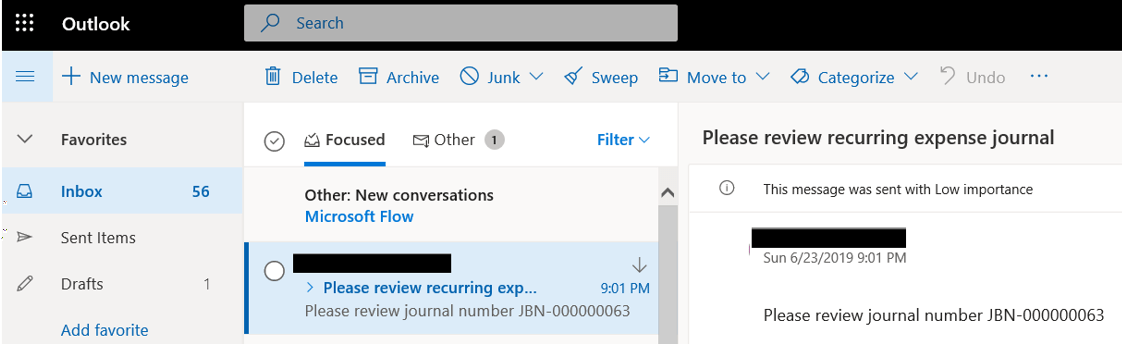
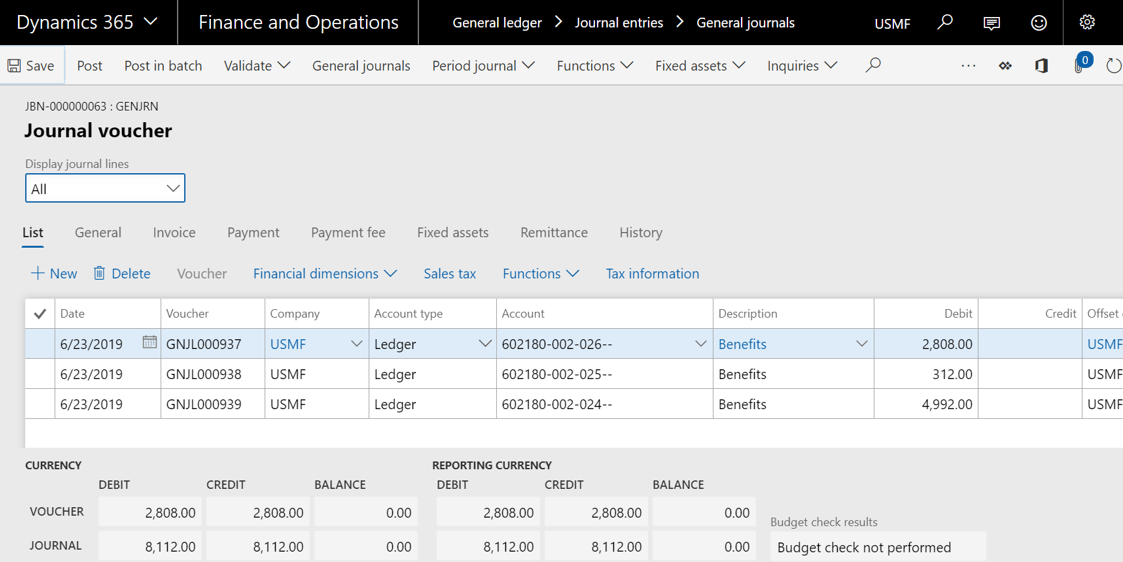
Get into the Dynamics 365 fin & ops and review the journal lines are created correctly as provided the excel data.
Best Regards,
Namith Hosmane
Disclaimer:
This is a personal blog. Any views or opinions represented in this blog are personal and belong solely to the blog owner and do not represent those of people, institutions or organizations that the owner may or may not be associated with in professional or personal capacity, unless explicitly stated. All content provided on this blog is for informational purposes only. This blog makes no representations as to the accuracy or completeness of any information on this site.


Leave a reply to Kaare Cancel reply