• Capitalize Project Costs in D365 – Part 1

    Wanted to share the recent implementation experience of D365 for one of our clients in the telecom industry. The project management and accounting module in D365 provides that capability to manage capital projects from recording the project expense\spends to converting them to fixed asset or eliminating them to ledger\project

    In this part of my blog on capital projects, I would like to cover key configurations required for managing the capital projects in D365

    Project groups:

    The groups are mandatory setup to create any project in D365. To manage the capital project it is required to create project group with project type “Investment” to enable functionalities that required to specify capitalization rules. For more details regarding the project group click here

    Project management and accounting > Setup > Posting > Project groups

    Project working time templates:

    Working time templates are global configurations that can be utilized across project management, accounting, warehouse management, and more. Within the working time template, we can specify the days and times when projects can be created in D365. From a system perspective, it is generally best practice to allow project creation on all days and at all times to accommodate real-time integrations from other third-party systems. For more details regarding working time templates click here

    Organization administration > Setup > Calendars > Working time templates

    Period types

    The period types defines how frequently the project expenses or spends can be capitalized. The period types allow to create period type for WeekBi-weeklySemi-monthlyMonthDayQuarter, or Year. It also provides an ability to do it for ledger period or create own custom period. For more details click here

    Organization administration > Setup > Calendars > Period types

    Cost template

    The cost templates are used to define the method in which the transactions should be included to convert the expenses to an asset\ledger or project. For the capital project the cost to complete method should be “Set cost to complete to zero”. For more details click here

    Project management and accounting > Setup > Estimates > Cost template

    Forecast models:

    The forecast models are required for managing the project budget control in D365. The Original and remaining forecast model are two types used for managing the project budgets. For more details regarding the forecast models click here

    Project management and accounting > Setup > Forecasts > Forecast models

    Line properties:

    The line properties is one key configuration in D365 to determine if the project cost should be capitalized or not as some of the project cost will not be capitalized. Hence as a best practice create two line properties for Capex and Opex and define capitalization accordingly for the capital projects. The line properties can then be assigned to project group or project category level. For more details click here

    Project management and accounting > Setup > Line properties > Line properties

    Category groups:

    The category groups are used shared the default properties like posting profiles. There must be at least one category group for each transaction type and each project category is assigned a group.

    Project management and accounting > Setup > Categories > Category groups.

    Shared categories, project categories

    Shared categories are global configuration where the same category can be used across modules like Expense, Project and production. It is mandatory to create a shared category whenever new project category is required.

    Organization administration > Setup > Categories > Shared categories

    Project categories represent detailed level category configuration which provides an ability to map the category group, line properties and GL accounts to which posting should occur

    Project Management and Accounting > Setup > Categories > Project categories

    For more details on category group, shared and project categories click here

    Project journal names:

    Project journal names are required to record the transactions in the system where distinct number sequences can be configured to accurately track the project financials. For details click here

    Project management and accounting > Setup > Journals > Journal names

    Project management and accounting parameters

    The project management and accounting parameters defines configuration related to specific legal entity around default project type, project stages, number sequences and define the project budget control configurations

    Project Management and Accounting > Setup > Project management and accounting parameters

    Stay tuned for the next blog on how to use this configuration and convert the project transactions to Fixed\ledger or another project.

  • There is often a confusion in every new implementation about the design and approach to configure the chart. It merely depends on the nature and size of the business. The small retail company may need simple chart but services company which has global presence may need more complex design.

    Here are some common best practices to consider when configuring the chart of accounts in D365

    Main accounts:

    Review and revise:

    1. Firstly, it’s a great opportunity to review and revise the main account list.
    2. Consider restructuring the current main account list so it can be shared with different legal entities as much as possible. Re-organize and renumber wherever required.
    3. Although it requires a mapping exercise to transfer opening balance during migration, but it is worth doing to benefit in the long run and manage\build strong governance and controls across all legal entities.

    Length and formatting:

    1. Microsoft recommends using 4-6 as reasonable length for the main account ID. Keeping it too short may impact the scalability and keeping it too big may impact the user experience.
    2. Avoid using the letters for better user experience as alpha characters creates more space which may create confusion and usability issues for the users.
    3. And Microsoft also recommends using the Harvard standard for numbering schema i.e., Number starting with 1 represents Assets, 2 for Liabilities, 3 for Equities, 4 for Revenues, 5 for Cost of goods sold and 6 for Expenses.

    Manage exceptions:

    1. Not all accounts and rules of the main accounts are valid for all legal entities.
    2. Use Ledger entity overrides to manage exceptions If main accounts need to be suspended in specific legal entity or needs to have different default dimensions and different exchange rate type for foreign currency revaluation.

    Create consistency:

    1. Create main account template by category that needs to filled by respective BU owner and one who maintains should validate before creating new main account in the system.
    2. Use the main account mask to restrict and control the number of digits that can be used when new main account is created.
    3. Use the standard main account categories which can help group similar account and drive out of box reporting (Power BI reports and financial reporting).
    4. Avoid creating new category and do not rename or update the existing main account categories.

    Financial dimensions and Dimension sets:

    Simple and flexible:

    1. Discuss the purpose of each dimension and consider using financial dimensions to the level which financial statements needs to be segmented for internal and external reporting need.
    2. Keep the design simple and create dimensions that absolutely required.
    3. For each segment of dimension, the account combination expands exponentially and may cause the performance degradation of the system. Use ranges wherever possible

    Singular Purpose:

    1. Make sure each dimension has singular meaning and used for specific purpose.
    2. Using same dimension for multiple purpose will defeat the purpose of having multi-dimensional chart and makes it confusing and can have significant impact on management reporting

    Custom dimension vs Entity backed dimensions:

    1. Custom dimensions are user defined values and are shared between legal entities.
    2. Entity backed dimensions are backed from existing values in master data such as operating units, customers, vendors, projects etc. Some entity-backed dimensions are shared across legal entities, whereas other entity-backed dimensions are company-specific
    3. So carefully consider which type of dimension needs to be used based on the business requirement.

    Length and formatting:

    1. Use the masking for custom dimensions to restrict and control the number of digits that can be used when new dimension value is created.
    2. Carefully consider alphanumeric values. Typically using just numbers is recommended which can avoid difficulty in sorting and filtering.  
    3. Create dimension values that are reusable

    Manage exceptions:

    1. Not all the dimensions are applicable to all legal entities.
    2. Ledger entity overrides can be used to manage exceptions of the dimensions. If it needs to be suspended in specific legal entity, the owner and the period when the dimension should be active

    Managing balances:

    1. Create financial dimension sets to calculate the balances for the required accounting combination. Create balances when you create a dimension set only if you will be using the balances.
    2. Update balances periodically during off hours in a batch.
    3. Only rebuild when the balances are suspected to be inaccurate. Do not regularly schedule a rebuild and finally
    4. Clear balances from unused dimension sets.

    Account structure and advanced rules

    Design with flexibility:

    1. Use separate account structure for different sections of the chart. Consider creating a separate account structure for Balance sheet, Expenses, Revenue and COGS and one for statistical accounts.
    2. Create accounts structures for accounts that have similar rules and combination.
    3. Minimize the number of dimensions in each account structure.
    4. Make the main account first or as close to the front of the account structure as possible, so users get the best guided experience they can during account entry.
    5. Reuse account structures as much as possible to reduce maintenance across your legal entities.
    6. Use ranges and wildcards as much as possible. This will reduce the changes to the account structure and system performance will be optimal.

    Managing exceptions

    1. Use advanced rules to manage exceptions when a dimension value applies to small subset of main accounts. But do not create hundreds of advanced rules which can cause performance degradations
    2. For variations across legal entities, consider using advanced rules so that account structures can be reused.

    Hierarchy relationship:

    1. Consider setting up the organization hierarchy relationship with the account structure to dynamically control the valid dimension values.
    2. Organization hierarchies are date effective. The changes to the valid combination can be setup to activate in future dates.
    3. Keep in mind the organization hierarchies can be only created for operating units(entity backed dimensions) out of the box.

    Overall Governance and control:

    1. Implement strong controls on who can access the key parameters and configure of chart of accounts in the system.
    2. Limit the number of users who can maintain and manage main accounts.
    3. Consider using database logging on the changes to main account form and critical parameters for any unexpected changes to review the log for audit trial
    4. Consider using the posting validation for the system accounts that needs to be validated outside of the expected posting of transaction type.

    References:

    Planning and configuring chart of accounts

    Financial dimensions

    Accounts structure

    Disclaimer

    This is a personal blog. Any views or opinions represented in this blog are personal and belong solely to the blog owner and do not represent those of people, institutions or organizations that the owner may or may not be associated with in professional or personal capacity, unless explicitly stated. All content provided on this blog is for informational purposes only. This blog makes no representations as to the accuracy or completeness of any information on this site.

  • Did you know how payment works in D365 Commerce for an online channel or eCommerce website? Check out this blog for more understanding.

    Before we deep dive, here are some of key terminologies in general to understand about different components & parties involved in the payment flow.

    Key Terminologies:

    1. Merchant account: The merchant accounts are type of business bank accounts which allows to accept the payments from the customer. The merchant account is a holding account where funds are first landed. The funds are then transferred to actual merchants checking bank account in batches. The merchant accounts are usually provided by the payment providers and its mandatory to have the merchant account.
    2. Merchant application: The merchant application is the storefront or the website through the end user shops, process payments from the cart.
    3. Payment gateway: The payment gateway is an intermediary between the merchant website and financial institutions to securely transfer the customers payment information. The payment gateways provide an option to accept the payment with different payment method options like credit card, PayPal, Apple pay etc.
    4. Payment processor: The payment processors are integrated with payment gateways to communicate between the customers issuing bank and merchants acquiring bank to process the payments requested from payment gateway.
    5. Payment providers: The payment providers are those who include both payment gateway and processor features to support end to end transaction flow (For eg: Adyen, Braintree, PayPal)
    6. iFrame or payment acceptance page: iFrame or payment acceptance page is a secure HTML front end interface provided by Payment provider to integrate with merchant application. The payment accepting page contains all the credit card fields or other payment option that are required for the industry type and the transaction type.

    How it works?

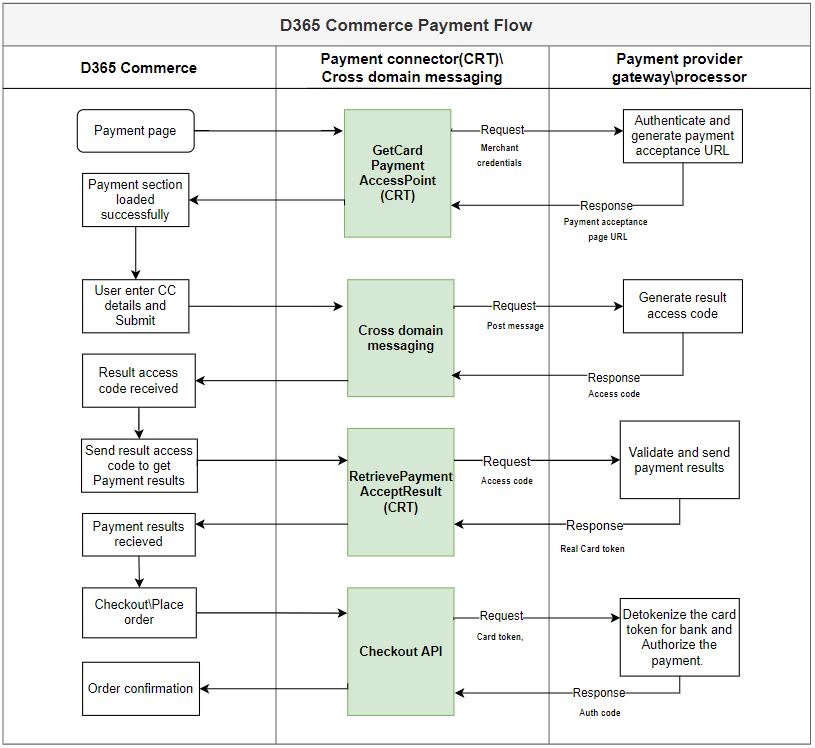
    1. The customer shopping on eCom website adds item to the cart and ready to make the payment
    2. The D365 Commerce application calls the CRT GetPaymentAccessPoint API with merchant credentials to retrieve the unique payment acceptance URL from Payment provider
    3. After the successful retrieval of payment acceptance URL, the payment section will be loaded successfully for the customer to make the payment.
    4. The customer enters the payment details (Credit card number, exp date, cvv) and submits the payment.
    5. The payment post message from D365 commerce front end application is sent to payment provider. The payment provider generates the result access code and send it back to D365 Commerce application through cross domain messaging.
    6. D365 Commerce front end application calls CRT RetrievePaymentAcceptResults API by providing result access code which intern calls payment provider to validate and send the payment results with real card token
    7. The customer clicks on checkout or place order, the D365 commerce front end application calls CRT Checkout API with details of order and amount to be authorized from customer bank along with the card token.
    8. The payment provider detokenizes the card token required for the bank to process authorization and sends the Authorization code in the response.
    9. Once the authorization code received the order will be placed successfully.

    Additional notes:

    1. The customer payment information (PAN) are sensitive data which should not be sent to merchant application due to PCI compliance. Therefore, the separate payment accepting application is used to take the credit card number and process the payment. The payment provider only sends card tokens (payment results) to D365 commerce application to complete the order.
    2. The cross-domain messaging is used to communicate between the (D365 Payment host page Commerce front end) and Payment acceptance page (Payment provider HTML page).
    3. The payment capture in OOB Dynamics commerce happens during the invoicing process.

    References:

    Create an end-to-end payment integration for a payment terminal – Commerce | Dynamics 365 | Microsoft Docs

    Regards,

    Namith Hosmane

    Disclaimer

    This is a personal blog. Any views or opinions represented in this blog are personal and belong solely to the blog owner and do not represent those of people, institutions or organizations that the owner may or may not be associated with in professional or personal capacity, unless explicitly stated. All content provided on this blog is for informational purposes only. This blog makes no representations as to the accuracy or completeness of any information on this site.

  • I am excited to share my new blog series on D365 finance. The knowledge that I gained over the years of my consulting experience in Microsoft Dynamics.

    Overview:

    Dynamics 365 finance is modern business solution from Microsoft that offers unified finance capabilities to efficiently manage finance back office operations. An AI driven, real time embedded analytics and automated process enrich and provides great capability to manage finance operations.

    This blog series will highlight the core capabilities of Dynamics 365 finance with key configurations, most commonly used functionalities and some key reporting capabilities in each module. At the same time providing references to resources to learn more in detail.

    Stay tuned!! More to come:)

  • Fixed asset in general:

    Fixed assets are the long term assets which is owned by the company and are used to produce goods or services. For example Plant and machinery, Land and buildings, Computers etc. The FA life cycle involves acquisition, depreciation, write down, write up and scrap or sale of an asset.

    Fixed asset in D365 finance?

    D365 finance provides all the capabilities to manage and maintain the end to end life cycle of an asset. Please read through the blog below for more details.

    Key configurations

    Depreciation profile

    Depreciation profile is used to configure the depreciation method(Straight line, Reducing balance etc.), frequency of depreciation to determine how the value of the fixed asset should be depreciated over time. The depreciation profile is then assigned to books

    Books

    Books tracks the complete financial lifecycle of an asset. Multiple books can be created separately for companies books of accounts and tax purposes. Books are setup with key attributes like service life, depreciation profile etc.  Books are then assigned to fixed asset groups.

    Fixed asset groups:

    Fixed asset groups are used to classify fixed assets and specify default attributes that can be defaulted to the fixed assets. Fixed group is mandatory to create a new fixed asset in D365. By default, the books that are assigned to the fixed asset group are then assigned to the fixed asset.

    Derived books:

    Derived books are used to automatically derive and post the transactions created for one book to another book. For example if the acquisition transaction posted in company book should also post in tax books.

    Fixed asset posting profile

    The posting profiles are used to setup ledger accounts to which financial transactions should be posted. The posting profile must be defined by book and each transaction type (acquisition, depreciation, disposal sales, disposal scrap etc.). The posting profile can also be configured at the more detailed level with combination of book, fixed asset group or even for the individual fixed asset. Books can be configured to post the associated transactions to general ledger. Books that don’t post to the general ledger post only to the Fixed asset subledger and are typically used for tax reporting purposes. Relationships between fixed assets components – Learn | Microsoft Docs

    Key functionalities

    Acquisition and depreciation

    There are multiple ways in which fixed asset can be acquired in D365. Please see options below Purchase orders: Fixed assets can be acquired through purchase orders automatically. The user can select fixed asset to which acquisition should be posted or select fixed asset group to which fixed asset should be created and acquisition should be posted. Acquisition journal: This is standard and normal way to acquire fixed using acquisition journal in fixed asset module. The fixed asset acquisition proposal can also be used to create acquisition journal Invoice journal : This is from the accounts payable module for non-po based transaction from which fixed asset can be acquired. Inventory to fixed asset: Fixed asset can be acquired through companies own inventory. Usually company keeps them in inventory until it is placed in service and when it is required to place in service, companies convert fixed asset to inventory. Investment project to fixed asset: Inventory or cost projects are internal with an idea of building an asset to be used in future revenue based projects. For example building an software that helps in delivery of the project. In such the once the project is completed it can be eliminated and converted to fixed assets. 8 Different Ways to Acquire Fixed asset in Microsoft Dynamics 365 Finance and Operations – Explore Microsoft Dynamics 365 Finance and Operations Together (home.blog) Depreciations are created through depreciation proposal using fixed asset journals. The system will auto calculate the depreciation based on the depreciation method and the remaining life of the asset. Depreciation can also be posted manually Depreciation – Learn | Microsoft Docs

    Reclassification and transfer

    Reclassification is used to reclassify or change the fixed asset group or assign new fixed asset number in the same group. Perhaps the accounting for the fixed asset group has changed and a new group needed to be created and the assets moved from the old group to the new group. All books for the existing fixed asset are created for the new fixed asset. Reclassification posts required financial entries from reversing entries from old asset book to creating new entries in new asset book Reclassify fixed assets – Finance | Dynamics 365 | Microsoft Docs Fixed assets reclassification – Microsoft Dynamics 365 Blog Transfer of fixed asset is used to to transfer the financial information for a fixed asset book from one financial dimension set to a new financial dimension set Transfer a fixed asset – Learn | Microsoft Docs

    Split a fixed asset

    Splitting of fixed asset is used when portion or certain percentage of fixed asset should be split from one asset book to new asset book. Split a fixed asset – Learn | Microsoft Docs

    Disposal

    For the disposal of fixed asset, the different transactions types Disposal sale, Disposal scrap can be used in  fixed asset journal. Once the transaction is posted the net book value of the asset is set to zero and closed for future transactions. Sale is an external disposal whereas scrap is an internal transaction. Disposal sales can also posted using free text invoices from Accounts receivable module. Dispose and lend fixed assets – Learn | Microsoft Docs

    Key Reporting

    Fixed asset roll forward report:

    Fixed asset roll forward report includes the valuation movements of individual by period with opening and ending balances summarised by fixed asset group and legal entities. The report is generated in excel and uses the electronic reporting framework.

    Fixed asset transactions:

    Use this report to print information about fixed asset transactions. This information includes the date, voucher information, transaction types, and amounts.

    Fixed asset listing report

    Use this report to print a list of fixed assets and the books that are selected for them.
  • Cash and bank management in general:

    A cash and bank management is a method of effectively tracking cash inflows and outflows to meet the payment obligations, plan the future payments, and maintain adequate business stability. Usually treasury or cash application team in companies manage cash and bank. The high level process involves maintaining bank accounts and its financial instruments (Checks, Deposit slips, Promissory notes and Bills of exchange) and reconciling bank statements with transactions recorded in the books of accounts.

    Cash and bank management in D365 finance?

    Cash and bank management in D365 finance provides all the capabilities from maintaining bank accounts and its financial instruments to automating bank reconciliation process. Please read through blog below for more details

    Key configurations

    Bank groups and Check layouts:

    Bank groups are used when companies maintain several bank accounts from the same bank. When the new bank account is created and bank group is entered, the default information like address and routing number is automatically defaulted.

    Check layouts can be configured for each bank account based on the companies banks requirement and policies. The two methods which can be changed if the company changes its policy for layouts ( Details from Microsoft docs).

    • Fixed – Use this method when you have pre-printed checks. Before you can use checks for payment, they must be created by selecting Check numbers from the Setup tab on the Action Pane in the Bank accounts page.
    • Free – Use this method when you do not have pre-printed checks. Check numbers are automatically proposed when you use checks for payment.

    MICR(Magnetic ink character recognition code) can used to print own checks and to verify legitimacy of paper documents.

    Please read the blog below for more details:

    Configure banks and bank check layout – Learn | Microsoft Docs

    Bank transaction type:

    Bank transaction types are used to segregate the different types of bank transactions like deposits, payments, fees, Transfer wire etc. The bank transaction types are also used during the reconciliation process to match the bank transaction code from statement to transactions posted in D365 finance.

    Please read the blog below for more details:

    Understand bank transaction types and groups – Learn | Microsoft Doc

    Key functionalities

    Advance bank reconciliation:

    Advanced Bank Reconciliation feature introduced in AX 2012 facilitates automatic bank reconciliation by importing the bank statements and reconcile them with bank transactions posted in D365. This feature is being used extensive and most popular across all the industries, it reduces lot of human effort and helps the organization to use the resources effectively.

    Here some useful links for more details on advance bank reconciliation,

    Reconcile bank statements by using advanced bank reconciliation – Finance | Dynamics 365 | Microsoft Docs

    Set up bank reconciliation matching rules – Finance | Dynamics 365 | Microsoft Docs

    SETUP MATCHING RULES – ADVANCE BANK RECONCILIATION – Namith Hosmane’s Blog

    Cash flow forecasting

    D365 finance provides the ability with indirect method of cash flow forecasting to analyze the upcoming cash flows which helps in estimating the future cash needs. To key tasks to obtain cash flow forecasting is,

    1. To identify all the cash or cash equivalent ledger accounts
    2. To configure forecast behavior of transaction that affect company’s liquidity accounts.

    Cash flow forecasting can be integrated with General ledger, Accounts payable, Accounts receivable, Budgeting, and Inventory management.  The forecasting process uses transaction information that is entered in Finance, and the calculation process forecasts the expected cash impact of each transaction.

    Please refer to the below articles for more information on cash flow forecasting

    Understand cash flow forecast and reports – Learn | Microsoft Docs

    Configure cash flow forecasting – Learn | Microsoft Docs

    Know How To Forecast Cash flow In D365 – Namith Hosmane’s Blog

    Key Reporting

    Checks

    An inquiry form which provides the list of all the checks with status. It also provides the ability to reverse the check.

    Print statement

    The report provides the reconciliation summary and details of a particular reconciliation journal as of date. It includes the number of reconciled bank transactions, total amounts for transactions, and a summary of all transactions

    Payment summary by date report
    The report shows the payments made by the bank accounts for the selected date range of bank accounts and dates.
     

  • Accounts Receivable in general:

    Accounts receivable is an asset to an organization which means the customer owes money to the company for the services or the products sold on credit. Accounts receivable operations on the high level involves customer invoicing, payments and effectively tracking and following up on outstanding invoices.

    Accounts Receivable in D365 finance?

    D365 finance offers all the capabilities from invoicing, payment processing to tracking and reporting outstanding invoices. Additionally, D365 finance offers comprehensive credit and collections features. Please read through the blog below for more understanding.

    Key configurations

    Customer workflows:
    Customer workflows is new in D365 finance which provides the ability to configure workflow approvals for changes in the fields of a customer record. Users can select fields to which the workflow should be triggered. Click here to know more.
    Customer groups:
    Customer groups are mandatory to create a customer record in D365 finance that provides the ability to set default payment terms, sales tax, terms of payment, default ledger accounts which applies to one or more customers. For more details please click here
    Copy customers by using shared number sequences
    Customers can be now copied from one legal entity to another legal entity easily. The number sequence should be same in every legal entity that you want to copy a customer to. Click here to check my old blog for details on copy customers functionality Click here for more information on creating and maintaining customers

    Customer posting profile:

    Every customer created should be directly or indirectly related to posting profile that connects AR subledger to general ledger by defining the ledger accounts to be used during the posting of customer transactions (Invoicing, Payments, Write-off’s etc..)

    Methods of payment & Payment schedules:

    Method of payments are different ways to accept the payments from the customers. D365 finance provides an ability to accept the payments through credit card, cash in advance, check and ACH (Electronic payments). ACH or electronic payments is more preferred payments in today’s day and age.  Click here to know about methods of payment.
    Payment schedules in D365 finance provides the ability to accept the customer payments in instalments. Click here for more details on payment schedule functionality.

    Terms of payment & Cash discount:

    Terms of payments is generally an agreement between company and customers by when the payment should be made. Terms of payment in D365 finance is used to calculate the due date of the invoices for collection process and aging reports. Cash discount is something that customer is offered an discount if the payment is made even earlier than the agreed terms.

    Key functionalities

    Invoicing:

    Sales order invoicing:

    The customer invoices can be created for the items sold through sales orders which includes order lines, item numbers. The item numbers are directly or indirectly associated with ledger accounts. The general ledger and inventory transactions are automatically created once the invoices are posted.

    Click here for more details on Sales order invoicing.

    Free text invoices:

    Free text invoices are used to book invoices for services provided to which company does not track the inventory for. Free text invoices are also used to sell the fixed assets of the company. Below are some of the external blogs to learn more about free text invoices.

    Free Text Invoicing in Microsoft Dynamics 365 for Operations | RSM Technology Blog (rsmus.com) Free Text Invoice Dynamics 365 for Finance & Operations – Microsoft Dynamics 365 Community

    Payment processing and Settlements

    Payment proposals
    Payment proposal in D365 provides the capability to view all the outstanding customer transactions which users can select, update to generate the payment lines. Once the payment journal lines are created through payment proposal, the office add-in functionality can be used to further update\modify payment journal line before posting.
    Enter customer payments
    Enter customer payments form is an alternative option to create the payment journal lines manually. Create and handle payments of customer invoices for sales orders – Learn | Microsoft Docs Settle and undo settle: Settle open transactions form displays all the open transactions of a particular customer.  The form provides the ability to manually settle debit and credit transactions and apply cash discount if any. For example when invoices are not settled against the payment when payment entries are recorded. Undo settlement displays all the settled transactions either through payment entry or from settle open transactions. This form provides the ability to reverse the settlement in case of settlement errors. Once the settlement is reversed the transactions will reappear in settle open transactions. Important note: The settlement and undo settlement does not change the ledger balance summarized but it may post settlement entries when different financial dimensions are used for invoices and payments. Settle transactions and undo settlements – Learn | Microsoft Docs

    Key Reporting

    Customer statement: Customer statement is an external report which is sent to customers on periodic basis to provide details of transactions which includes payment received and outstanding balance. Just like our credit card statement.

    Customer aging:

    The customer aging report provides the open customer transactions data in aging buckets to determine customer balances which are due as of today, 30, 60, 90, 180& above etc. This helps AR team to calculate the reserves for the month and year end process, at the same time collection team to take action on recovering the outstanding balances from the customer.

    Customer balance list report

    Customer balance list report provides the as of date balances for the customer. The report also provides the ability to include details of the transactions which is summarizing the outstanding balance.

    Customer to ledger reconciliation report

    Customer to ledger reconciliation report is used to verify the discrepancies between the AR sub-ledger and general ledger transactions posted in the system. The report provides the differences along with voucher numbers to drill down.
    Below is my old blog post on tips and tricks on reconciling AR
  • Accounts payable in general:

    Accounts payable is a liability which company owes to vendors for the services or goods provided. Accounts payable operations on the high level involves recording of invoices to making vendor payments timely and accurately.

    Accounts payable in D365 Finance:

    Accounts payable in D365 finance provides all the capabilities from recording invoices automatically to faster payment processing. Please read through blog below on understanding key configurations\terminologies, key functionalities and reporting capabilities in Accounts payable module.

    Key Configurations

    Vendor groups:

    Vendor groups are mandatory to create a vendor record in D365 finance that provides the ability to set default sales tax, terms of payment, default ledger accounts which applies to one or more vendors. For more details please click here

    Vendor posting profile:

    Every vendor created should be directly or indirectly related to posting profile that connects subledger to general ledger by defining the ledger accounts to be used during the posting of vendor transactions (Invoicing, Payments).

    Methods of payment:

    The method of payments are different ways to pay the vendors. For example through cash, check, ACH (Electronic payments). D365 finance provides the ability to cut a check and even process ACH payments. ACH or electronic payments is more preferred payments in today’s day and age.

    Terms of payment & Cash discount:

    Terms of payments can be defined for vendor which generally an agreement between company and vendors by when the payment should be made. Terms of payment in D365 finance is used to calculate the due date of the invoices and make timely payments. D365 finance also provides an capability to define cash discount, this is when vendors offers discount if the payment is made even earlier than the agreed terms.

    Workflows:

    There are plenty of workflow options in Accounts payable module but the most asked and commonly used workflows are vendor workflow(recently added) and vendor invoice workflow.

    Vendor workflow:

    This functionality helps to define rules on specific fields to trigger workflow when the data is changed in the vendor master.  Please click here for more details and configuration.

    Vendor invoice workflow:

    Vendor invoice workflow helps to define rules and workflow for approval before the invoice can posted to general ledger. Please click here for more details and configuration.

    Key functionalities:

    Invoicing:

    A vendor invoice is document received from vendor listing the items or services provided and the amount owed by the company along with other details like sales tax, billing address, charges and due date etc. There are multiple ways in which vendor invoices can be processed in D365 finance,

    Invoice register:

    Invoice register journal can be used to pre-register the invoice for verification and approval before actual invoice is booked.  Once the invoice registered it is transferred to the invoice pool for approval and the invoice is booked through approval journal. The invoice register will accrual the expense until the invoice approval journal is posted. Check out this blog to understand more on invoice register functionality Check out this blog to understand on how to create invoice register

    Invoice journal :

    Invoice journal are used for easy and quick entering of expenses that not referenced to any Purchase orders and not required additional approvals or verification of the invoice.  Invoice journals can be used to book expenses such as utility, rent, payroll etc. With the new global invoice journal feature, invoice journals can be created and posted for multiple legal entities from a single screen. please click here for more details

    Vendor invoices :

    Vendor invoices can be created for both PO and non PO related invoices. In a manufacturing industry, PO related invoices are used for purchasing a raw material and also used for internal purchases like Laptops, Stationeries etc. Whereas, non PO vendor invoices can be used for utility payments, credit card When its non PO invoices, we can always choose between Invoice register, invoice journal and pending vendor invoices. But, depending on the nature of transactions and business requirement its important to use the right document of journal to post the business transaction.

    Vendor invoice automation

    Vendor invoice automation is key for improving the AP process for the company. EDI integration is traditional automation framework for AP invoicing. Now with modern D365 finance solution, the D365 finance provides an ability for OCR integration that helps automatically import the vendor invoices along with attachments. Check out my old blog for more information on Last mile invoice automation solution from Microsoft.

    Invoice matching:

    Invoice matching is performed to make sure the ordered, received and the invoice details matches the invoice details received from the vendor. Two way matching : The ordered quantity and prices will matched between invoiced quantity and price. Three way matching : The ordered quantity and price, received quantity and invoice quantity and prices should match.

    Payment processing:

    Payment processing in D365 finance is made much easier with Vendor payments workspace which provides quick access to AP clerk and manager to manage payments. Click here to know more details on Vendor payment workspace

    Vendor payment proposal:

    Vendor payment proposal is used to generate the payments for open invoices quick and easy based on the pre-defined query like due date, cash discount and other criteria. Click here to know more. Microsoft recently released new feature to Automate vendor payment proposals process that can automatically create payment journals based on the criteria. Click here to know more

    Key reporting:

    Vendor transaction report

    Vendor transaction report can be used view all the posted transactions which includes debit and credit. The reports provide both summary and detail view of the customers\vendors transactions with differences.

    Vendor balance list

    The reports provide both summary and detail view of the customers\vendors transactions with differences.

    Vendor to ledger reconciliation

    The reconciliation report is used to make sure there are no discrepancies between sub-ledger and general ledger.

  • General ledger in general:

    General ledger is a master repository of all the financial transactions of the business. This includes the transactions recording in different subledgers like Accounts payable, Accounts receivable, Fixed assets, Project management etc.

    General Ledger module in D365 finance?

    General ledger in D365 finance is beyond just recording the financial transactions. General ledger in D365 finance provides great deal for managing accruals, allocations, consolidation, year closing to comprehensive reporting framework which is key for any ERP implementation.

    Let me explain key configurations\terminologies, key functionalities and reporting capabilities within general ledger module in D365 Finance.

    Key configurations:

    Chart of accounts and main accounts:

    Chart of accounts is a master list of all the main accounts used by the business from profit & loss to balance sheet accounts. The main accounts are used to post financial transactions in the system to further track and report the financial performance of the company.

    Please click here to know more about chart of accounts and main accounts

    Financial dimensions and derived dimensions:

    Financial dimensions are extension of the main account to post financial transactions in the system in more organized manner through which the financial information can be slice and diced for reporting and analysis.

    For example: The IT and finance department in an organization can be configured as two different financial dimensions and only one expense main account can be used to book the transaction with dimension combination. This way we can limit creating the number of main accounts.

    There are two types of financial dimensions,

    Entity backed dimensions : Entity backed dimensions are defined and maintained through the other master list in the system like customers, vendors, operating units.

    Custom dimensions: Custom dimensions are added as new list of dimension values from the financial dimension form

    Click here to know benefits of using financial dimensions.

    Derived dimensions are useful when multiple financial dimensions are configured and requires to default the dimension value based on the other dimension value automatically. For example, you can configure If the department IT is entered by the user and the cost center ‘Administration’ financial dimension should get automatically default.

    Accounts structure and advanced rules:

    Account structure helps in defining the valid combination of ledger accounts and financial dimensions and validates if the financial transactions are being entered as defined in the account structure.  This avoids incorrect financial postings in the system and helps in accurate reporting.

    Advanced rules can be used to define additional segment if an account needs to tracked with additional dimension apart from combination defined in the accounts structure . For example if P&L account structure for the expense accounts range has combination of Main account and department but one of the accounts in the range needs additional tracking at the cost center level.

    Advanced rules can be also used when there is a need to add more than 10 financial dimensions segments for account structure. But it recommended from Microsoft to thoroughly evaluate if more than 10 financial dimension segments is necessary as it will impact the user experience

    Click here to know about account structure and advanced rules.

    Financial dimension sets:

    Financial dimension sets are created for reporting purposes with dynamic selection of different financial dimension combination along with main account. Financial dimension sets are used calculate the balances of posted financial transactions for inquiry and reporting, mainly trial balance.

    Click here to know more.

    Key functionalities

    Accruals and Allocations

    Accruals is an accounting method to accrue expenses as it occurs in a particular period similarly for the revenue to accrue in the period the revenue earned in, this is regardless of the when the cash transactions occur. Accrual accounting is one of the matching principles which helps in accurate financial reporting time to time.

    Accrual schemes within D365 finance helps to configure accrual accounts, calendar, period frequency and, occurrence. The ledger accruals helps to distribute the expenses and revenues in the appropriate period based on accrual scheme setup.

    Below are some of the useful blogs on how create and apply accrual schemes,

    https://docs.microsoft.com/en-us/learn/modules/configure-ledger-allocations-accruals-dyn365-finance/2-accrual-scheme

    Setup Accrual schemes

    Allocations are used to allocate the expenses or revenues from one main account or dimension to one or more main account and dimensions automatically based on the allocation rules. And, below are allocation methods which can be used in allocation rules

    • Basis – This method is used when the allocation depends on the actual ledger balance. For example, advertising expenses can be allocated based on each department’s sales in proportion to the total departmental sales.
    • Fixed percentage and Fixed weight – For these methods, the allocation percentage or weight is defined directly for the rule. For example, advertising expenses can be allocated so that Department A receives 70 percent of the advertising expense and Department B receives 30 percent.
    • Equally – This method distributes the amount equally to each defined destination. For example, if destinations are defined for Department A and Department B, advertising expenses can be allocated so that both Department A and Department B receive 50 percent of the advertising expense.

    Click here to know more about allocations

    Periodic journals and Global general journals

    Periodic journals are used as templates to create the recurring journals entries in the system. Periodic journals stores the ledger account, text, offset account, period intervals etc. The periodic journals can be retrieved to copy or move into general journals to auto populate all the fields once setup in the periodic journals.  The copy functional will help to create recurring journal entries periodically whereas move function will move details and delete the periodic journal from the list.

    There are more innovative ways to create recurring journals using power platforms and allocations. Click on the links to know more

    https://namithhosmanesblog.com/2019/06/25/ms-flow-for-creating-recurring-journals-in-dynamics-365-fin-ops/

    Global general journals is new functionality that helps create the general journal entries for multiple entities from a single screen.

    Fiscal year closing:

    Fiscal year close is a significant challenge for most organizations. Too many manual processes make business team slog extra hours during the closing cycle. D365 finance provides substantial benefits in terms saving cost, time and make the financial close hassle free. Here are some of the functionalities

    Predefined closing templates : Configure a checklist of all the tasks that should be part of a closing process and define criteria who and when it should be finished.

    Manage dependencies : Define dependency for the tasks that needs to be completed by other business area first.

    Global workspace : Central planning, execution and monitoring of all closing activities in all areas.

    Task links : Task links helps business users to quick access to the form from where the closing activity needs to be performed in the
    system.

    Click here to more about configuring year end workspace

    Key Reporting

    Financial reporting:

    Financial reporting is a dynamic reporting tool within D365 finance which helps business users configure their own rows and columns to generate a report from posted financial transactions. Financial reporting also provides the ability to use organization hierarchy or create a new hierarchy for tree based reporting.

    Ledger transactions list

    Ledger transaction list report provides detailed list of all the posted ledger transactions grouped by main account for filtered range of ledger accounts and dates. The ledger transaction list report is widely used by the clients for reconciliation purposes and audits.

    Dimension statement report:

    Dimension statement report is also used for extract financial information from general ledger. However, the financial dimension sets can be used in this report to generate data on required combination of main accounts and financial dimensions.

  • Did you know this about bank foreign currency revaluation in D365?

    Imagine an organization with 20+ entities maintaining 50 or more bank accounts with different currencies. How cumbersome it is to revaluate every bank account to reflect the balances accurately from time to time in an ERP application for key decision making?

    D365 for finance now provides ability to revaluate bank balances for multiples banks of different legal entities on a single screen. This blog space provides you all the required details from configuring to ciphering behind the new bank foreign currency revaluation functionality in D365.

    How it works? 

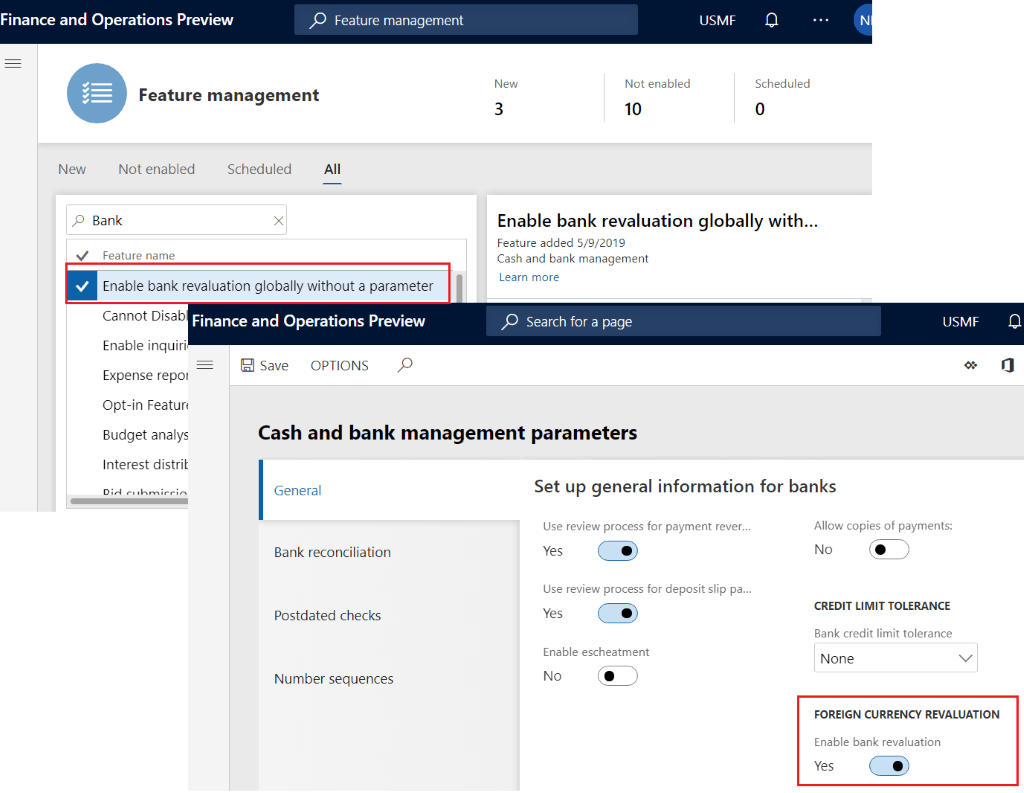
    At the outset, bank foreign currency revaluation feature can be enabled through feature management or from cash and bank management module.

    Finance and Operations Preview 
p Feature management 
New 
3 
USMF 
Not enabled 
10 
Scheduled 
Feature management 
New 
Not enabled 
Scheduled 
x 
Bank 
V Feature name 
Enable bank revaluation globally without a parameter 
Cannot Disab 
Finance and Operations Preview 
Enable bank revaluation globally with... 
Feature added 5/9/2019 
Cash and bank management 
Learn more 
p Search for a page 
USMF 
Enable inquiri 
Expense repot 
Opt-in Featun 
Budget analys 
Interest distrit 
save OPTIONS p 
Cash and bank management parameters 
General 
Bank reconciliation 
Postdated checks 
Number sequences 
Set up general information for banks 
Use review process for payment rever... 
Yes 
Use review process for deposit slip pa... 
Yes 
Enable escheatment 
No 
Allow copies of payments: 
No 
CREDIT LIMIT TOLERANCE 
Bank credit limit tolerance 
None 
FOREIGN CURRENCY REVALUATION 
Enable bank revaluation 
Yes

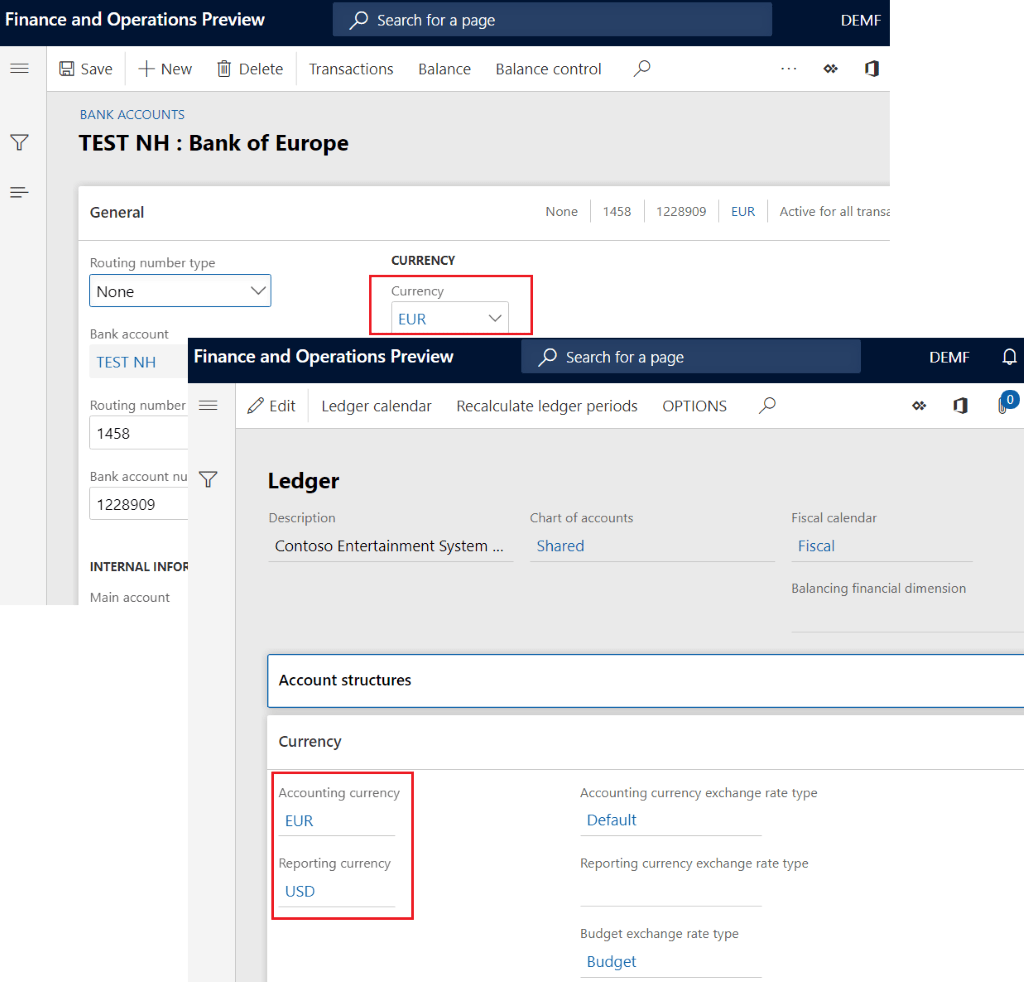
    The bank balances will be revalued if banks base currency is different than the accounting currency or reporting currency of the legal entity, there will be no revaluation entries If the banks base currency is same as accounting currency. Likewise, for reporting currency 

    Finance and Operations Preview 
[R Save -1- New Delete 
BANK ACCOUNTS 
p Search for a page 
Transactions 
Balance Balance control 
TEST NH : Bank of Europe 
General 
Routing number type 
None 
1458 
1228909 
EUR 
None 
Bank account 
TEST NH 
CURRENCY 
Currency 
EUR 
Finance and Operations Preview 
p Search for a page 
DEW 
Active for all transi 
Fiscal calendar 
Fiscal 
DEMF 
Routing number 
1458 
Bank account nu Y 
1228909 
INTERNAL INF-OF 
Main account 
Edit 
Ledger calendar Recalculate ledger periods OPTIONS 
Ledger 
Description 
Contoso Entertainment System . 
Account structures 
Currency 
Accounting currency 
EUR 
Reporting currency 
USD 
Chart of accounts 
Shared 
Balancing financial dimension 
Accounting currency exchange rate type 
Default 
Reporting currency exchange rate type 
Budget exchange rate type 
Budget

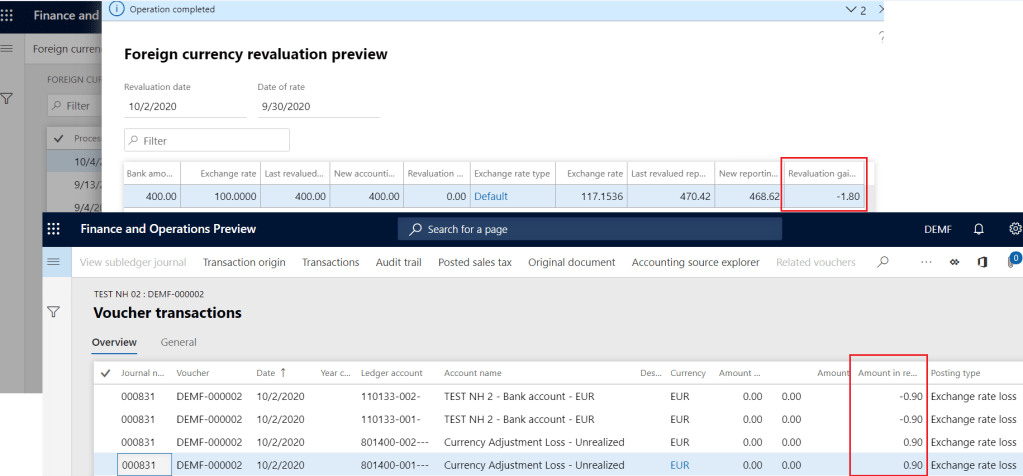
    The transaction will be created for the difference between the old and new balance calculated for accounting currency and reporting currency. The most important is the entries are split based on the new balance calculated for each financial dimension that are posted to bank transactions 

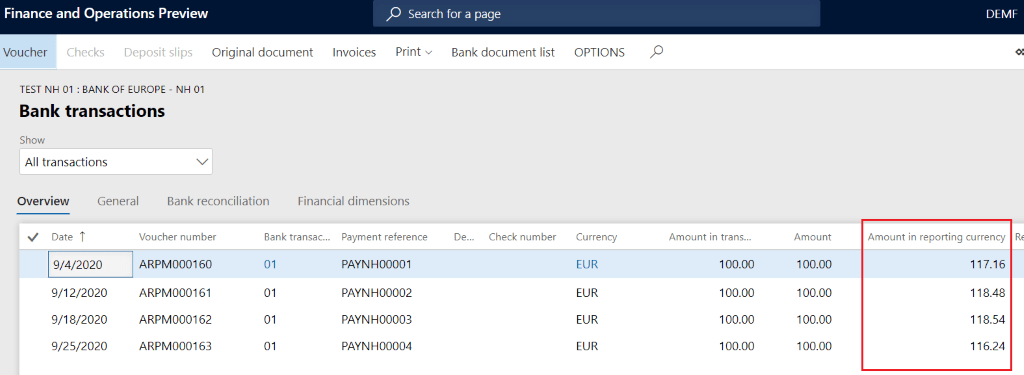
    Please refer to the example below to get the comprehensive understanding of this feature 

    Let’s say the below transactions are posted for the bank account by business unit 

    Date Business unit Exchange rate 
    (USD – EUR) 
    Base currency amount 
    (EUR) 
    Accounting Currency Amount 
    (EUR) 
    Reporting currency amount 
    (USD) 
    9/04/2020 001 85.356 100 100 117.16 
    9/12/2020 002 84.409 100 100 118.47 
    9/18/2020 002 84.366 100 100 118.53 
    9/25/2020 001 86.026 100 100 116.24 
          
      Total Balance 400 400 470.40 
      001 200 200 233.40 
      002 200 200 237.00 
    Finance and Operations Preview 
p Search for a page 
Voucher 
Checks Deposit slips 
Original document 
Invoices 
Print v 
Bank document list 
TEST NH 01 : BANK OF EUROPE - NH 01 
Bank transactions 
Show 
All transactions 
Overview 
Date T 
General 
Bank reconciliation 
Financial dimensions 
Voucher number 
ARPM000160 
ARPM000161 
ARPM000162 
ARPM000163 
Bank transac... 
01 
01 
01 
01 
Payment reference 
PAYNHOOOOI 
PAYNH00002 
PAYNH00003 
PAYNH00004 
De... 
Check number 
9/4/2020 
9/12/2020 
9/18/2020 
9/25/2020 
OPTIONS 
Currency 
EUR 
EUR 
EUR 
EUR 
Amount in trans... 
100.00 
100.00 
100.00 
100.00 
Amount 
100.00 
100.00 
100.00 
100.00 
DEW 
Amount in reporting currency 
117.16 
1 18.48 
118.54 
116.24

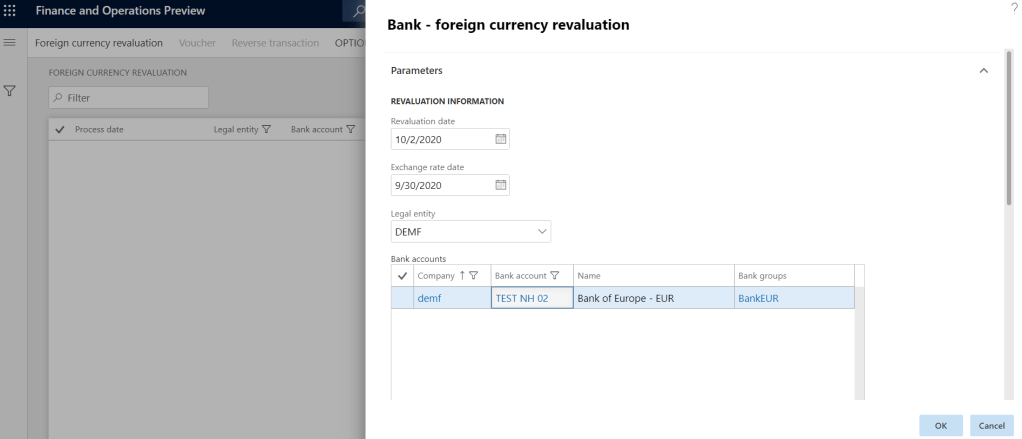
    The revaluation is run as on Sept 30th, 2020 with exchange rate of 85.358.

    Note the base currency of the bank and the accounting currency is same. Hence, there will no revaluation entry for accounting currency. But the transaction entry will be created for the difference in balance for reporting currency (USD). 

    D365 revaluation calculation:

    Business unit Old Balance 
    (USD) 
    New balance 
    (USD) 
    Revaluation Difference D365 Calculated revaluation loss 
    (50%) 
    001 233.40 234.31 0.9 -0.9 
    002 237.00 234.31 -2.7 -0.9 
    Totals 470.40 468.61 -1.8  

    Revaluation calculation for each dimension = Total revaluation difference * Percentage of balance in each dimension  

    Total revaluation difference = $-1.80 

    Percentage of balance in each dimension = New balance in each dimension / New total balance 

    New balance in both dimension (001 & 002) = $234.31

    New total balance = $468.61 

    Percentage of balance for both departments (001 & 002) = $234.31/$468.61 = 50% 

    So, the revaluation calculation for both departments (001 & 002) = $-1.80 * 50% = -0.9 

    If you like the post, please share with your connection. Also, follow and watch this space for more information on Microsoft business applications.

    Reference:
    https://docs.microsoft.com/en-us/dynamics365/finance/cash-bank-management/bank-revaluation