
Most companies want to automate their vendor disbursement process through electronic payments, Automated clearing house(ACH) helps the organization to be safer, cost effective and more convenient than traditional paper checks.
This blog will focus on ACH setup to process accounts payable electronic payments by using the out of the box NACHA(US) format in Dynamics 365 for Finance and Operation application.
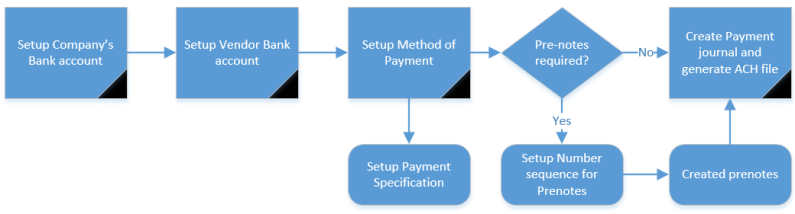
Below diagram describes the flow to configure and use ACH functionality in Dynamics 365 for Finance and Operation application,
Setup Organization Bank Account:
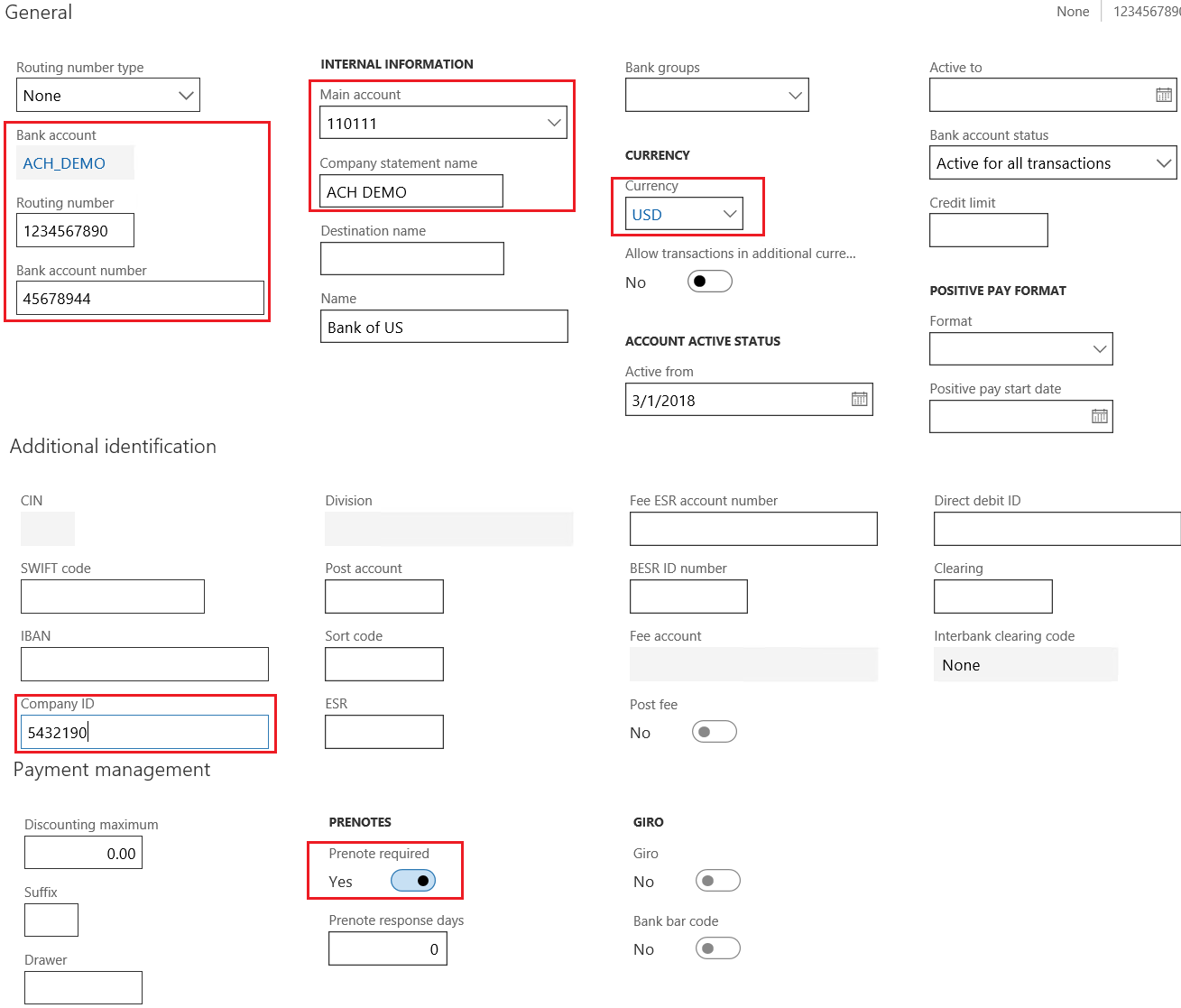
Company bank account needs to be configured with below information to process the ACH Transactions successfully,
Cash and Bank Management > Bank Accounts > Bank Accounts > Click on New
- General fast tab
- Bank account
- Bank Account number
- Routing number
- Main account
- Currency
- Company statement name (Only available with valid US address)
- Additional Identification fast tab
- Company ID
- Payment Management fast tab
- Mark Prenotes required check box (Optional)
- If Prenotes required box is marked, Enter the no. of days bank requires to process Prenotes
- Address fast tab
- Click on add and select the valid US address for the bank account
Setup Vendor Bank Account:
This setup is required to create and manage the vendor bank details which will be further used during the ACH file generation for the electronic payment transfer to vendor from company’s bank account.
Setup below bank account details of the vendor which are mandatory and other details can be entered as per the requirement,
- Bank Account
- Bank Account name
- Routing number
Accounts Payable > Vendors > All Vendors
- Select the ACH vendor
- On the action pane, vendor tab > Setup > Bank accounts

Assign bank account to vendor
After bank account has been created for the vendor, the bank account details need to be assigned to a vendor in the Payment fast tab of the vendor master.
Accounts Payable > Vendors > All Vendors
- Select the ACH vendor > Payment fast tab
- On the Bank account field, select the bank account ‘ACHVend

Setup Method of Payment:
To process electronic payments, setup a new method of payment with payment type as Electronic payment and export format as ‘NACHA(US).
Accounts Payable > Payment Setup > Method of Payment
- General fast tab
- On the Account type field, Select ‘Bank’
- On the Payment account field, Select ‘ACH_DEMO’
- File formats fast tab
- On the Export format field, Select NACHA(US)

Assign Payment specification to Method of Payment:
This setup is required to further classify Standard Entry Class Codes within ACH export formats of NACHA and this needs to be transmitted into bank depending on nature of business transactions. Generally, the most commonly used formats are as below,
- CCD stands for Cash Concentration and disbursement – Used to pay or collect from other corporate (business) accounts. Eg: Vendor payment to businesses
- PPD- Prearranged Payment and Deposit – Used to pay or collect from personal (consumer) accounts.
As we processing Vendor payment for the business CCD format will be selected.
Accounts Payable > Payment Setup > Method of Payment
- Select AP ACH
- On the action pane, click on Payment specification
- Click new and create new specification as shown the screenshot below
- On the export format field, select ‘Standard NACHA – CCD’

Create Prenotes
Prenotes are zero-dollar transactions sent to the company’s bank through the ACH network to verify the accuracy of the vendor bank account data such as routing number and Bank account number.
This process is only required if the Prenotes check box is marked on the organization bank account.
Note: Before creating prenotes setup the number sequences in Cash and Bank management parameters.
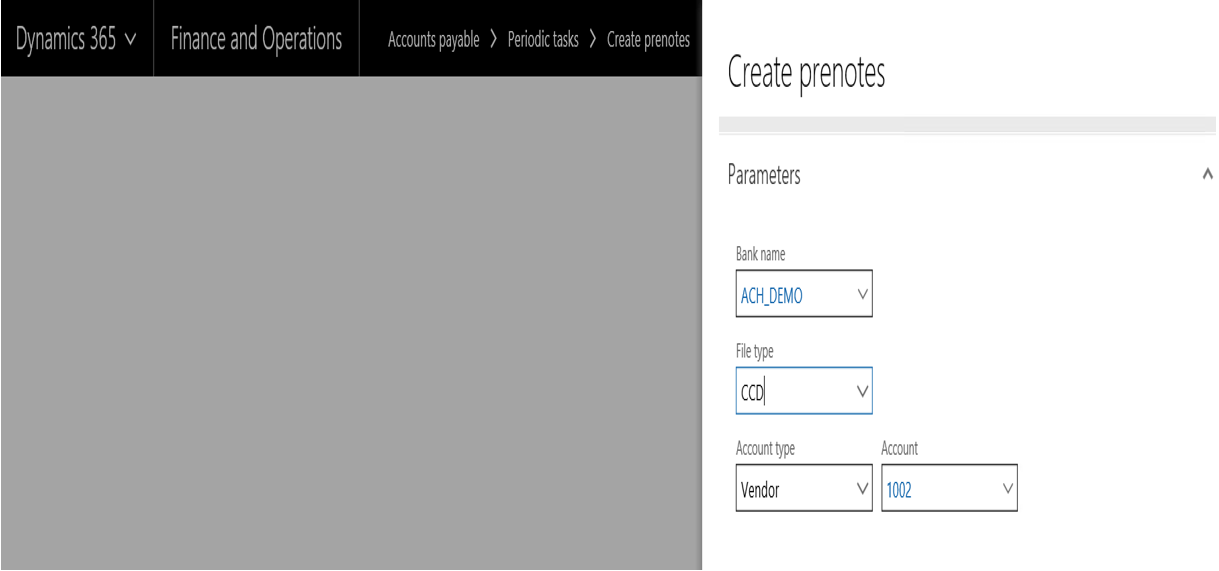
Accounts payable > Periodic > Create prenotes.
- In the Bank name field, select the name of your organization’s bank.
- In the File name field, select where the new prenote file will be saved.
- Select the file export type: CCD,
- In the Account type field, select the type of account to create a prenote for. You can create prenotes for all vendors or for a specific vendor.
- To create a prenote for a specific vendor, select the vendor account in the Account field.
Processing ACH Payment:
Once all the above setups are completed successfully, create a AP payment journal to process the ACH payments for the vendor, use the vendor, method of payment created in the above steps.
Accounts Payable > Payments > Payment Journal
- Once the payment journal line is created, click on generate payments
- On the method of payment field, Select the ‘AP ACH’.
- On the Bank account field, select ‘ACH_DEMO

Click ok and update the required parameters

Click ok, ACH file will generate and the payment status will be sent

Here is the snapshot of the file generated:

About ACH (NACHA- CCD) Formatting:
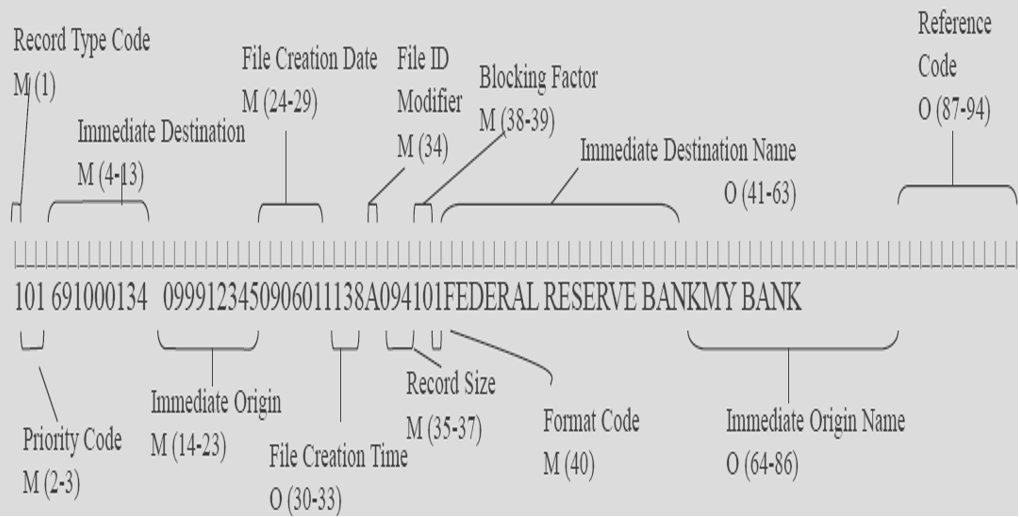
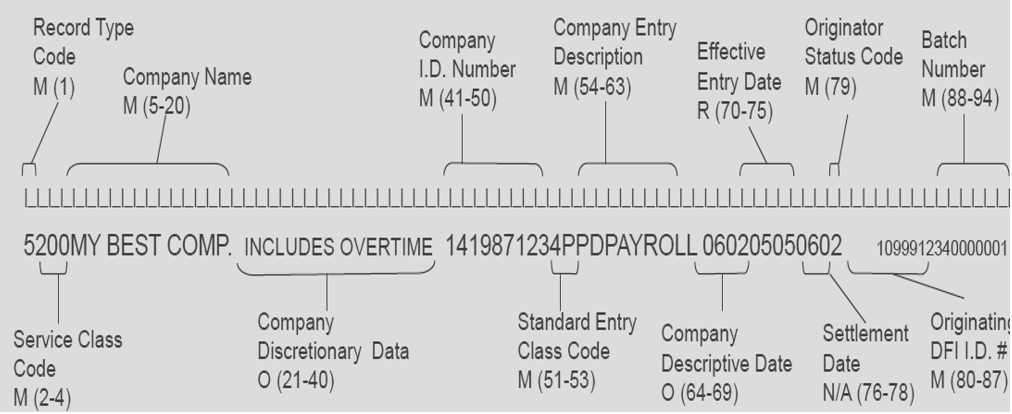
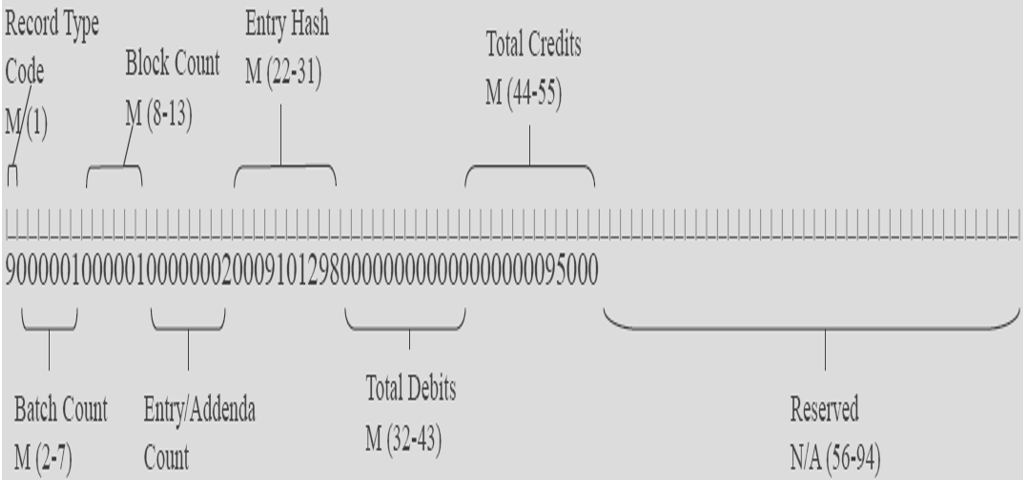
It’s important for Functional consultant to understand the NACHA formatting to evaluate what exactly AX has generated in the export file.
ACH format contains the sequence of records as below,
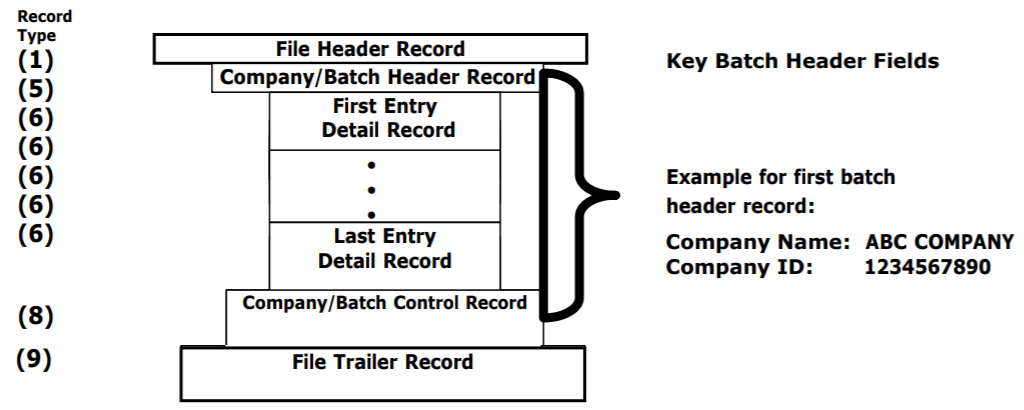
File Header Record (RECORD TYPE -1 ):
Company Batch Header Record ( RECORD TYPE -5):
Detail Record – CCD ( RECORD TYPE -6):

Batch Control Header Record ( RECORD TYPE – 8):

File Control Records (RECORD TYPE -9):
References:
ACH Setup in AX:
https://technet.microsoft.com/en-us/library/hh242149.aspx
ACH Formatting:
Best Regards,
Namith
Disclaimer:
This is a personal blog. Any views or opinions represented in this blog are personal and belong solely to the blog owner and do not represent those of people, institutions or organizations that the owner may or may not be associated with in professional or personal capacity, unless explicitly stated. All content provided on this blog is for informational purposes only. This blog makes no representations as to the accuracy or completeness of any information on this site.


 Namith Hosmane's Blog
Leave a reply to JacksNZ Cancel reply