
In this blog, I would like to discuss how effectively BPM tool in LCS can be used to make the functional consultant job easier and be more productive, efficient and transparent during pre and post implementation engagements with the Customers.
We have read and learnt about ‘Life Cycle Services’ in various blogs and sessions by Microsoft themselves, let me give brief overview of LCS and talk more about the Business Process Modeler tool in LCS.
Overview:
Life cycle services is a cloud based platform to consume, implement and operate AX. LCS provide features which can be used by Project managers, Consultants, Developers, Analysts, Architects, IT Administrator during Pre-sales, upgrades, implementation and post implementations.
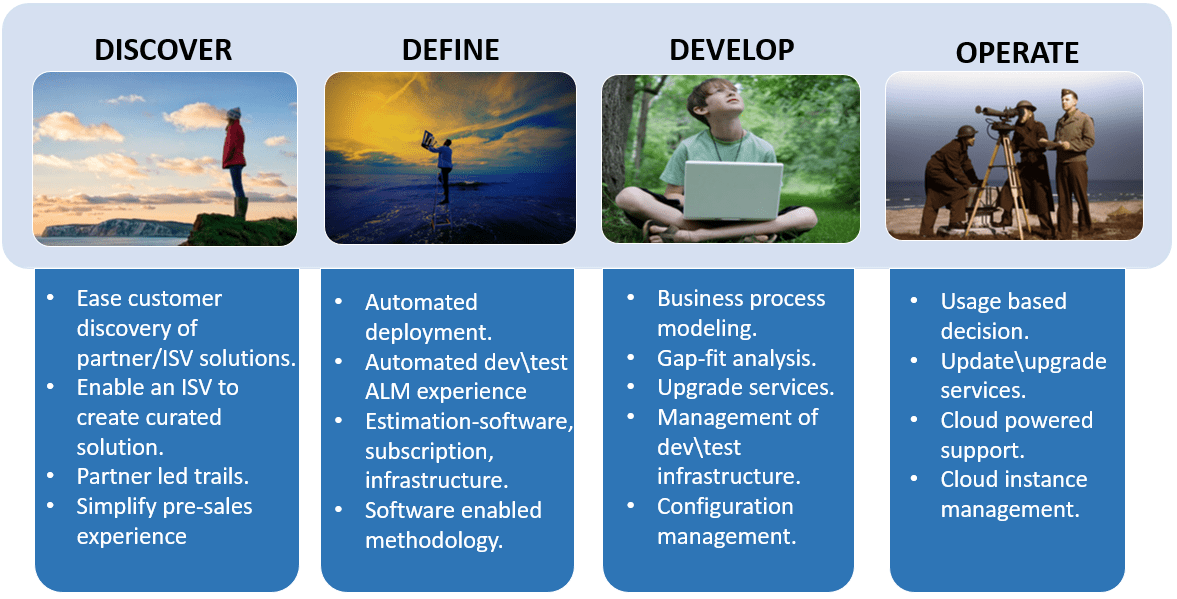
Click here to know more about the Life Cycle Services for ‘Microsoft Dynamics 365 for Operations ’.
Let me talk to more about Business Process Modeler(BPM) tool which can be used by Functional consultants in Life Cycle Services,
Business Process modeler: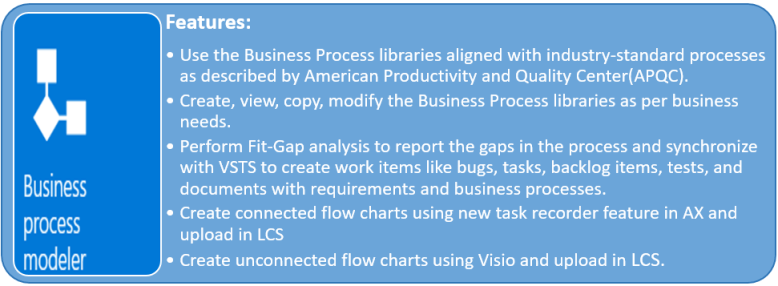
Business Process Libraries:
Below are the options in Business Process library where we can view and copy, modify business process and export the information.
| Options | Description |
| Global Libraries | Global libraries are those standard business processes from Microsoft as per the American Productivity and Quality Center.
These business process can viewed and copied to My libraries, further can be modified as per the business needs. |
| Corporate Libraries | Corporate libraries are those business process which are shared with the Project team members in the organization to view and modify. |
| My libraries | My libraries is place where the standard business process can be copied from Global libraries to modify and even create new business process node using the task recorder in AX. |
Use Global libraries and My libraries to setup business process model
Below screenshot shows the Business process Library screen in LCS:
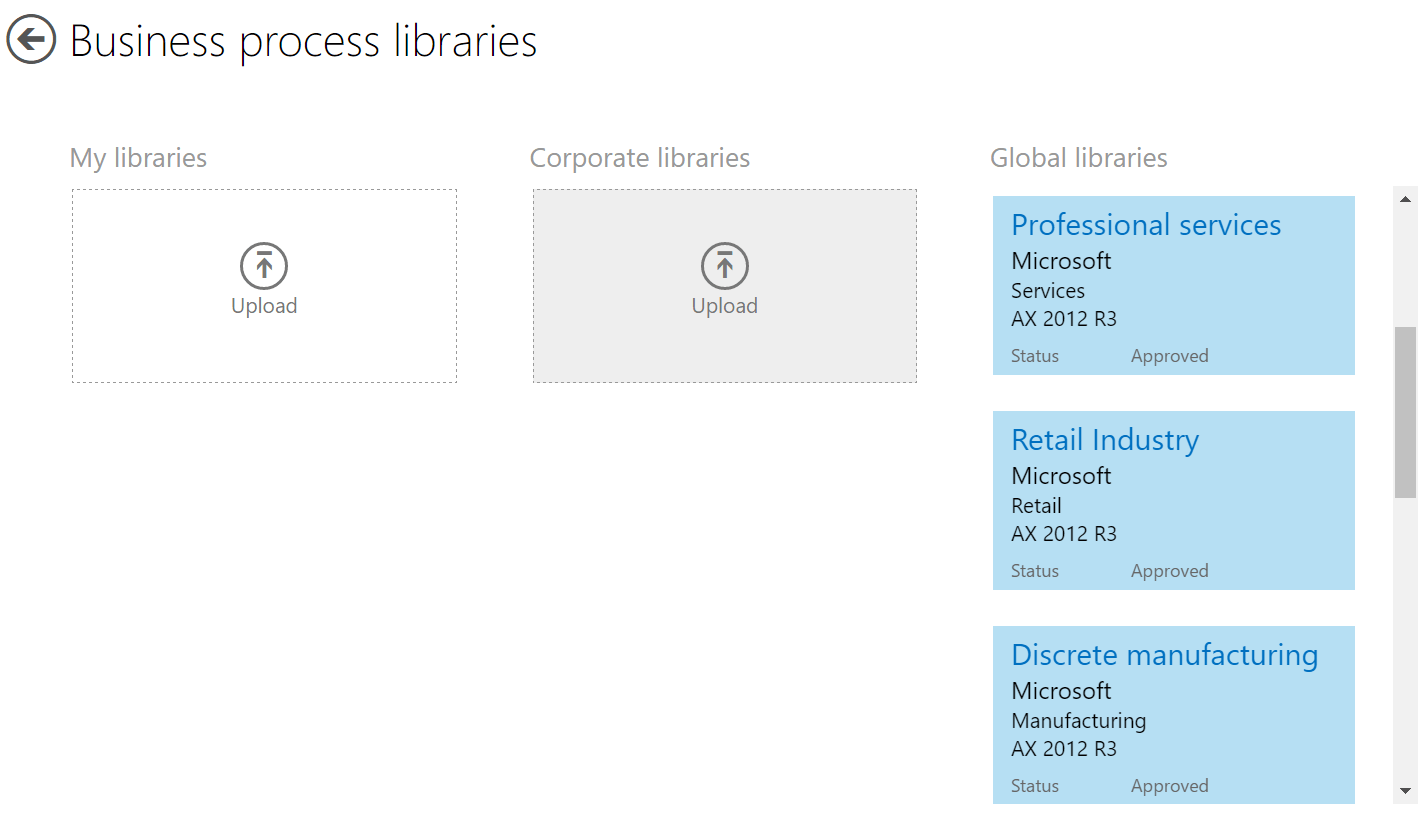
To copy standard business process, right click on the process from Global libraries and we can see the copy option in the app bar

Once business process is copied it will be available in My Libraries section
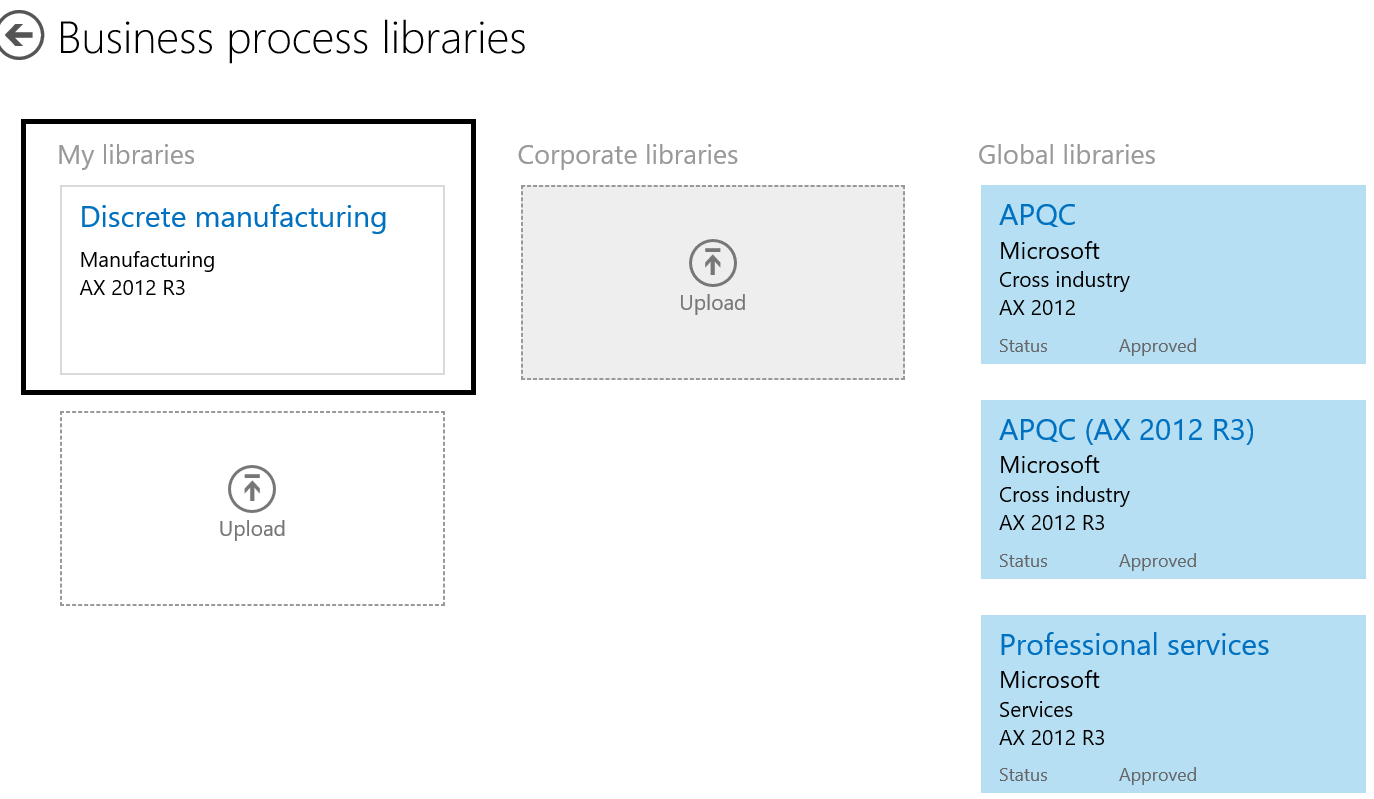
To modify this process as per the business needs, click on the Discrete Manufacturing process in My libraries and select the core business process to be modified
Add new activity in the flowchart and AX tracks these activities in the business process as Gap.
In this example I added the new activity of ‘Sending email’ after the test and execution of Product configuration model activity

Gap analysis and Synchronization with VSTS
We can then generate the Gap analysis list of the model to analyze the Gap in the process. Right click on the flowchart and Gap icon will available on the app bar
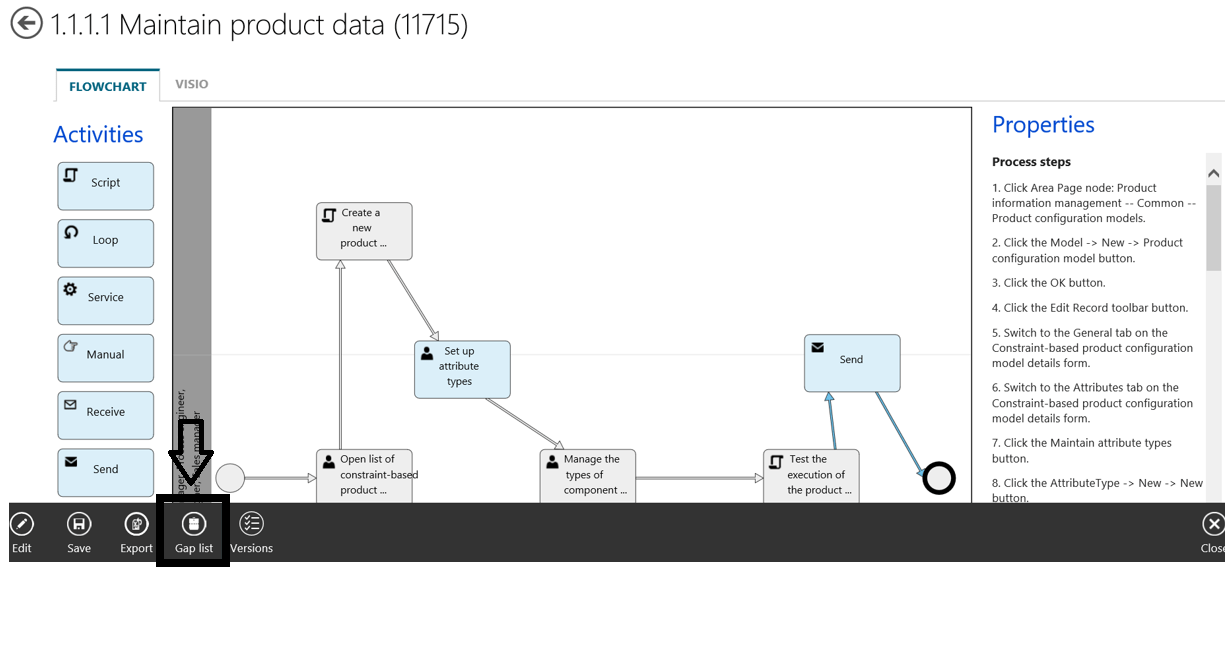 After click on the Gap list icon, Gap analysis window will be opened to list all the gaps in the core business process and these gaps can be exported to comma-separated file and then can be imported to Visual Studio Team Foundation Server to create work items.
For more information to Set up Visual Studio Team Services.

Flowcharts in Business process modeler
Business Process Modeler also supports to create and upload flowcharts in LCS,
Connected flowcharts
Connected flowcharts can be created and uploaded using the task recorder or can be copied from another library as shown above.
To create connected flow charts based on the task recorder and upload to business process modeler please follow the steps below,
- On the Business process modeler screen , go to My libraries section
- Click on Upload option to import the task recorder into BPM

Update all the necessary information and click on the upload option to select the task recorder file from the folder options.

Unconnected flowcharts
Unconnected flowcharts are those business process which are captured outside AX in the form of Visio and can be imported to business process modeler. Unconnected flowcharts can be very helpful for describing high-level business processes
To upload Visio files to BPM,
Click on the Discrete Manufacturing process in My libraries and select the ‘Develop and implement manufacturing’ of the library node to upload an unconnected flowchart.
On the Visio tab, click on the upload option
 Publish Business process model
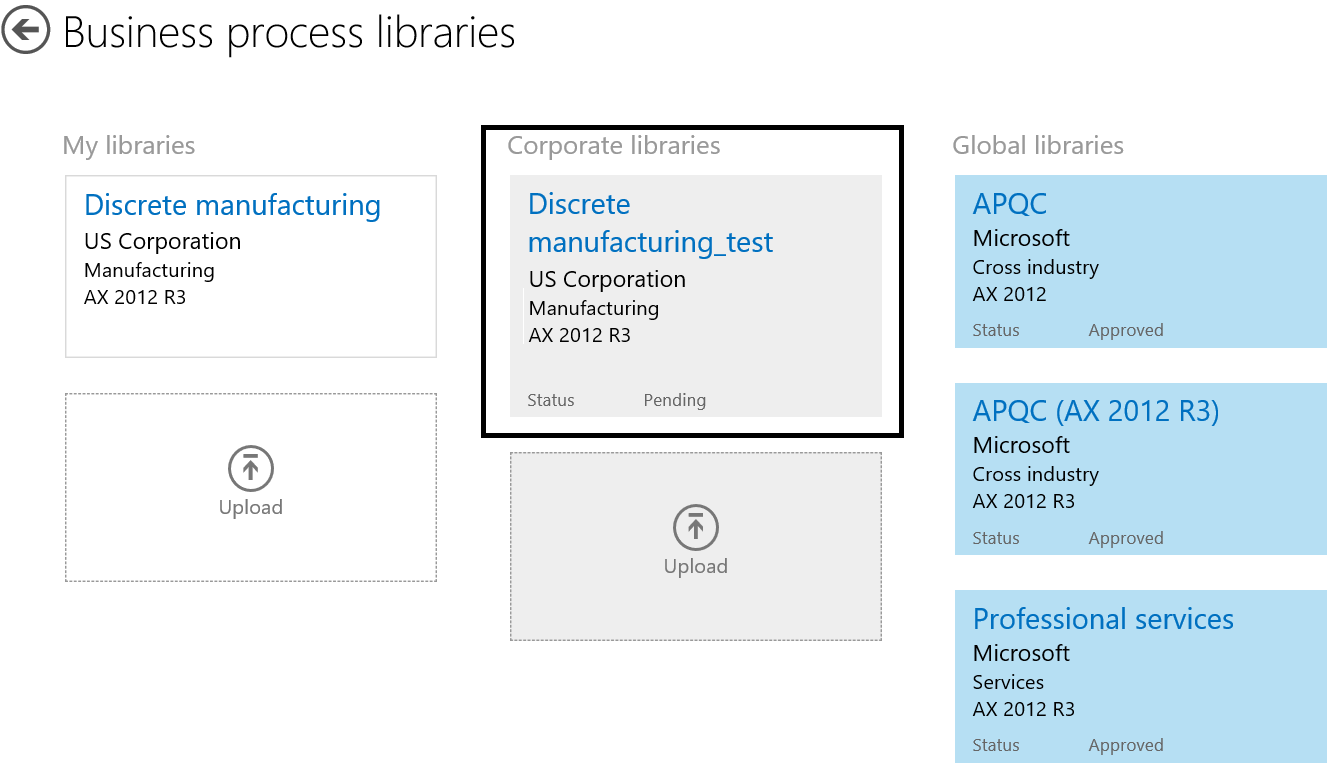
Once the business process is finalized and approved, model can be published. This will make the library available to all users that are part of your organization, this means any user with Organization account will have access to view the model.
 Once the library is published, it will be available in Corporate libraries section for approval
References:
| SI NO | TOPICS | SOURCES |
| 1 | Microsoft Dynamics Lifecycle Services User Guide | https://ax.help.dynamics.com/en/wiki/lifecycle-services-for-microsoft-dynamics-user-guide-lcs/ |
| 2 | Business process modeler experience in LCS | https://blogs.msdn.microsoft.com/lcs/2017/02/01/business-process-modeler-bpm-experience-in-lcs/ |
| 3 | Business process libraries in Business process modeler | https://ax.help.dynamics.com/en/wiki/business-process-libraries-in-business-process-modeler/ |
| 4 | Business process modeler (Lifecycle Services, LCS) | https://ax.help.dynamics.com/en/wiki/business-process-modeler-lifecycle-services-lcs/ |
| 5 | Flowcharts in Business process modeler | https://ax.help.dynamics.com/en/wiki/flowcharts-in-business-process-modeler/ |
Best Regards,
Namith Hosmane
Disclaimer:
This is a personal blog. Any views or opinions represented in this blog are personal and belong solely to the blog owner and do not represent those of people, institutions or organizations that the owner may or may not be associated with in professional or personal capacity, unless explicitly stated. All content provided on this blog is for informational purposes only. This blog makes no representations as to the accuracy or completeness of any information on this site.


Leave a Reply