• A Last Mile Solution for AP Invoice automation

    The accounts payable process begins when the invoice is received by the AP department. Invoices can arrive through many different methods, including electronically through email, fax, snail mail, inter-office deliveries, or maybe a colleague dropping paperwork in an inbox or on AP clerk desk. When AP processes are not centralized, handling and processing each new invoice is essentially an ad hoc adventure.

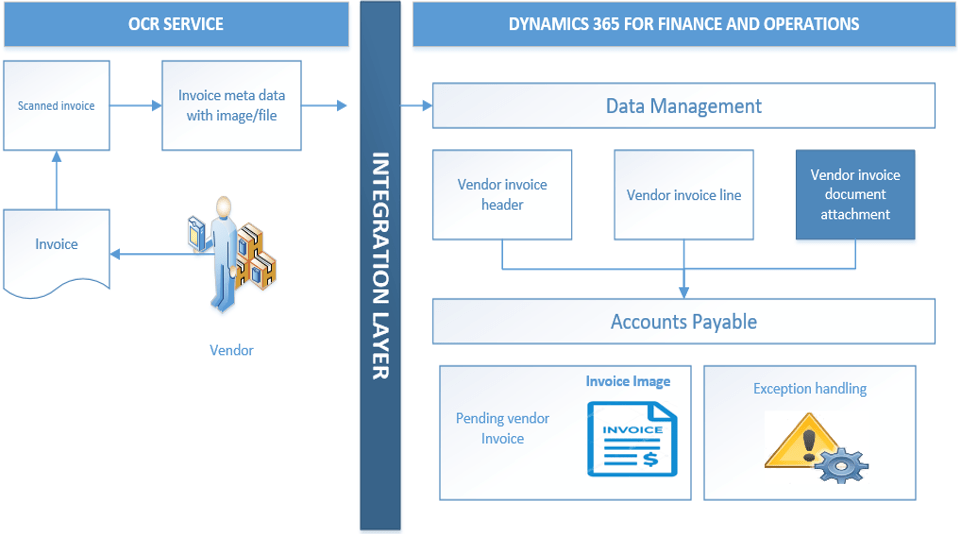
    Microsoft Dynamics 365 for Finance and Operations now enables “last mile” automation out of the box with an ability to import and store invoice images in vendor invoice source document.

    You can now use the third-party optical character recognition (OCR) service provider to scan and seamlessly integrate with Microsoft dynamics 365 for finance and operation to automatically create vendor invoice with the side-by-side attachment viewer functionality.

    This blog focuses on the three key components of Vendor invoice automation solution,

    • Data entities and data package
    • Side-by side attachment viewer
    • Exception handling for invoices.

    VIA_01

    Data Entities and Data Package

    Data entities and data packages are part of Data management framework (Please click here to know more about DMF). What is important for vendor invoice automation is to create and use the data package which consists of header, lines and invoice attachments data entities.

    Vendor Invoice document attachment is a new data entity introduced as part of this feature. Vendor invoice header entity has been enhanced to support document attachment functionality.

    Now let’s look at the example of how this feature works.

    • Create a sample pending vendor invoice with attachment
    • Then go to System administration > Data management work space
    • Create and export project which consists of Vendor invoice header, Vendor invoice lines and Vendor invoice document attachment entity
    • Export the data and download the package.

    VIA_02.PNG

    Export files will be used as a template for the import process, this helps to get all the relevant fields and ensures the correct format.

    For vendor invoice header and vendor invoice line fill in the required data for upload process. Please note header reference is unique id to link the Invoice line and document attachment entity to invoice header.

    Please see below for the important fields to be considered for Vendor Invoice document attachment entity during the import process,

    SI No Field Name Description Values(Sample)
    1 DocumentID The GUID generated from the source system for the document {DEAEA25B-61A9-45B5-8C85-7778BFF1FA40}
    2 DefaultAttachment To display the attachment side by side in the vendor invoice form. Yes
    3 FileName Name of the file without extension InvoiceSample3
    4 FileType Specify the file extension png
    5 HeaderReference Header reference is a unique id which links the invoice document attachment to the invoice header 014597
    7 TypeID Specify the type of attachment (E.g.: File, Image, Note, URL) Image
    8 FileContentsFileName Full name of the file with extension InvoiceSample3.png

    Now it’s important to understand where the Invoice image or the Invoice file to be placed. From the export package you would notice the folder Resources > Vendor Invoice document attachment. Similarly create one for import process.

    VIA_03.PNG

    Please note that the import file structure should be same as export structure, select all the import files and compress into zip file,

    **The zipped import file will be generally provided by the source system or through the OCR service to Dynamics 365 for finance and operations**

    VIA_04.PNG

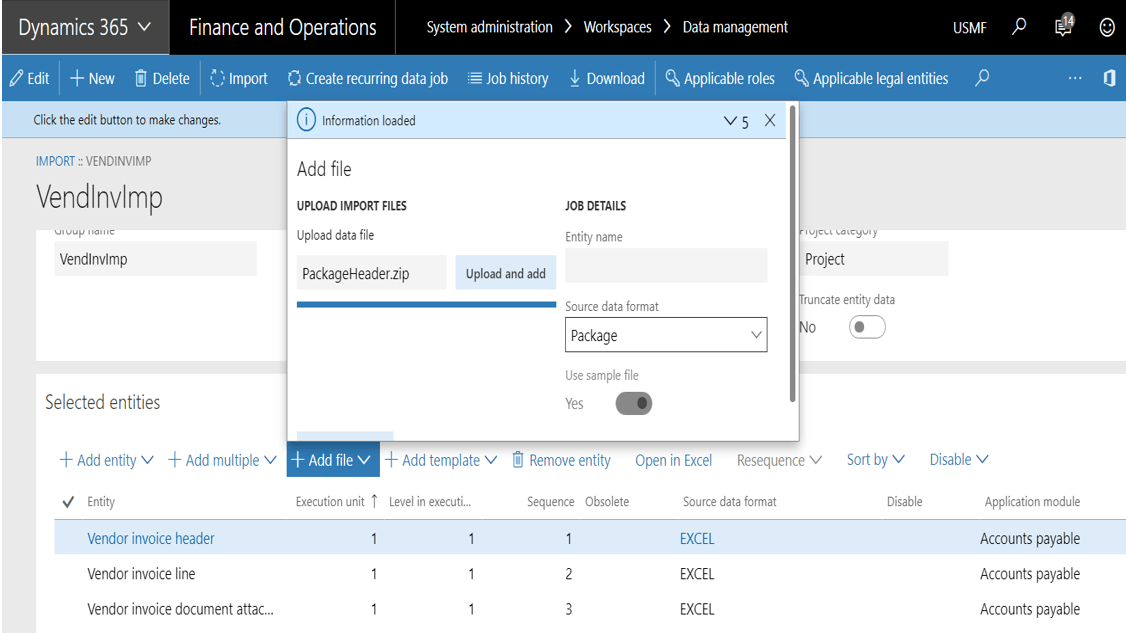
    System administration > Data management work space

    Create an import project and from the Enhanced view, click on Add file

    • Select source data format as ‘Package’
    • Click on upload and add, select the zipped file contains the import data
    • Note the entities gets added automatically and then follow the normal import process.
    VIA_05.PNG

    Side-by side attachment viewer

    Once the invoice is loaded through the data management, the invoice image can be viewed from the pending vendor invoice page side by side for easy reference, this will help the Accounts payable personnel to verify and process the invoice quickly.

    Here is the main functionality that the attachment viewer provides:

    • View all attachment types that Document management supports (files, images, URLs, and notes).
    • View multi-page TIFF files.
    • Perform the following actions on image files:
      • Highlight parts of the image.
      • Block parts of the image.
      • Add annotations to the image.
      • Zoom in and out on the image.
      • Pan the image.
      • Undo and redo actions.
      • Fit the image to size.

    VIA_06.PNG

    Exception handling for invoices

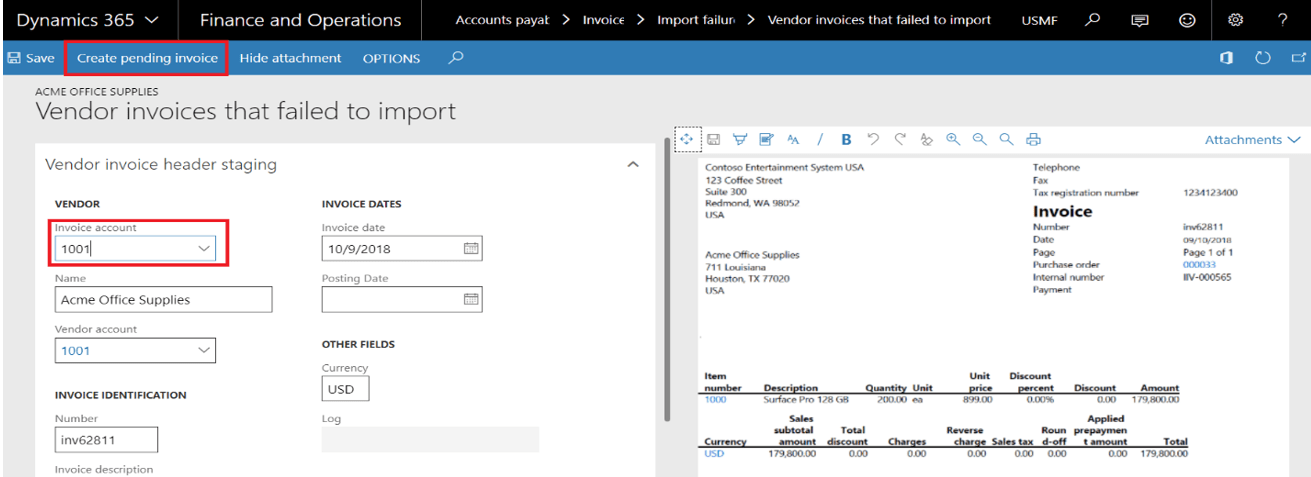
    There could be many scenario’s when scanned invoice from the OCR fails to load into Dynamics 365 for finance and operation. New list page has been added with user friendly option targeting the functional users. This will help to handle the exception and ease the process to rectify the errors and create pending vendor invoice by an Accounts payable personnel himself.

    Accounts payable > Invoices > Import failures > Vendor invoices that failed to import.

    This page shows all the error records from vendor invoice header from the staging table of the Vendor invoice header data entity.

    Verify from the below screen that there is error during the import due to incorrect Invoice account from the source data,
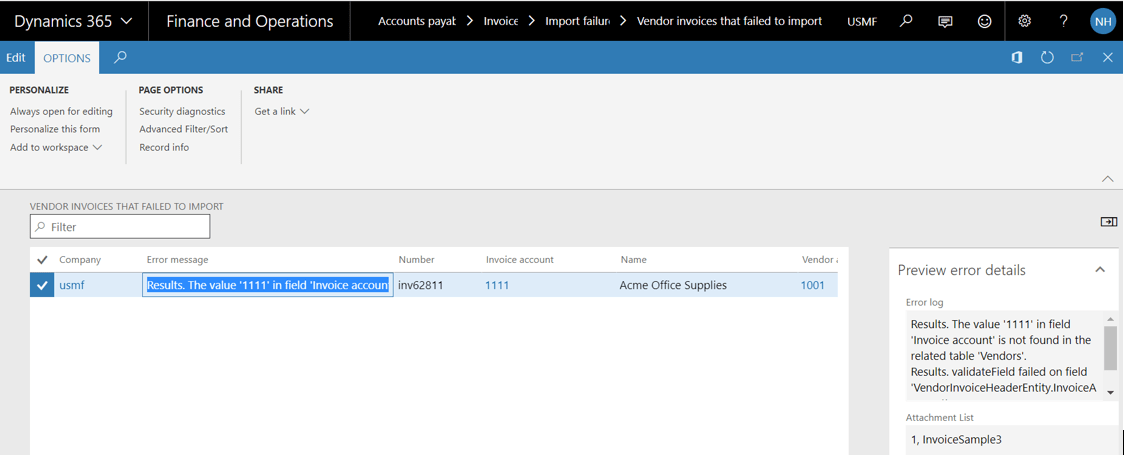
    VIA_07

    Now accounts payable personnel can click on edit and easily rectify the error and create pending vendor invoice directly from this screen. Note the invoice and the default attachment appear side by side on the exception details page

    This makes invoice processing much faster by handling all the exceptions on a single list page.
    VIA_08

    Disclaimer:
    This is a personal blog. Any views or opinions represented in this blog are personal and belong solely to the blog owner and do not represent those of people, institutions or organizations that the owner may or may not be associated with in professional or personal capacity, unless explicitly stated. All content provided on this blog is for informational purposes only. This blog makes no representations as to the accuracy or completeness of any information on this site.

  • Power automate creating your recurring journals

    Introduction:

    We all know how Microsoft flow has been popular with its ability to automate business processes through trigger and action based system.

    In this blog, I will talk about how Microsoft flow can be used to create recurring journals in Dynamics 365 fin & ops, and send email to relevant stakeholders for review, approval and posting.

    MS Flow Rec Jrnl

    Let me explain each step in detail I configured for this Microsoft flow.

    Schedule:

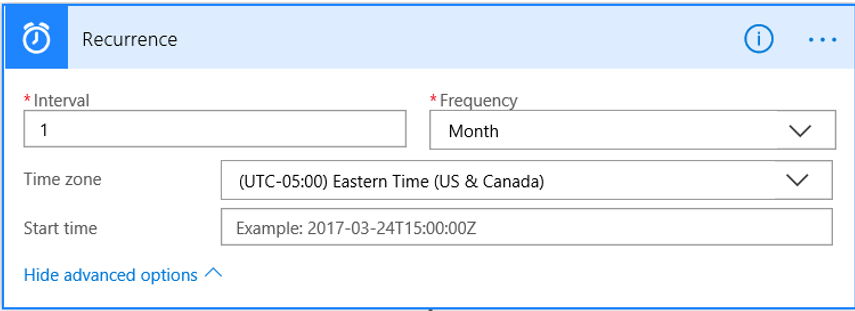
    This is the trigger step to start the process, schedule can be used set up the recurrence for the flow.

    The flow is setup with frequency to run once in every month. We can also setup start date and the time zone in which flow has to run.

    MS Flow Rec Jrnl_01

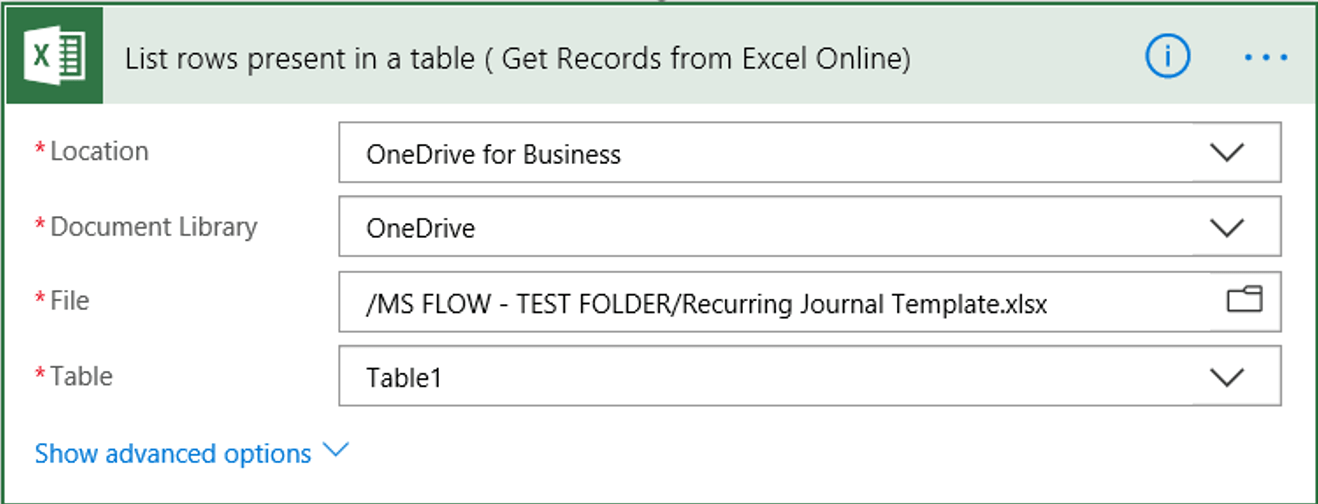
    List rows present in the table

    Add new action to get rows from excel online to create journal header and lines in further actions.

    Specify the location, document library, file path and the Table from which the data needs to pulled from the excel online.

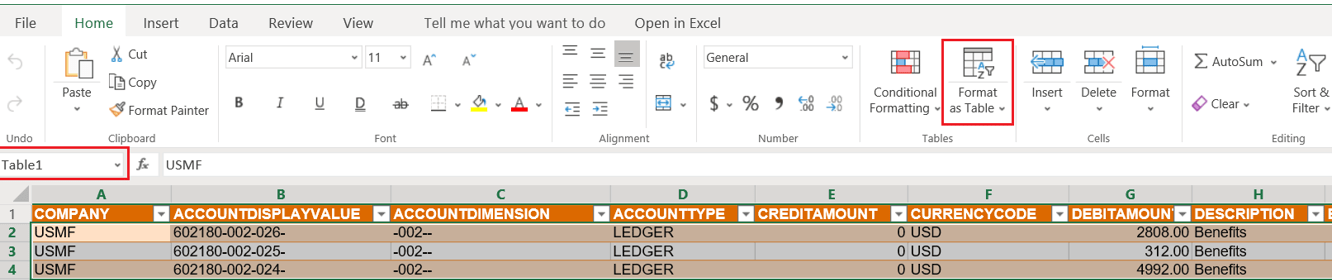
    Important note: The data has to be formatted as table in excel online file to get the rows in MS flow.MS Flow Rec Jrnl_02Once the data is converted as table, use the table name to specify in MS flow,

    MS Flow Rec Jrnl_03

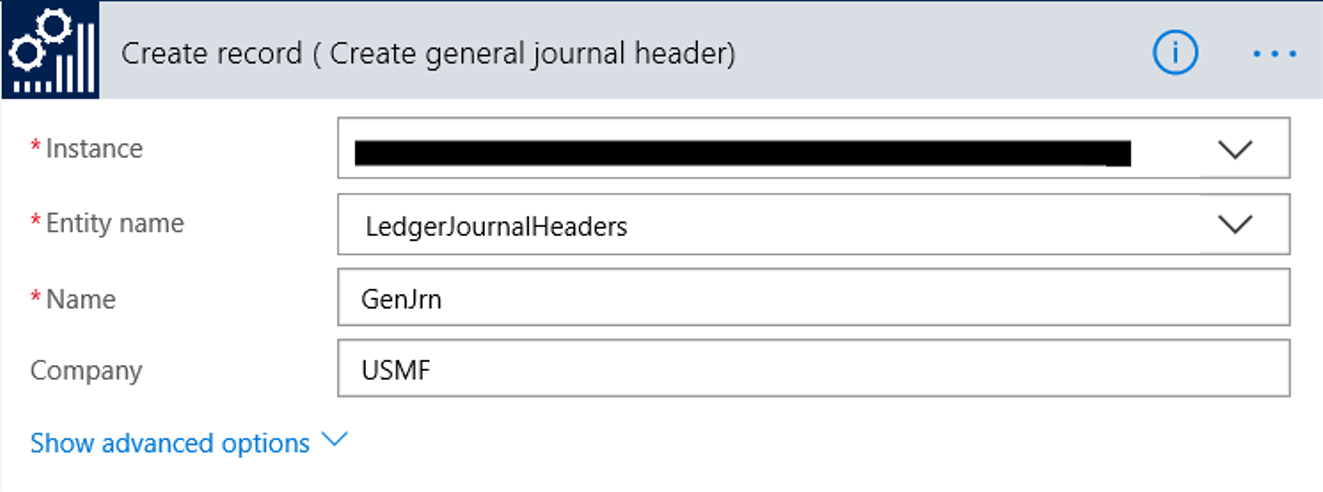
    Create record (To create General journal header):

    Add new action to create header record in Dynamics 365 Fin & Ops.

    Specify the instance name, Entity name ‘LedgerJournalHeaders’, Journal name and legal entity to which the journal header should be created.

    MS Flow Rec Jrnl_04.PNG

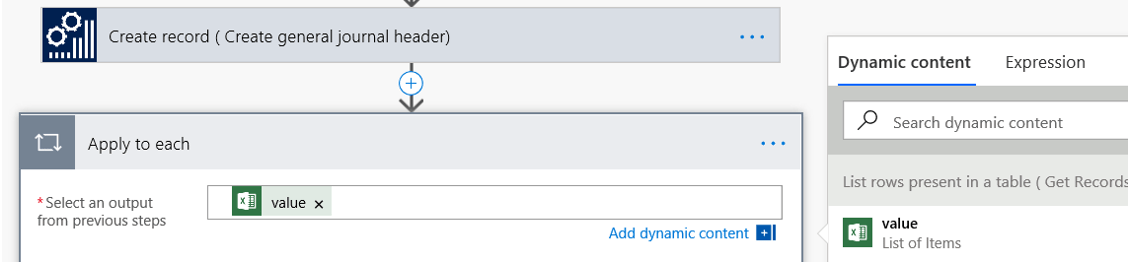
    Apply To Each And Compose Actions:

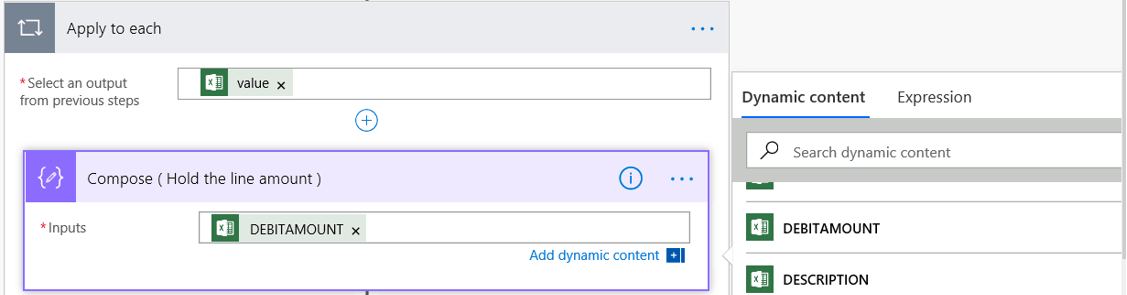
    Use the ‘Apply to each’ action control to use the values from previous actions dynamically.

    On the Dynamic content bar, select ‘value’ to retrieve the all the values used in excel online.

    MS Flow Rec Jrnl_05

    Then add compose action and use the dynamic content to hold the Debit amount from excel online

    MS Flow Rec Jrnl_06.PNG

    Add one more compose action and an expression to convert the debit amount to float, this step is mandatory to convert the amount into acceptable decimal values in Dynamics 365 Fin & Ops.

    float (outputs(‘Compose_(_Hold_the_line_amount_)’))

    Note: There are more expressions to convert the amount fields into acceptable decimal values with one digit or two digits.

    MS Flow Rec Jrnl_07.PNG

    Create record (To create general journal lines):

    Add an action to create general journal lines records in Dynamics 365 Fin & Ops.

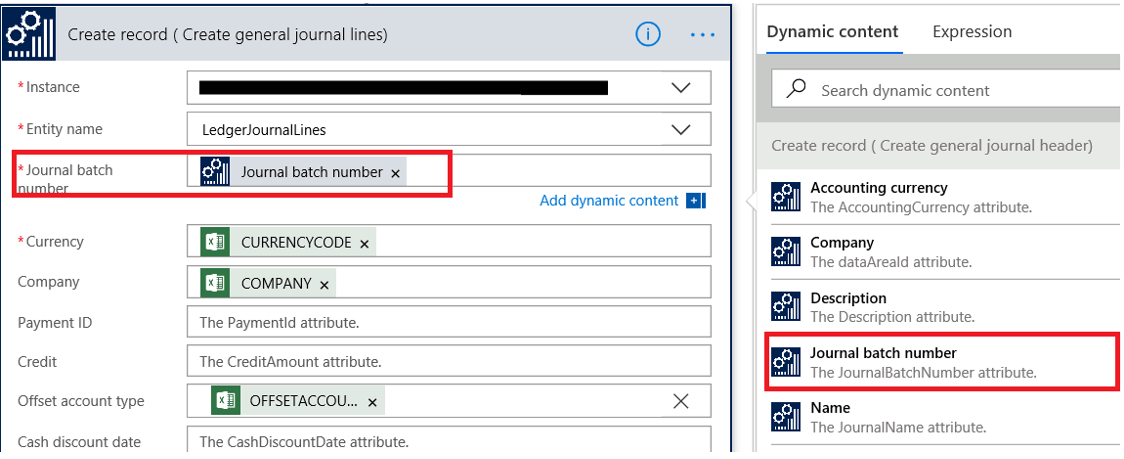
    Specify the instance name and entity name ‘LedgerJournalLines’. Use the dynamic content option and map the fields from excel online to fields in entity.

    Here are the key fields to be mapped apart from excel online dynamic content

    Journal batch number: From create general ledger header actionMS Flow Rec Jrnl_08

    Debit amount: From compose action (converted to float).

    MS Flow Rec Jrnl_09

    Send email (Office 365 outlook):

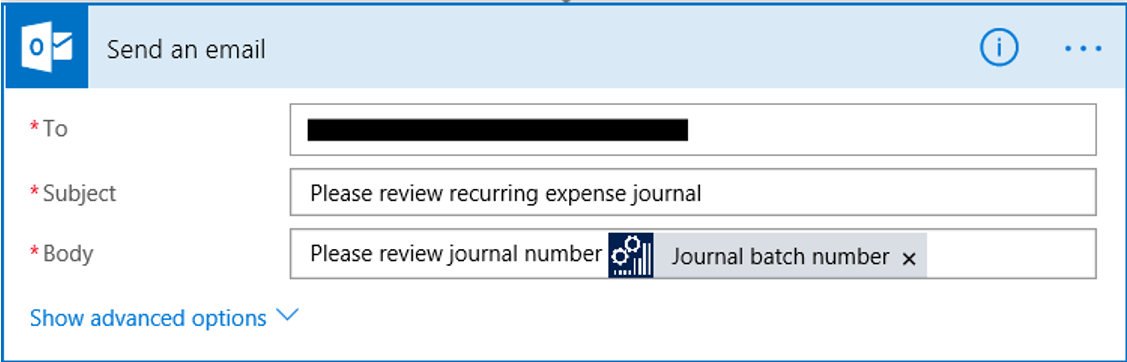
    Specify the email address, subject and body of the email, use the dynamic content in a subject or email body if required.

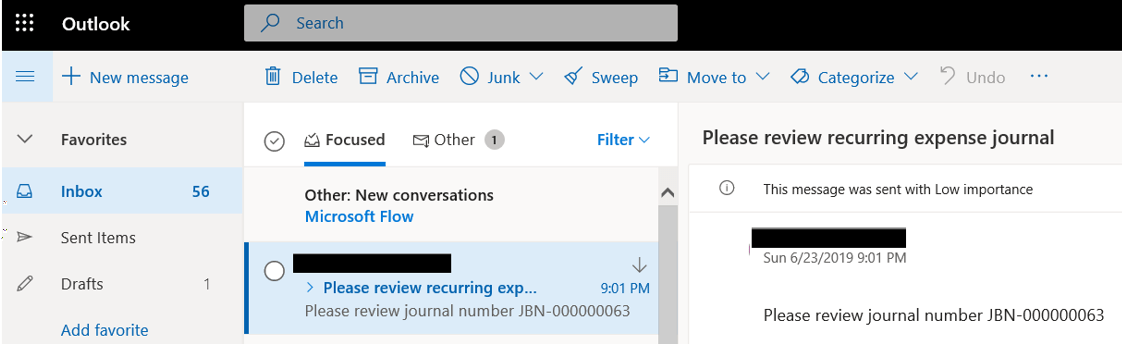
    Journal batch number is used as an dynamic content in this flow, this helps the recipient to review and approve the appropriate journal created in Dynamics 365 fin & ops.

    MS Flow Rec Jrnl_10.PNG

    Run the Flow:

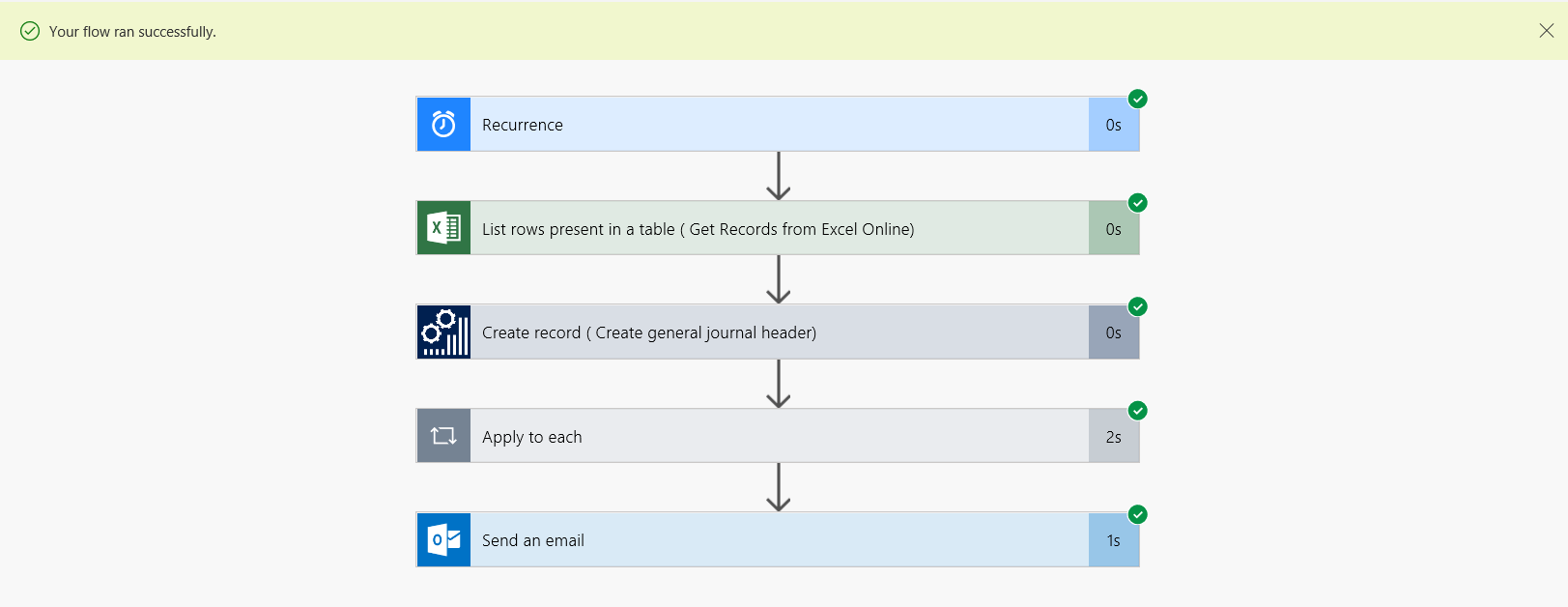
    Now let’s test the flow and see the resultsMS Flow Rec Jrnl_11.PNG

    Recipients will get the email once the flow is executed successfully,MS Flow Rec Jrnl_12.PNG

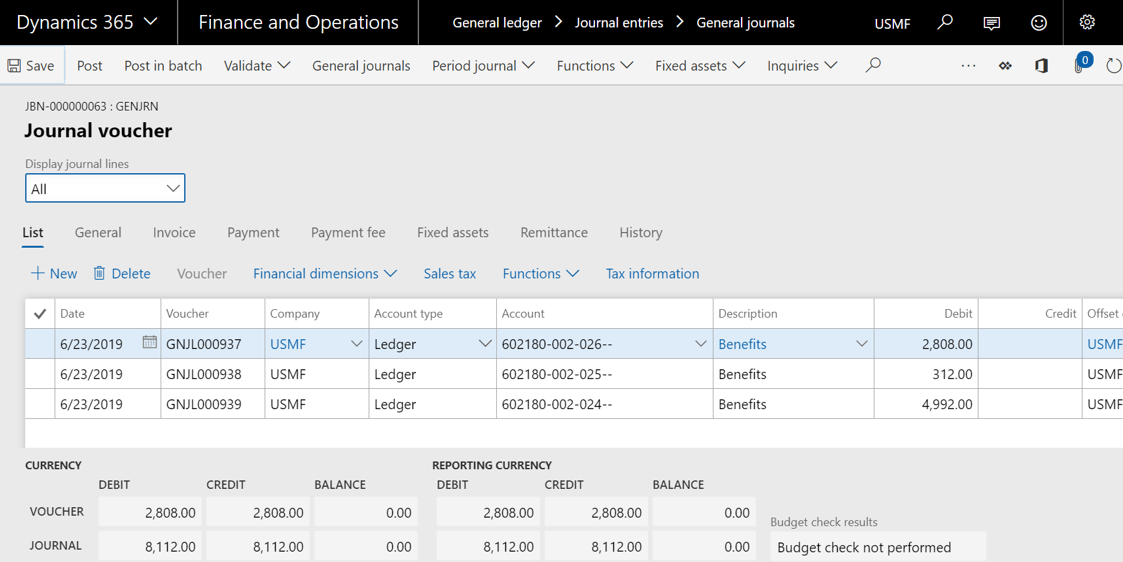
    Get into the Dynamics 365 fin & ops and review the journal lines are created correctly as provided the excel data.

    MS Flow Rec Jrnl_13

    Best Regards,

    Namith Hosmane

    Disclaimer:
    This is a personal blog. Any views or opinions represented in this blog are personal and belong solely to the blog owner and do not represent those of people, institutions or organizations that the owner may or may not be associated with in professional or personal capacity, unless explicitly stated. All content provided on this blog is for informational purposes only. This blog makes no representations as to the accuracy or completeness of any information on this site.
  • Best practices for Integration and Data migration using journal entities

    Lately I have been working on some of the challenging data migration activities and wanted to share my experience using data management module with “Journal” entities (when I say journal entity it is General journal, Payment journals, Fixed asset journal etc…).

    In this blog, I will highlight the best way to use journal entities for optimizing the data load and integration using these entities.

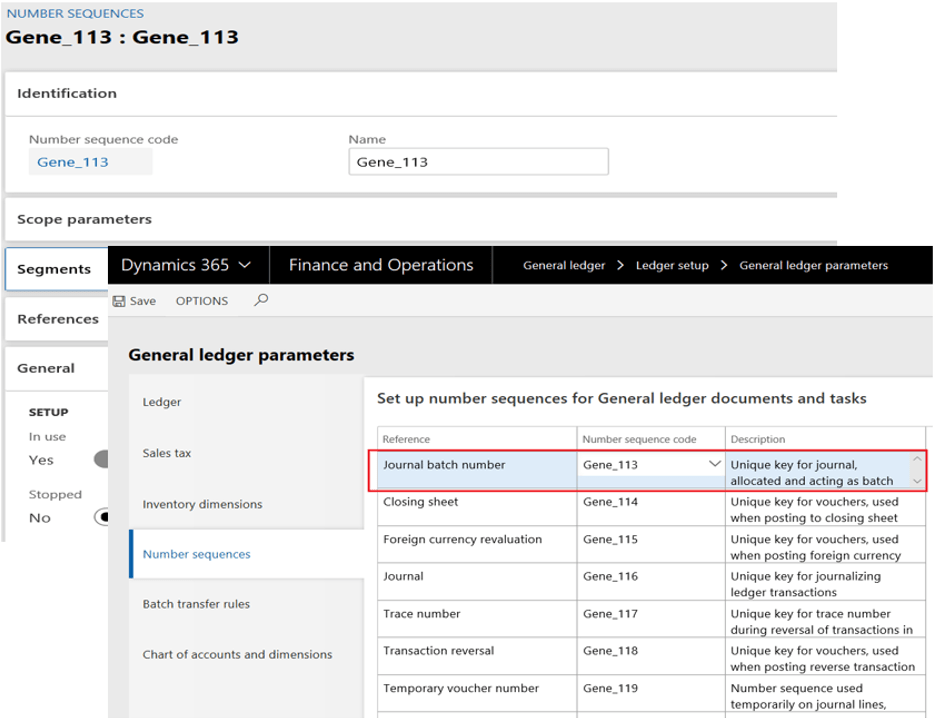
    #1: Setup number sequences for journal batch number:

    To import using the journal entities, number sequence for journal batch number must be setup and assigned in General ledger parameters. The import job will automatically allocate journal batch number.

    Note: The number sequence cannot be setup with ‘Manual’ option.

    Journal_Entity_01

    #2: Financial dimension configuration for integration applications:

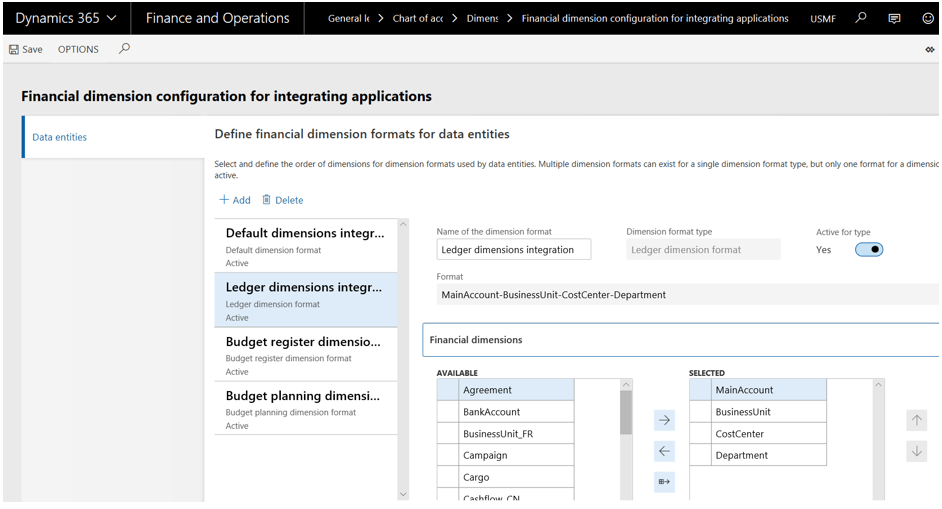
    In D365, financial dimension configuration is mandatory for integrating through data management and Excel.

    Configure ‘Ledger dimension format’ type for journal entries with account type ‘Ledger’ to define the order in which the segments of financial dimensions needs to be imported.

    Configure ‘Default dimension format’ type for journal entries with account type Vendor, Customer, and Fixed asset to define the order in which the segments of financial dimensions needs to be imported.

    General ledger > Chart of accounts > Dimensions > Financial dimension configuration for integrating applications

    Journal_Entity_02

    #3: Journal name setup:

    Setup the journal name with voucher series, journal type etc..

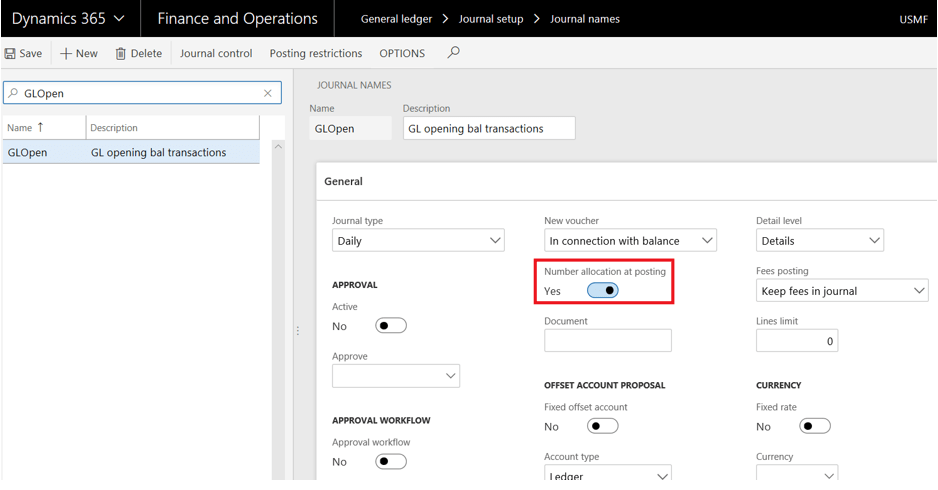
    The most important configuration to optimize the load process is by enabling the ‘Number allocation at posting’ check box. After the check box is enabled, the voucher number assigned in the journal lines are temporary. During the posting of the journal, actual voucher series from journal name setup will be used to replace the temporary number.

    General ledger > Journal setup > Journal names

    Journal_Entity_03

    #4: Import file considerations

    Below are the best practices to be considered in import file for successful migration, integration and optimization.

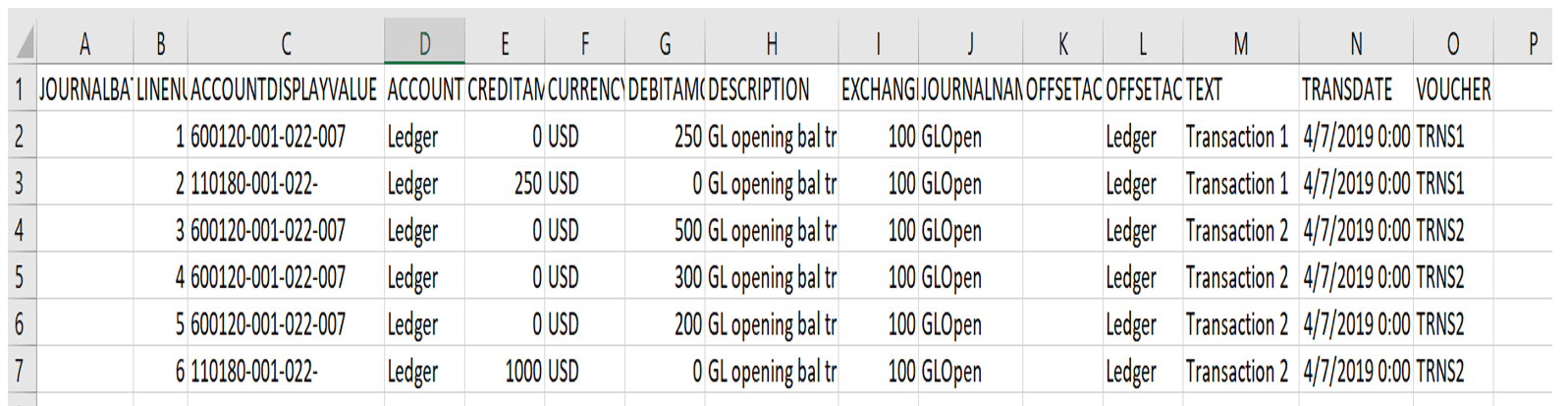
    • [Column A] Journal batch number to be empty; Dynamics 365 for Finance and Operations will automatically assign the new journal batch number using the number sequence assigned in GL parameters. System will create one journal for all lines in the file.
    • Note: If the journal need to be split, create empty journal first in D365 and assign the journal batch number in the import file, the journal lines will be imported in respective journals. This is not recommended for integration.
    • [Column B] Line number to follow sequence of numeric values for future analysis.
    • [Column C] Account value to follow the order of financial dimensions defined in the setup ‘financial dimension configuration for integration application’.
    • [Column H] Description field is mapped to journal header description, keep the same description for all the lines in a file; however, if the journals are split, different description can be used per journal.
    • [Column J] Journal name with ‘Number allocation at posting’ setup should be selected in each line.
    • [Column M] Text field is mapped to journal line description; the best practice is to assign different description per transaction for future analysis.
    • [Column O] Voucher number must be filed in a file. However, this number is temporary and will be overwritten during the posting of journal. The lines of the journal must be grouped correctly per transaction.
    • For example, as shown in screenshot below, Temporary number ‘TRNS1’ is assigned to first two lines and ‘TRNS2’ is assigned to last four lines in the file.

    Journal_Entity_04.PNG

    Note:  The best practices suggested above are on the common fields used in journal entities.

    #5: Import example

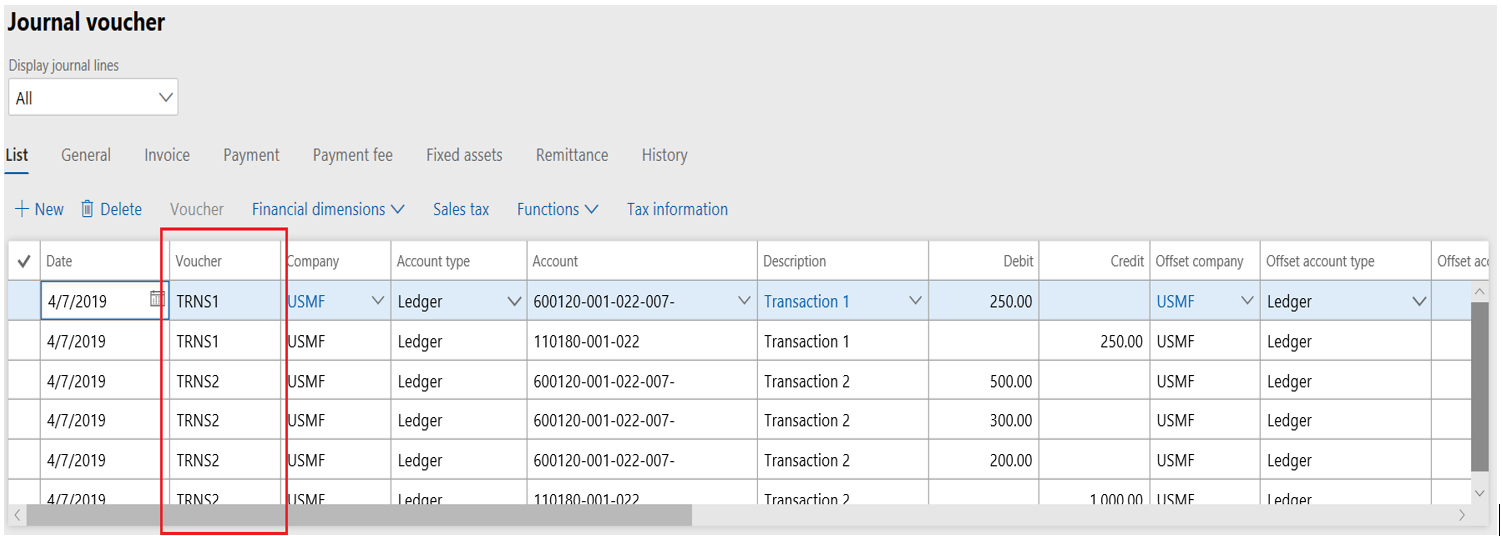
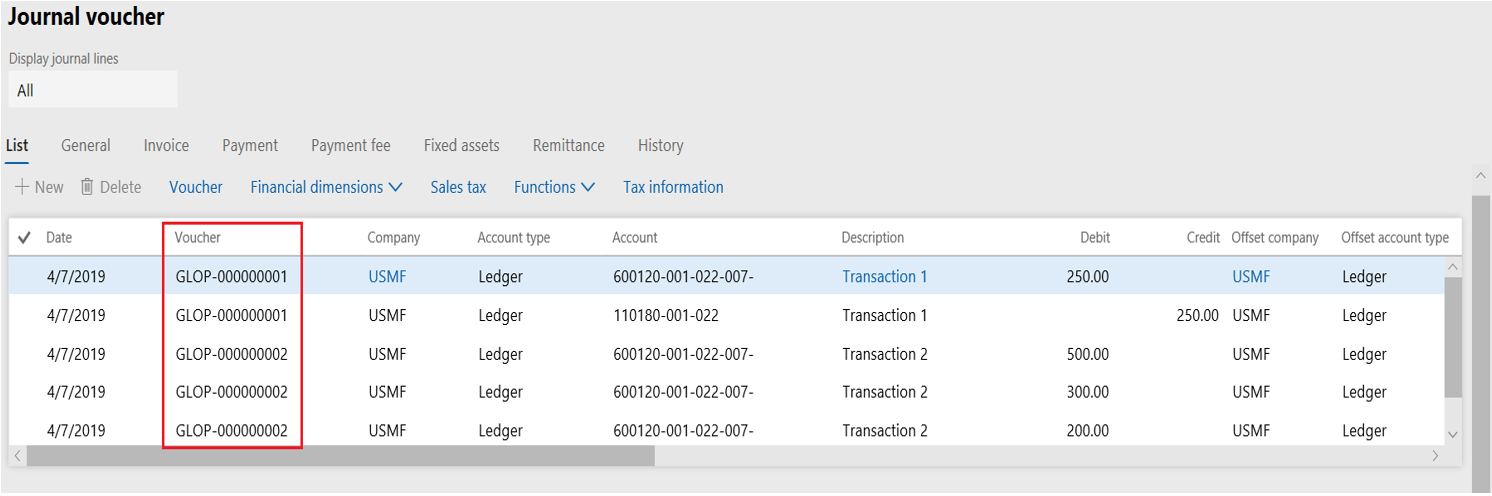
    From the setup defined above and considering the best practices in the import file, the results will be as follows,

    After import before posting the journal:

    Journal_Entity_05

    After posting the journal:

    Journal_Entity_06

    Thanks!

    Namith Hosmane

    Disclaimer:
    This is a personal blog. Any views or opinions represented in this blog are personal and belong solely to the blog owner and do not represent those of people, institutions or organizations that the owner may or may not be associated with in professional or personal capacity, unless explicitly stated. All content provided on this blog is for informational purposes only. This blog makes no representations as to the accuracy or completeness of any information on this site.
     

  • Tips and Tricks for AR and AP reconciliation

    Accounts receivable (AR) and Accounts payable (AP) reconciliation is apparently a vital step in the month\year end closing process. Auditors may trace transactions from a sub ledge to the general ledger and from there to the financial statements, to ensure that transactions are being recorded properly in the accounting system.

    This blog provides the tips and tricks to handle the AR and AP reconciliation during the month end process in Microsoft Dynamics 365 for finance and operations,

    TIP #1: Analyze and troubleshoot discrepancies through reconciliation reports

    If you see any discrepancy or difference between Trail balance and Aging reports, there are out of box reports in AR and AP module to provide the insight of variances between sub-ledger and ledger balance.

    These reports provide both summary and detail view of the customers\vendors transactions with differences. You can further drill down to the journal and voucher level to troubleshoot the root cause of the discrepancy.

    From Microsoft Dynamics 365 for finance and operations, the reports are moved to below path,

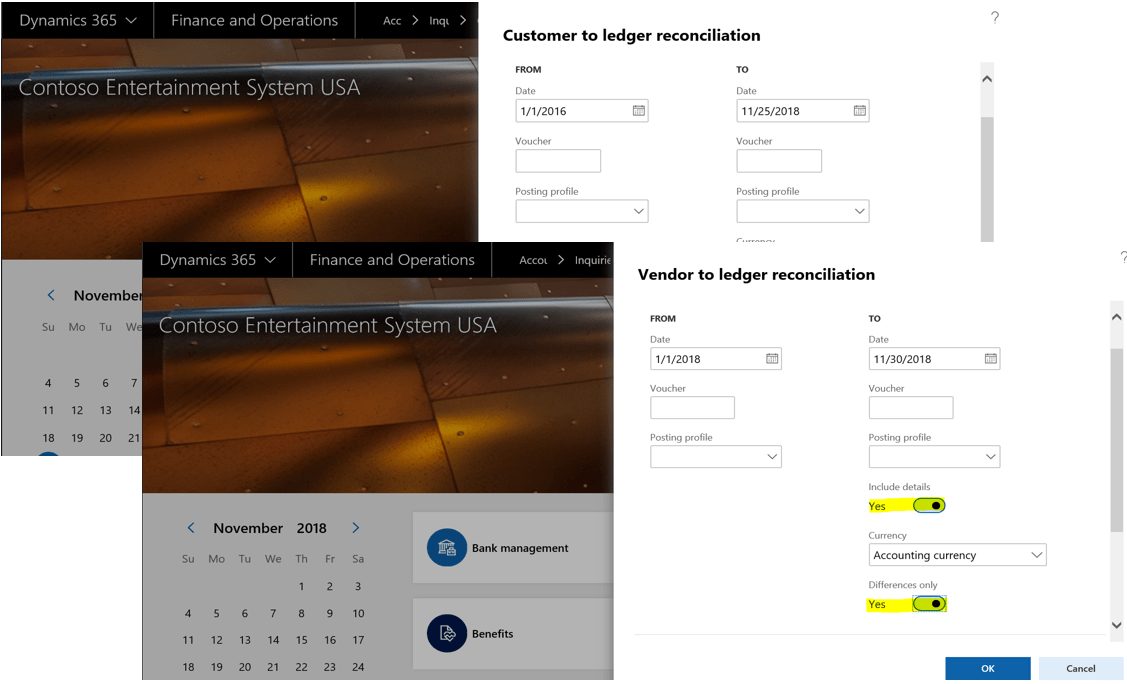
    Accounts receivable > Inquiries and reports > Customer > Customer to ledger reconciliation report

    &

    Accounts payable > Inquiries and reports > Vendors > Vendor to ledger reconciliation report

    ARAP_Recon_01.PNG

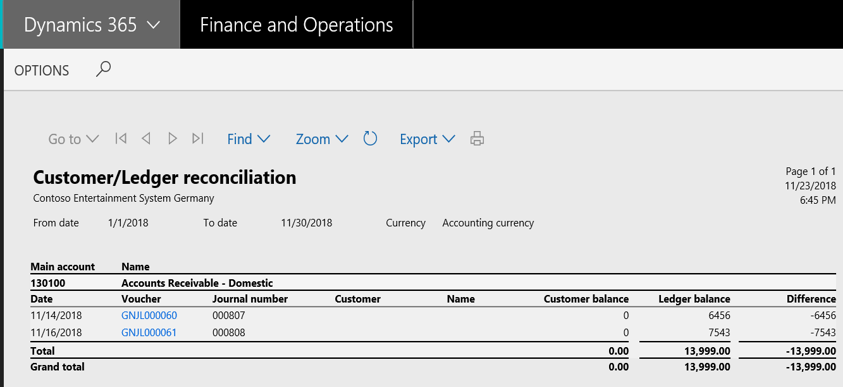
    Mark “Include details” and “Difference only” check box so the report will extract voucher and journal wise details for only differences. In this way it is easy to identify and troubleshoot the transaction which has caused the differences

    From the below example screenshot you would notice the journals which are directly posted to ledger causing the difference of 13,999 between customer balance and ledger balance

    ARAP_Recon_02

    TIP #2: Reconcile sub-ledger accounts and make use of balance list reports.

    In some scenario’s reconciliation reports may not help as the problem could be within sub-ledger. In such cases, generate customer/vendor balance list report and customer/vendor aging report to verify the balance within the sub-ledger accounts.

    The aging reports can be accessed from the path below,

    Vendors:

    Accounts payable > Inquiries and reports > Vendor aging report

    Customers:

    Credit and collections > Inquiries and reports > Customers > Customer aging report

    The balance list reports can be accessed from the path below,

    Vendors:

    Accounts payable > Inquiries and reports > Vendor reports > Vendor balance list

    Customers:

    Credit and collections > Inquiries and reports > Customers > Customer balance list report

    Note: For the demo purpose customer reports are used.

    From the below screenshot as you observe comparing the customer aging report with the customer balance report and trying to reconcile each customer account balance in summary.

    ARAP_Recon_03

    Identify the account which is causing the major difference and re-generate the customer aging report with the “Details” check box marked by filtering on a specific customer.

    The detailed report provides the transaction wise data for the filtered customer which will help to identify the actual transaction impacting the difference.

    ARAP_Recon_04

    On the other hand customer balance list report can be used to generate the report by main account and this is when “Include details” check box is marked in report dialog.

    This helps to identify the all ledger account used to post transactions for the particular customer account, if in case the summary accounts are changed for the customer in the posting profile, this report will give the clear view of all the GL accounts used to arrive at the customer balance.

    ARAP_Recon_05

    TIP #3: Understanding of Batch transfer rules

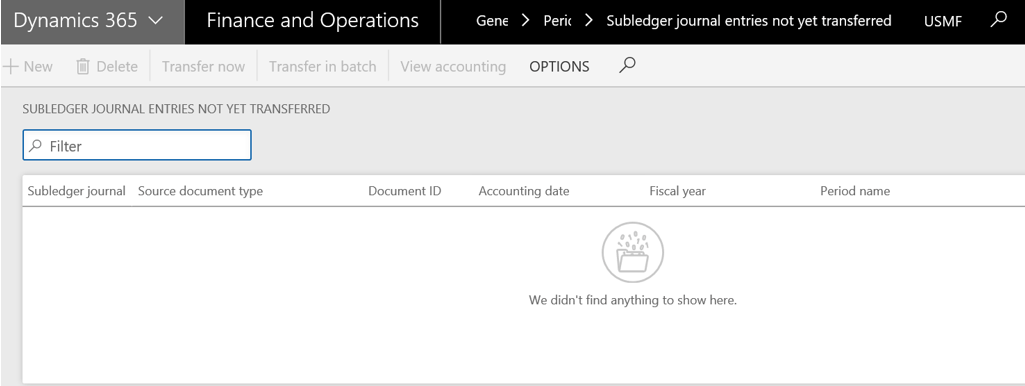
    Make sure there no transactions pending to be transferred from Sub ledger to general ledger and this can be observed from the ‘Sub ledger journal entries not yet transferred’ form in general ledger.

    General ledger > Periodic > ‘Sub ledger journal entries not yet transferred’

    ARAP_Recon_06

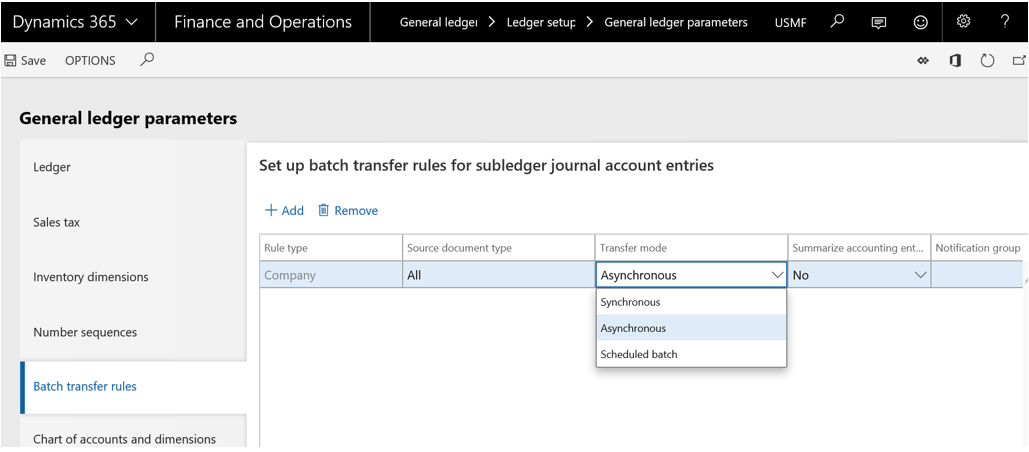
    If the records exists, the transaction can be transferred individually or through the batch from the above form. However, the batch transfer rules setup determines when the sub-ledger transactions needs to be transferred when sub-ledger postings occurs.

    It is recommended to use the Synchronous mode of transfer so the general ledger postings happen real time, however when volume of transactions is more it is recommended to setup Asynchronous (Processed when server resources are available) or Scheduled batch (Processed based on the recurrence of the batch schedule) for performance enhancement. It is necessary to monitor the sub ledger journal entries not yet transferred form and transfer balances before reconciling accounts.

    ARAP_Recon_07

    To avoid certain reconciliation issues in Microsoft Dynamics 365 for finance and operations follow the tricks below,

    Trick #1: Do not allow manual entry

    Make sure the control accounts of AR and AP (assigned to posting profile) are marked with “Do not allow manual entry” in the main account form

    This helps to prevent the postings to the control accounts directly and avoid differences between sub-ledger and general ledger balance.

    ARAP_Recon_08

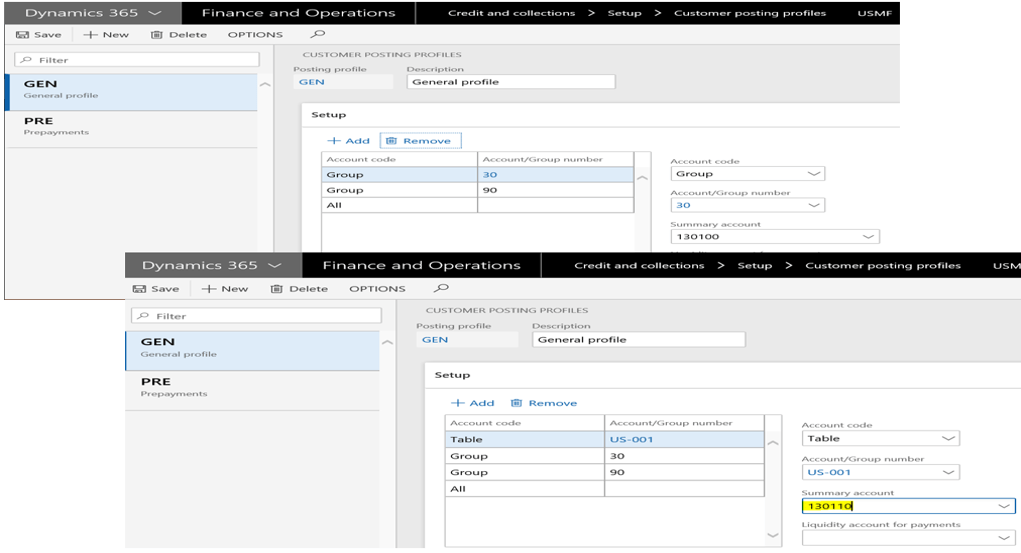
    Trick #2: Do not settle transactions with multiple posting profiles.

    Make sure when you are changing the summary account from posting profile there are no open transactions for particular customer or vendor.

    Let’s say, the customer US-002 is associated to group ‘30’ and posting profile is setup to post GL entries to account “130100”. At some point, business decided to track all GL entries separately for customer account ‘US-002’

    ARAP_Recon_09

    In this case, make sure there are no open transactions for the customer US-002 and it’s recommended to change posting profile at the start of new fiscal period and not in mid period as it might cause havoc during the month end closing process.

    ARAP_Recon_10

    I hope this helps who are struggling in fag end of every month closing process.

    Cheers,

    Namith Hosmane

    Disclaimer:
    This is a personal blog. Any views or opinions represented in this blog are personal and belong solely to the blog owner and do not represent those of people, institutions or organizations that the owner may or may not be associated with in professional or personal capacity, unless explicitly stated. All content provided on this blog is for informational purposes only. This blog makes no representations as to the accuracy or completeness of any information on this site.


  • Period closing made easy with fixed asset roll forward report.

    About Fixed asset roll forward report

    Fixed asset roll forward report is a schedule showing the opening balance, additions, write up\write downs, accumulated depreciation, transfers, disposal and ending balance for a given period.  Generally, the roll forward report is used for period close process to analyze the summarized information about the fixed asset movements. Such roll forwards are also used to prepare cash flow statements. In addition, financial statement auditors may use fixed asset roll forwards in their auditing procedures.

    The clients I worked and provided the POC(Proof of concept) on fixed asset module in Microsoft Dynamics AX were keen to know and understand how fixed asset roll forward report looks like in AX. Unfortunately, there was no standard report before and they had to create report manually using Fixed asset transactions and other reports from AX

    Good news is that, Microsoft Dynamics 365 for finance and operations has filled the gap by providing the capability to generate the Fixed asset roll forward report out of the box. Please read through post below to configure and generate fixed asset roll forward report in Microsoft Dynamics 365 for finance and operations.

    Configure fixed asset roll forward report:

    Fixed asset roll forward report in Dynamics 365 uses Electronic reporting framework to extract the report in an easy-to-read Microsoft Excel format.

    Please note the following information from Microsoft for using Fixed asset roll forward report,

    ‘This report is available in Microsoft Dynamics 365 for Finance and Operations, Enterprise edition 7.3, or as a hotfix for Microsoft Dynamics 365 for Finance and Operations, Enterprise edition (July 2017). Three hotfixes must be applied to environments that have the July 2017 release:

    • KB 4041754:Electronic reporting (ER) configuration can’t be downloaded from LCS as not applicable for the current application version after applying the platform update package
    • KB 4056107:Electronic reporting (GER) cumulative update 5
    • KB 4056353:Fixed assets Statement and Notes reports don’t meet the requirements in GAAP and IFRS’

    Import configuration through LCS

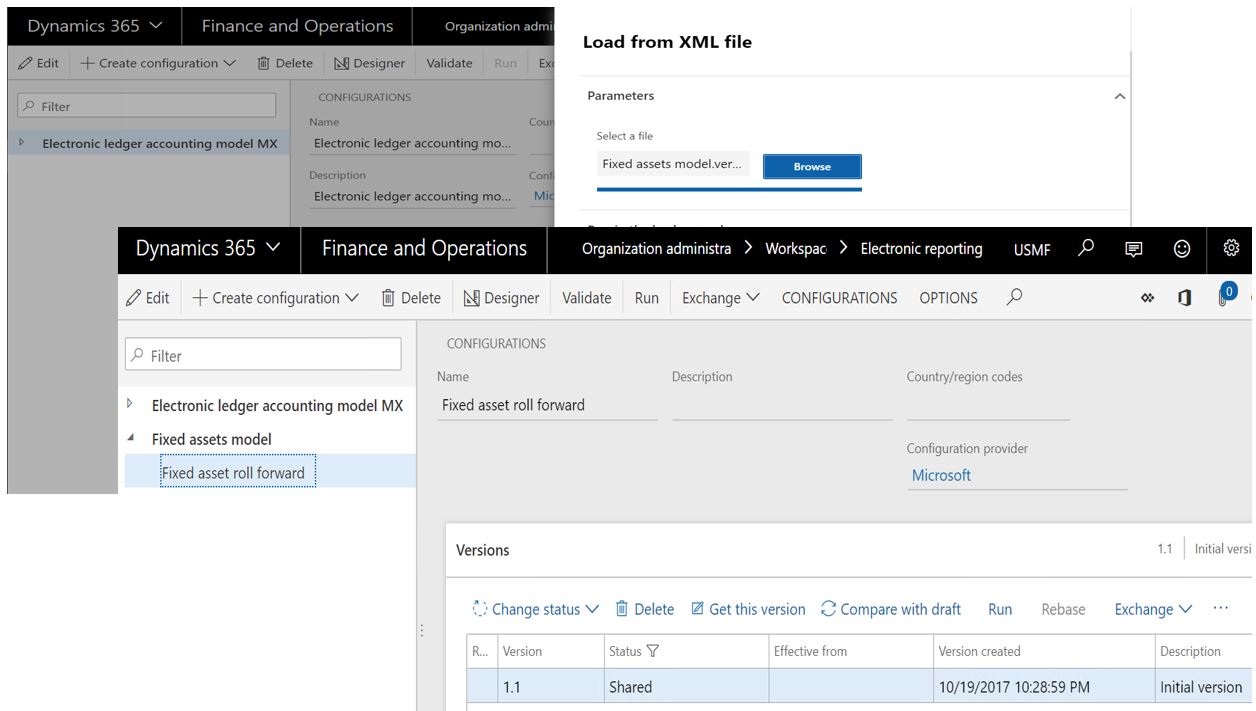
    Download the Fixed asset model (ver 1.0) and Fixed asset roll-forward (ver 1.1) configurations from Microsoft Dynamics Lifecycle Services (LCS).

    You can directly import the configuration from Electronic reporting workspace(click here to know more) or download the configuration from life cycle services separately. In this blog I will explain how you can download configurations from life cycle services separately and setup the electronic reporting.

    Logon to Microsoft Dynamics Lifecycle Services (LCS).

    • From the shared asset library click on GER configuration,
    • Then download the Fixed asset model (ver 1.0) and Fixed asset roll-forward (ver 1.1) configurations and save the files in defined folders

    FARF_06

    Setup electronic reporting:

    Once you have configurations ready, you can configure through Electronic reporting workspace

    Organization administration > Workspaces > Electronic reporting

    • Click on ‘Reporting configurations’
    • On the Exchange > click on Load xml file
    • Select the fixed asset model configuration file first and repeat the steps to load the fixed asset roll forward configuration

    FARF_02

    Generate roll forward report:

    Once the Electronic configuration is completed without any errors, you are all set to generate the report from the Fixed asset module

    Fixed asset > Inquiries and reports > Transactions reports > Fixed asset roll forward

    • Enter the From and To date
    • Select the format mapping ‘Fixed asset roll forward’(Create from Electronic reporting)
    • On the records to include fast tab, specify any fixed asset group or other filters

    FARF_05

    To access the sample report click here.

    Please share your feedback, suggestion or if you have any questions write to me at namithhosmane@live.in

    Thanks!

    Namith Hosmane

    Disclaimer:
    This is a personal blog. Any views or opinions represented in this blog are personal and belong solely to the blog owner and do not represent those of people, institutions or organizations that the owner may or may not be associated with in professional or personal capacity, unless explicitly stated. All content provided on this blog is for informational purposes only. This blog makes no representations as to the accuracy or completeness of any information on this site.

  • What you should know about Dual currency?

    The October release (Update 8.1) of Microsoft Dynamics 365 for Finance and Operations made significant improvements with lot of new features and functionalities added in Financial management modules.

    ‘Dual currency’ concept is one of them to track all sub-ledger transactions in reporting currency, this has given the real purpose to the reporting currency by not just being used for general ledger reporting but also at sub-ledger level for reporting and other functionalities. Microsoft termed reporting currency as ‘Secondary accounting currency’.

    Let’s see the impact of this change to different modules in Dynamics 365 for finance and operations,

    Accounts Payable and Accounts receivable:

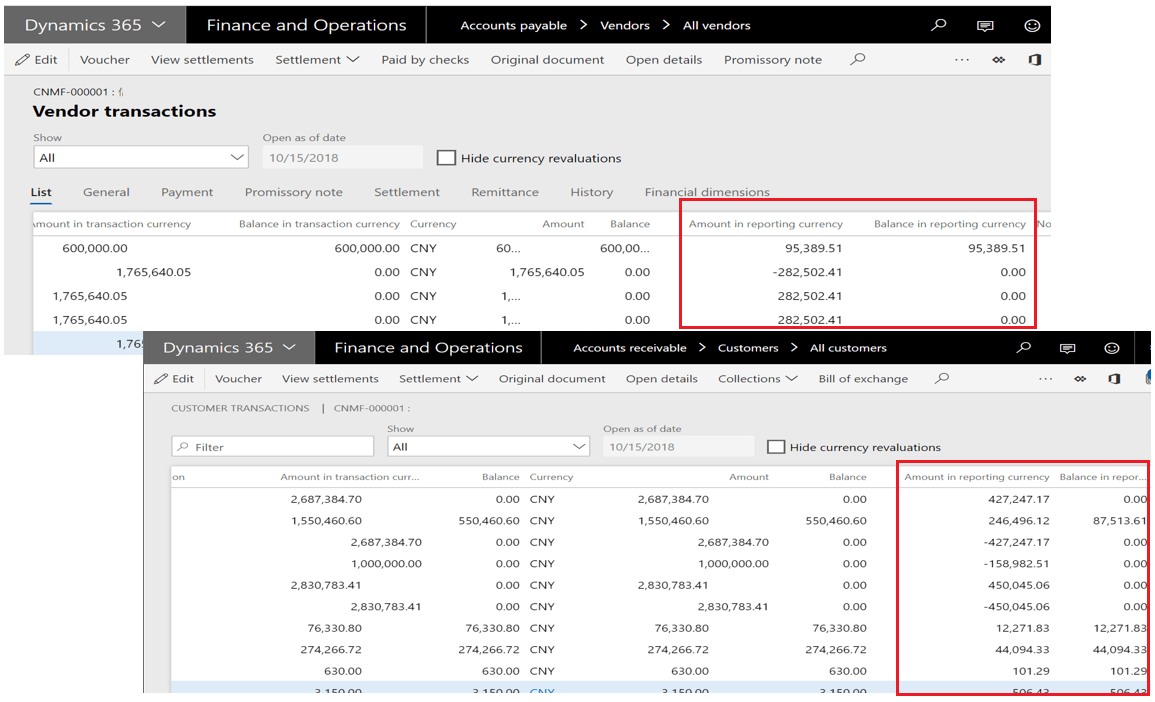
    You can now personalize and add the “Amount in reporting currency” field in vendor and customer transaction form which also means that the field has been added in transaction tables and can be further used in reporting. The transaction form also shows the balance in reporting currency for every transaction.

    Note that the reporting currency amounts for existing transactions is updated based on the amount that posted to general ledger.

    DC_03

    Vendor and customer transaction reports has been enhanced to show the results in reporting currency.

    DC_04

    Cash and bank management:

    Similarly, in cash and bank management new field “Amount in reporting currency” has been added to bank transaction form. For new transactions, the amounts are automatically added to the bank account tables. For existing transactions, the reporting currency amounts must be added through Wizard from Cash and bank management module.

    The wizard recommends the reporting currency amounts based on the amount that posted in general ledger. However, the amounts can be overridden but please note a change may result a different reporting currency amount in the Cash and bank management sub-ledger and General ledger.

    It is recommended to run the wizard as soon as possible after upgrading.

    Cash and bank management > Setup > Add reporting currency amounts to bank account transactions.

    DC_05

    Once the wizard is successfully completed, the reporting currency amounts will be updated in the bank transactions form,

    DC_06

    Fixed assets:

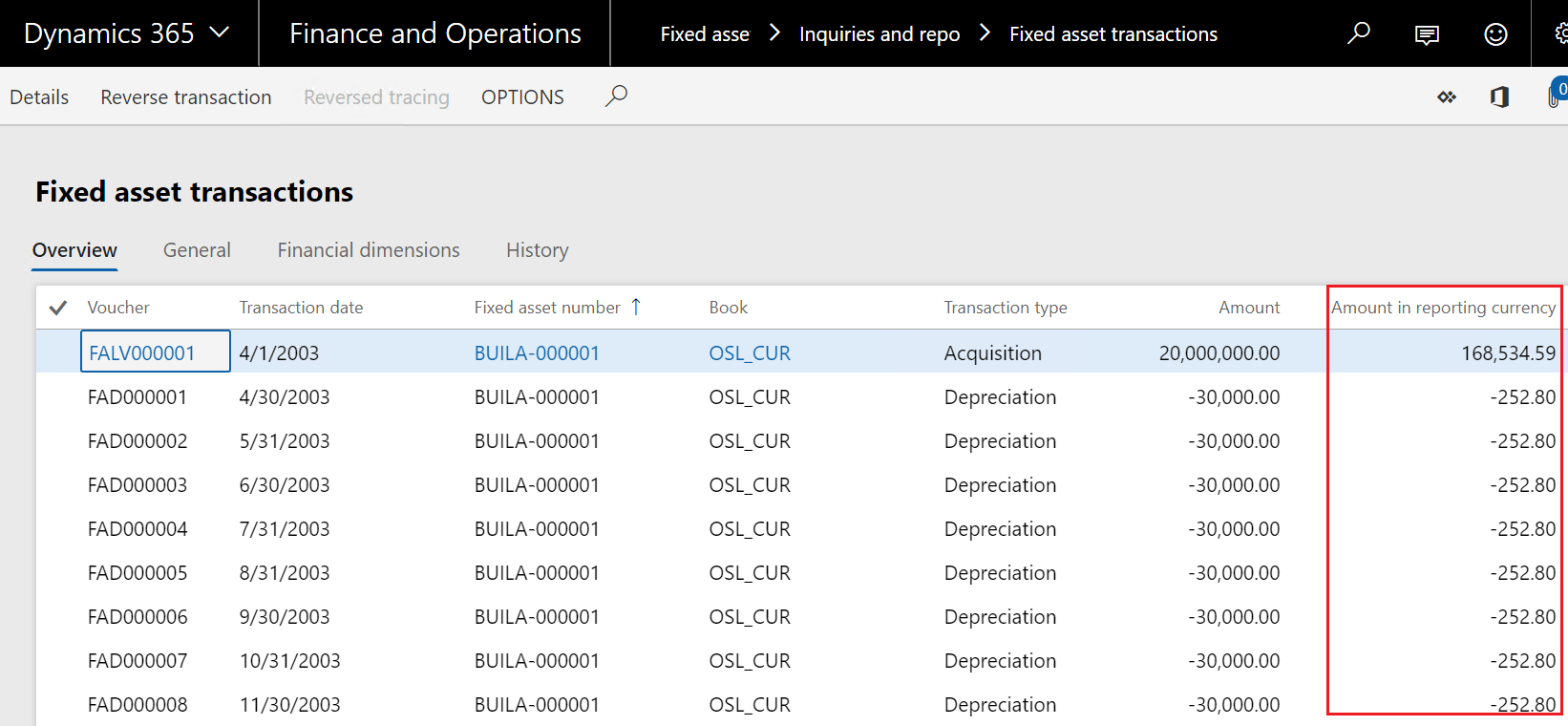
    Reporting currency capability has more impact on fixed asset module especially on handling the depreciation of fixed assets in reporting currency.

    Again, there is new field ‘Amount in reporting currency’ added to the fixed asset tables. For new transactions, the amounts are automatically added to the fixed asset tables. For existing transactions, the reporting currency amounts must be added through wizard from Fixed asset module.

    This wizard recommends the reporting currency amounts for existing transactions based on the exchange rate at the time of acquisition. The exchange rate and reporting currency amounts can be modified. These amounts will not post to General ledger.

    Fixed assets > Setup > Add reporting currency amounts to fixed asset books.

    DC_07

    On clicking next,wizard gives you more information of what happens upon clicking Finish and cancel. Important to consider, you will not be able to run depreciation proposal until you confirm the reporting currency amounts are updated.

    DC_7.1

    Upon clicking finish, fixed asset transactions will be updated with reporting currency amounts.

    DC_09

    Once you confirm that all reporting currency amounts on the fixed asset book transactions are updated, you will be able to run the depreciation proposal and calculate depreciation for reporting currency based on the updated amount in fixed asset transaction.

    Note: After confirming the reporting currency amounts have been updated, the wizard can no longer be run.

    DC_9.1

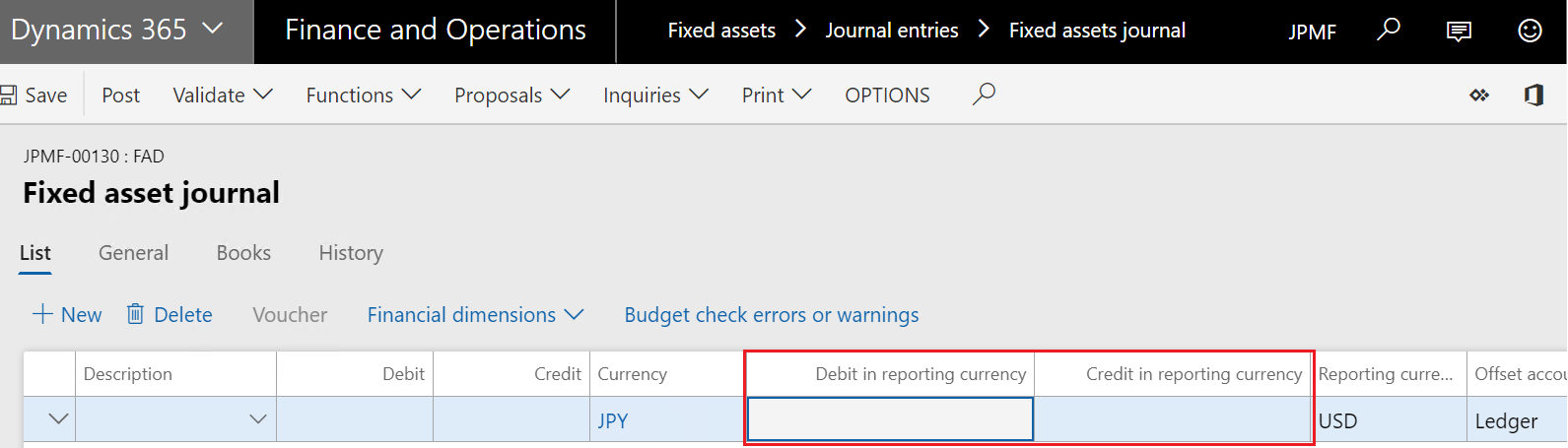
    Fixed asset journal line form has been enhanced with new fields ‘Debit in reporting currency’ and ‘Credit in reporting currency’ to post fixed asset transactions in reporting currency.

    DC_10

    General ledger:

    From the general ledger standpoint, the reporting currency will continue to be calculated for every transaction posted in general ledger. However, you can now define default exchange rate type for reporting currency amounts in the ledger form and on individual main accounts.

    DC_01

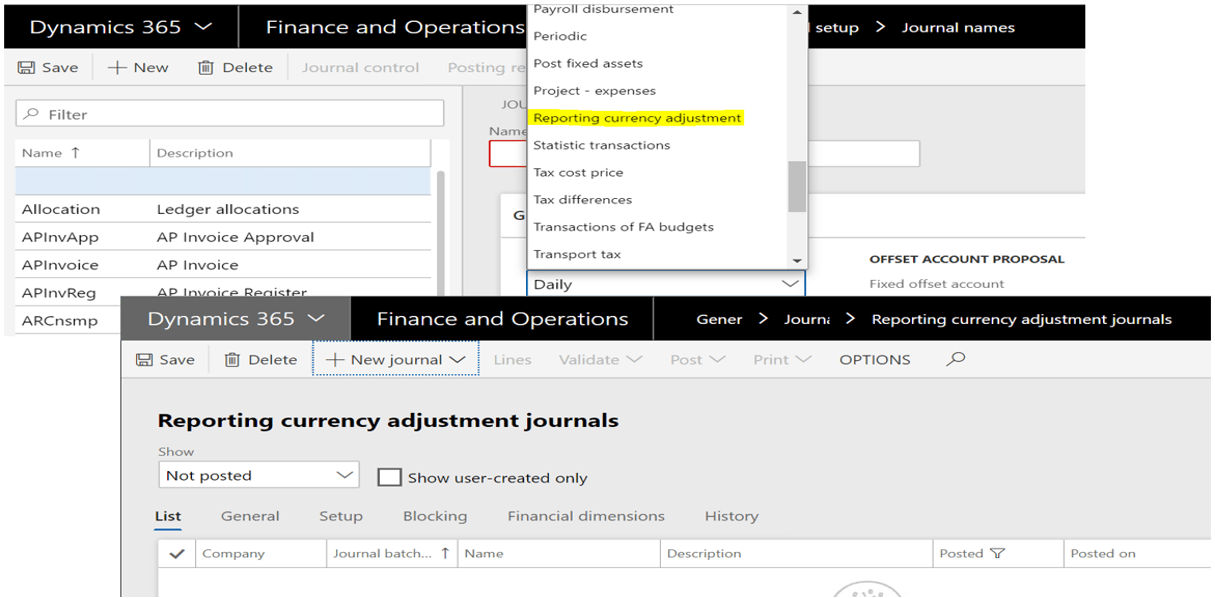
    A new journal type and a new journal entry form ‘‘Reporting currency adjustment’ has been added to post transactions only in reporting currency.

    DC_02

    Hope you like the post! Please share your feedback, suggestions by commenting.

    Thanks!

    Namith Hosmane

    Disclaimer:
    This is a personal blog. Any views or opinions represented in this blog are personal and belong solely to the blog owner and do not represent those of people, institutions or organizations that the owner may or may not be associated with in professional or personal capacity, unless explicitly stated. All content provided on this blog is for informational purposes only. This blog makes no representations as to the accuracy or completeness of any information on this site.


  • Automated Clearing House (ACH ) Configuration in Dynamics 365 for Finance and Operations.

    Most companies want to automate their vendor disbursement process through electronic payments, Automated clearing house(ACH) helps the organization to be safer, cost effective and more convenient than traditional paper checks.

    This blog will focus on ACH setup to process accounts payable electronic payments by using the out of the box NACHA(US) format in Dynamics 365 for Finance and Operation application.

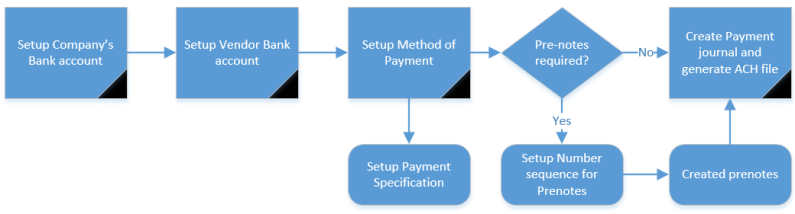
    Below diagram describes the flow to configure and use ACH functionality in Dynamics 365 for Finance and Operation application,

    ACH_Flow

    Setup Organization Bank Account:

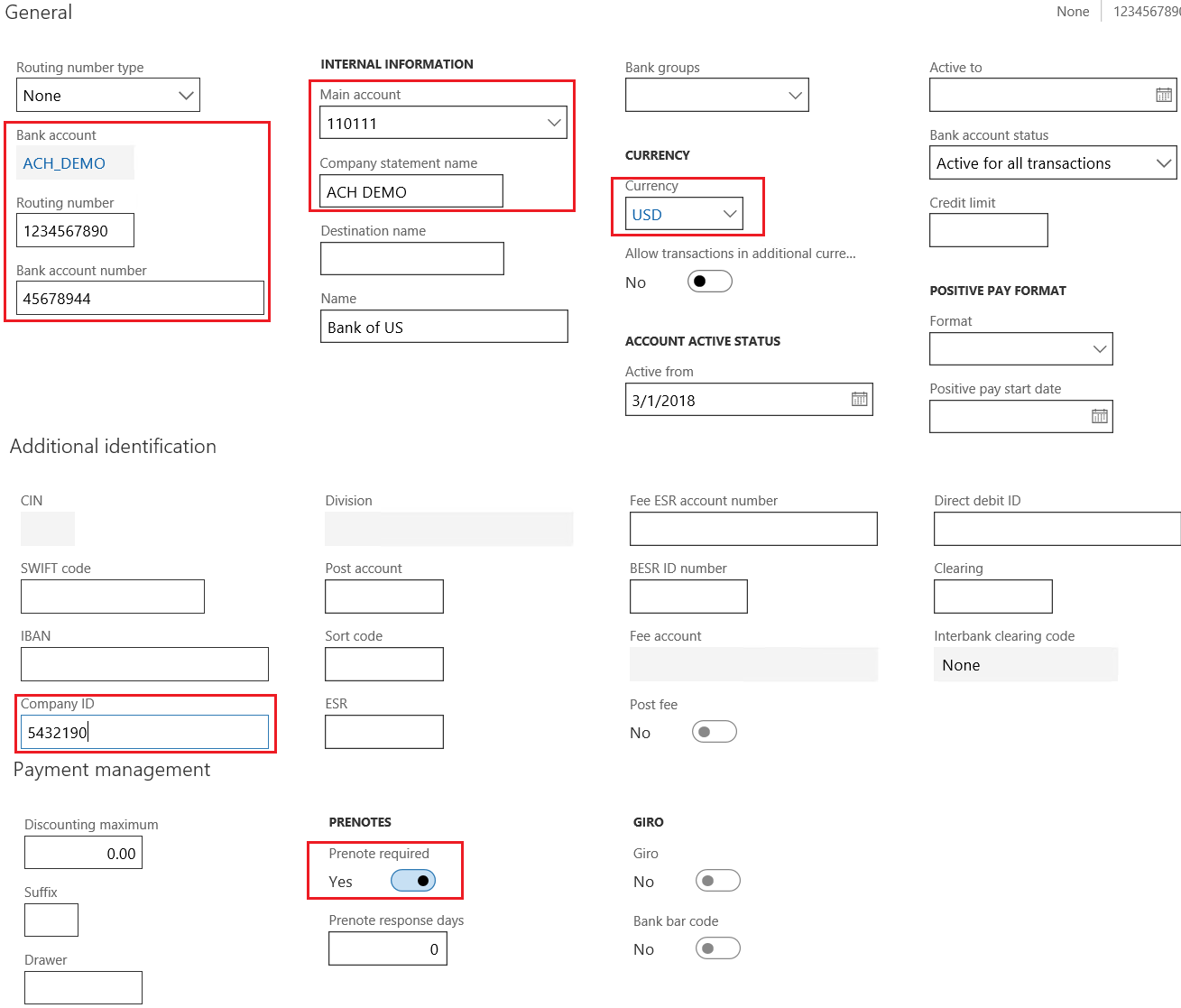
    Company bank account needs to be configured with below information to process the ACH Transactions successfully,

    Cash and Bank Management > Bank Accounts > Bank Accounts > Click on New

    • General fast tab
      • Bank account
      • Bank Account number
      • Routing number
      • Main account
      • Currency
      • Company statement name (Only available with valid US address)
    • Additional Identification fast tab
      • Company ID
    • Payment Management fast tab
      • Mark Prenotes required check box (Optional)
      • If Prenotes required box is marked, Enter the no. of days bank requires to process Prenotes
    • Address fast tab
      • Click on add and select the valid US address for the bank account

    ACH_01

    Setup Vendor Bank Account:

    This setup is required to create and manage the vendor bank details which will be further used during the ACH file generation for the electronic payment transfer to vendor from company’s bank account.

    Setup below bank account details of the vendor which are mandatory and other details can be entered as per the requirement,

    • Bank Account
    • Bank Account name
    • Routing number

    Accounts Payable > Vendors > All Vendors

    • Select the ACH vendor
    • On the action pane, vendor tab > Setup > Bank accounts

    ACH_02

    Assign bank account to vendor

    After bank account has been created for the vendor, the bank account details need to be assigned to a vendor in the Payment fast tab of the vendor master.

    Accounts Payable > Vendors > All Vendors

    • Select the ACH vendor > Payment fast tab
    • On the Bank account field, select the bank account ‘ACHVend

    ACH_03

    Setup Method of Payment:

    To process electronic payments, setup a new method of payment with payment type as Electronic payment and export format as ‘NACHA(US).

    Accounts Payable > Payment Setup > Method of Payment

    • General fast tab
      • On the Account type field, Select ‘Bank’
      • On the Payment account field, Select ‘ACH_DEMO’
    • File formats fast tab
      • On the Export format field, Select NACHA(US)

    ACH_04

    Assign Payment specification to Method of Payment:

    This setup is required to further classify Standard Entry Class Codes within ACH export formats of NACHA and this needs to be transmitted into bank depending on nature of business transactions. Generally, the most commonly used formats are as below,

    • CCD stands for Cash Concentration and disbursement – Used to pay or collect from other corporate (business) accounts. Eg: Vendor payment to businesses
    • PPD- Prearranged Payment and Deposit – Used to pay or collect from personal (consumer) accounts.

    As we processing Vendor payment for the business CCD format will be selected.

    Accounts Payable > Payment Setup > Method of Payment

    • Select AP ACH
    • On the action pane, click on Payment specification
    • Click new and create new specification as shown the screenshot below
    • On the export format field, select ‘Standard NACHA – CCD’

    ACH_05

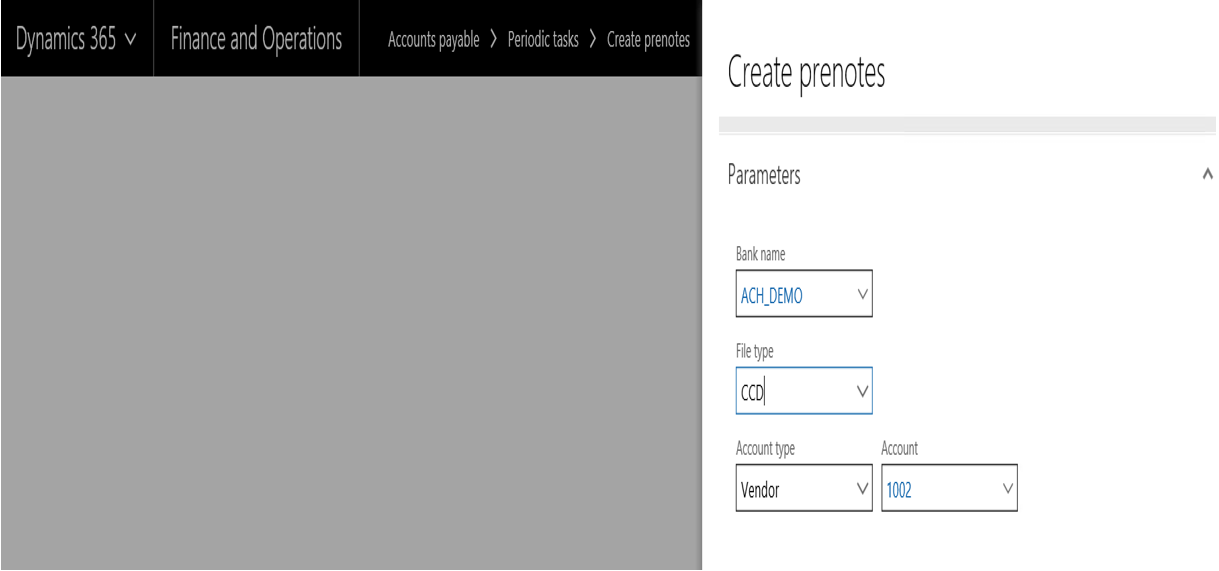
    Create Prenotes

    Prenotes are zero-dollar transactions sent to the company’s bank through the ACH network to verify the accuracy of the vendor bank account data such as routing number and Bank account number.

    This process is only required if the Prenotes check box is marked on the organization bank account.

    Note: Before creating prenotes setup the number sequences in Cash and Bank management parameters.

    Accounts payable > Periodic > Create prenotes.

    • In the Bank name field, select the name of your organization’s bank.
    • In the File name field, select where the new prenote file will be saved.
    • Select the file export type: CCD,
    • In the Account type field, select the type of account to create a prenote for. You can create prenotes for all vendors or for a specific vendor.
    • To create a prenote for a specific vendor, select the vendor account in the Account field.

    ACH_05.1

    Processing ACH Payment:

    Once all the above setups are completed successfully, create a AP payment journal to process the ACH payments for the vendor, use the vendor, method of payment created in the above steps.

    Accounts Payable > Payments > Payment Journal

    • Once the payment journal line is created, click on generate payments
    • On the method of payment field, Select the ‘AP ACH’.
    • On the Bank account field, select ‘ACH_DEMO

    ACH_06

    Click ok and update the required parameters

    ACH_07.png

    Click ok, ACH file will generate and the payment status will be sent

    ACH_08

    Here is the snapshot of the file generated:

    ACH_09

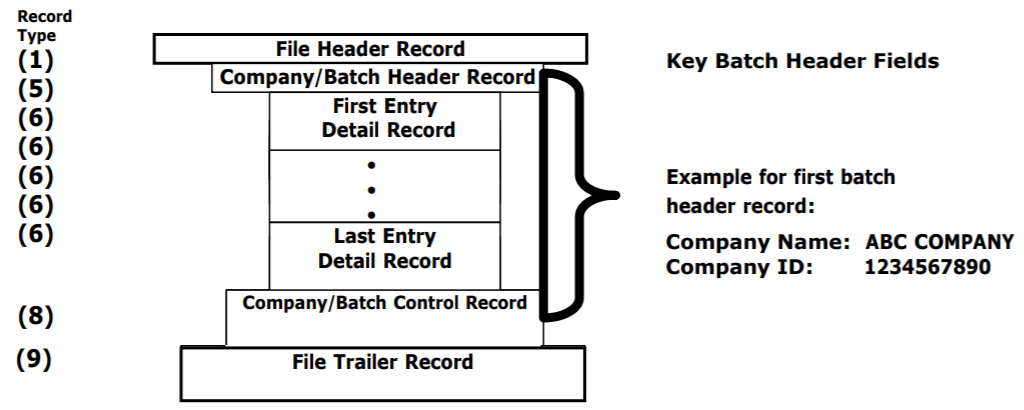
    About ACH (NACHA- CCD) Formatting:

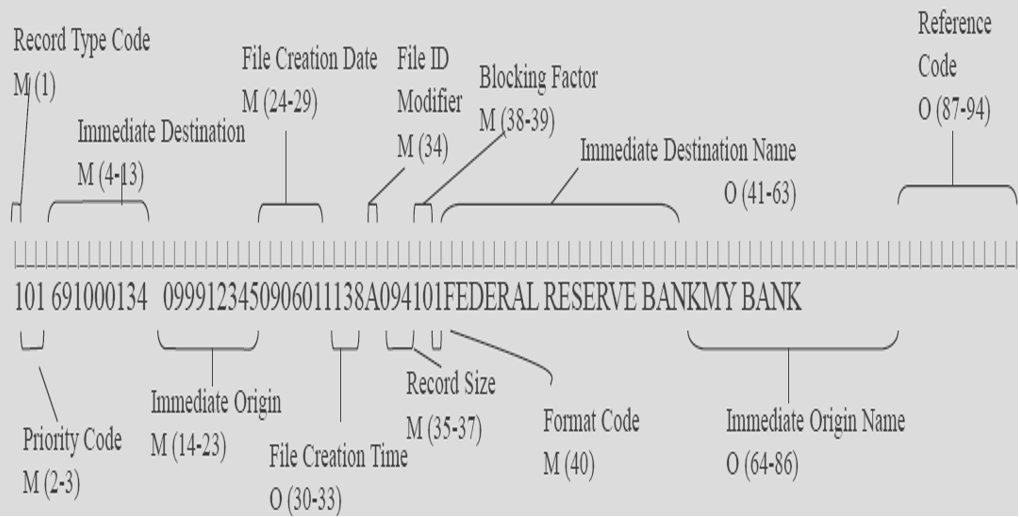
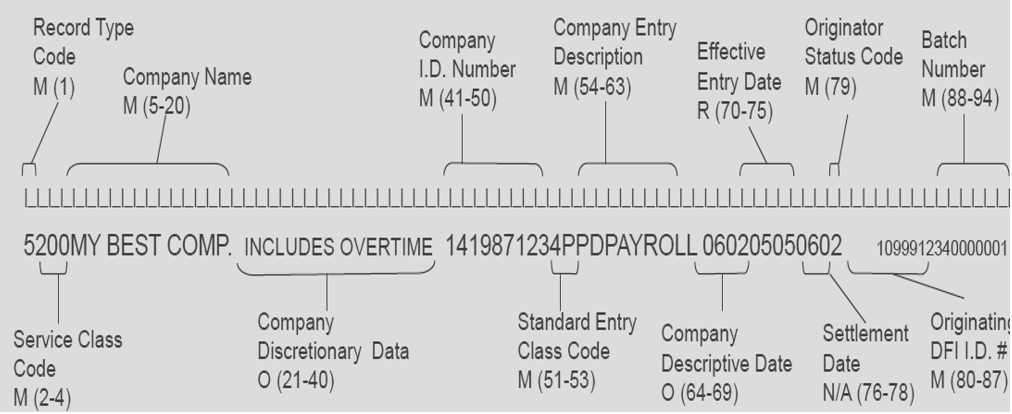
    It’s important for Functional consultant to understand the NACHA formatting to evaluate what exactly AX has generated in the export file.

    ACH format contains the sequence of records as below,

    ACH_10

    File Header Record (RECORD TYPE -1 ):

    ACH_11.png

    Company Batch Header Record ( RECORD TYPE -5):

    ACH_12

    Detail Record – CCD ( RECORD TYPE -6):

    ACH_13

    Batch Control Header Record ( RECORD TYPE – 8):

    ACH_14

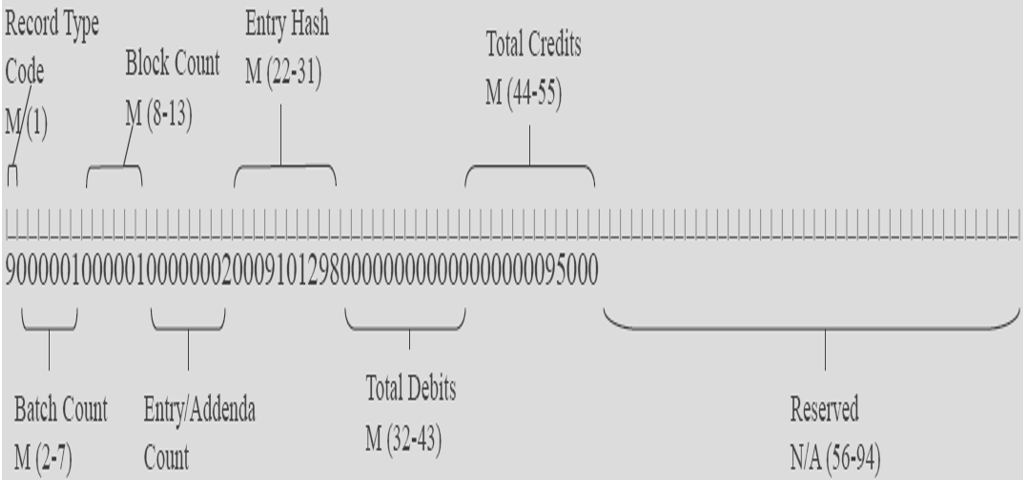
    File Control Records (RECORD TYPE -9):

    ACH_15.png

    References:

    ACH Setup in AX:

    https://technet.microsoft.com/en-us/library/hh242149.aspx

    ACH Formatting:

    https://content.pncmc.com/live/pnc/corporate/treasury-management/ach-conversion/ACH-File-Specifications.pdf

    Best Regards,

    Namith

    Disclaimer:
    This is a personal blog. Any views or opinions represented in this blog are personal and belong solely to the blog owner and do not represent those of people, institutions or organizations that the owner may or may not be associated with in professional or personal capacity, unless explicitly stated. All content provided on this blog is for informational purposes only. This blog makes no representations as to the accuracy or completeness of any information on this site.


  • SETUP MATCHING RULES – ADVANCE BANK RECONCILIATION

    Happy New Year to All!

    Here is my first post of 2018 on Advance Bank Reconciliation

    INTRODUCTION

    Advanced Bank Reconciliation feature introduced in AX 2012 facilitates automatic bank reconciliation by importing the bank statements and reconcile them with bank transactions posted in AX.

    This feature is being used extensive and most popular across all the industries, it reduces lot of human effort and helps the organization to use the resources effectively.

    In this blog, I will be discussing on setting up the matching rules which helps in reconciliation process to automatically match the bank statements and bank transaction in AX with pre-defined criteria.

    SETTING UP MATCHING RULES:

    Matching rules are the criteria that you define to match the imported bank statement with the bank transactions, it is important to define the criteria’s by understanding the business data to ensure there is no incorrect matching of records.

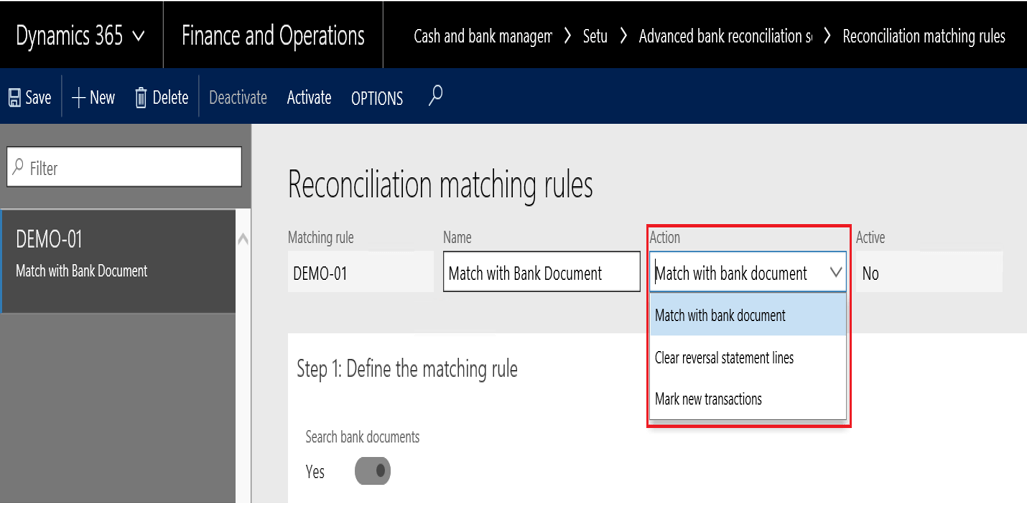
    Microsoft Dynamics Finance and Operations provides an ability to match transactions with three different actions to perform.

    This blog focuses on three action you can define in matching rules with specific examples,

    • Match with bank document
    • Clear reversal statement lines
    • Mark new transactions

    ABR_01

    ACTION 1 : Match with Bank Documents

    This action setup helps to match the bank statement lines with bank transactions in AX, this functionality is used to match most of the transactions and used widely in the reconciliation process.

    Example:

    BANK STATEMENT LINES:

    Bank transaction code Booking date Amount Document number
    100 1/2/2018 150.15 66555444
    100 1/2/2018 255.27 77888999

    AX BANK TRANSACTIONS:

    Date Bank Transaction Type Amount Payment Reference
    12/30/2017 4 150 66555444
    12/30/2017 4 255 77888999

    Step 1 : Define the matching rule

    This step allows to define criteria to match the transactions by Amount, Date, Document number, transaction type and Payment reference.

    Additionally, we can also define criteria to match the transaction by descriptions, Transaction currency etc.

    In this example, there will be no basic criteria defined to match the transaction, however additional criteria is defined as Payment reference(AX) = Document number(Statement)

    ABR_03.png

    Step 2 : Select the statement lines to run matching rules against

    This step allows to filter those statement lines which needs to be searched and matched against the AX bank transactions. Usually banks have specific transaction code for different types of transactions like deposits, chargebacks, fees etc.

    In this example, the criteria will be defined as Bank transaction code =100

    ABR_03

    Review after the matching rule is executed, both transactions has been matched in the reconciliation worksheet,

    ABR_04

    Note: The allow penny difference has been setup for the bank to accept reconciliation difference up to $1.

    ACTION 2:Clear reversal statement lines

    This action can be used to clear the statement lines from reconciliation worksheet incase the bank creates erroneous transactions and reverse them.

    These transactions usually do not exists in AX as it is error from bank side, but the bank statement contains all these transactions, so it is necessary to clear such transactions in reconciliation process.

    Example:

    BANK STATEMENT LINES:

    Bank transaction code Booking date Amount Document number Reversal
    200 1/2/2018 320.12 33222111
    300 1/2/2018 -320.12 33222111 Yes

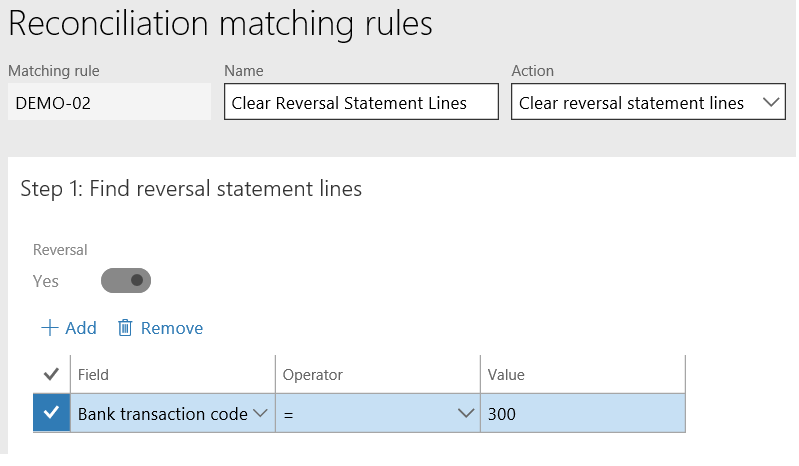
    Step 1 : Find reversal statement lines

    This step allows to add criteria to find and select the reversal statement line to be matched with the original transaction.

    In this example, the bank sends the reversal statement lines with Bank transaction code = ‘300’

    ABR_05

    Step 2 : Find Original Statement Lines

    This step allows to define criteria to find the actual statement line which needs to be matched against reversal transaction.

    We can define basic criteria and additional criteria to match based on the business requirement.

    In this example, opposite amount check box is marked and match with document number is marked so the transactions can be cleared automatically.

    ABR_06

    Review after the matching rule is executed, transactions has been matched in the reconciliation worksheet,

    ABR_07

    ACTION 3: Mark New Transactions

    This action is used to mark the statement lines as new for those transactions which are not recorded in AX. For example, Bank fees, charges etc.

    Example:

    Bank transaction code Booking date Amount Description
    900 1/2/2018 220 Maintenance Fees
    900 1/2/2018 340 Returned Deposit Fees

    Step 1: Find Statement Lines

    This step allows you to define criteria to find the statement lines that must be marked as new.

    In this example, the criteria are defined as Description contains ‘Fees’ and Bank transaction code = ‘900’

    ABR_08

    Step 2: Do not mark when there are matching bank transactions

    This step allows to define criteria not to mark statement line as new if there are AX bank transactions found identical to statement line.

    There could be scenario, when fees and other charges are booked in AX by users and may not want to mark the statement lines again as new.

    For this example, I am not using this criteria as I have to mark all the statement lines with Description contains ‘Fees’ and the Bank transaction code = ‘900’ as new.

    ABR_09

    Review after the matching rule is executed, transactions has been matched in the reconciliation worksheet,

    ABR_10


  • Advanced Budget Planning in Dynamics 365 for Finance and Operations.

    In my previous post I explained about the basics of Budget planning with key elements and configurations. In this post, will discuss the advanced topics of budget planning with the business scenario.

    **It is important to review my previous post for the better understanding of the topics discussed in this post.

    Scenario:

    Company ABC is preparing the Annual budget plan for its IT and Operations department. Budget manager or CFO plans the budget based on the criteria below,

    1. The Previous year expenses incurred for IT and operations department.
    2. CFO prepares the proposed budget plan with 10% increase on actual for each department and distributes to department level.
    3. Respective IT and Operations department managers reviews and finalize the budget at department level.
    4. CFO aggregates the budgets of both the department at the organization level.
    5. CFO review and approves the final budget plan.

    Advanced Budget Planning_0000

    Key Elements and Configuration:

    Let’s now see how to automate the above business scenario with some key elements and configurations in Dynamics 365 for Finance and Operations.

    Basic Budget Planning Configuration:

    Below is some basic configuration required to cater the above the scenario,

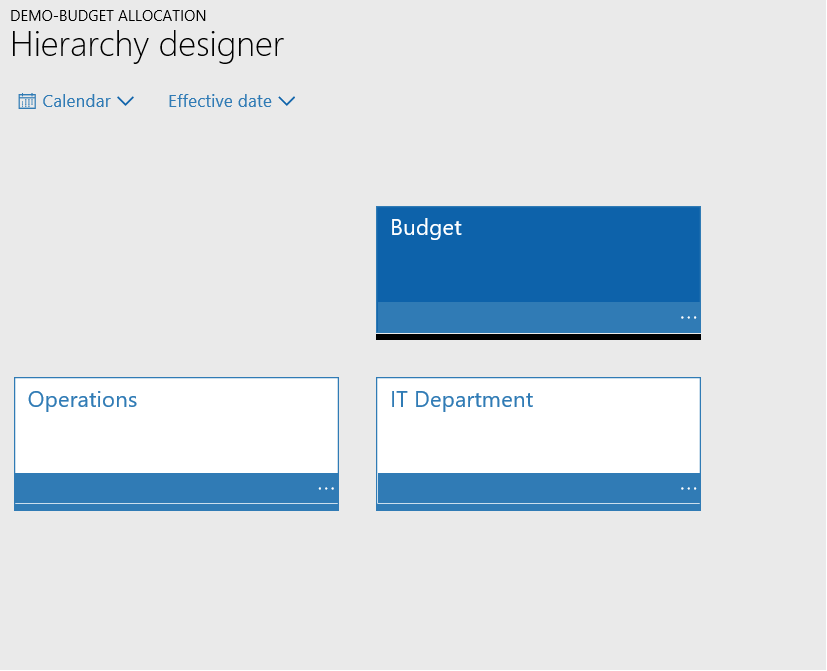
    Organization Hierarchy:

    As explained in my previous post, organization hierarchy is important part of Budget planning configuration. From the scenario explained above, below Organization hierarchy has been created.

    Organization Administration > Organization > Organization Hierarchy

    Advanced Budget Planning_0.1.png

    Budgeting Workflows:

    Budgeting workflow uses the automated tasks to perform the allocations and stage transitions. Please refer to my previous post for more information on Budgeting workflows.

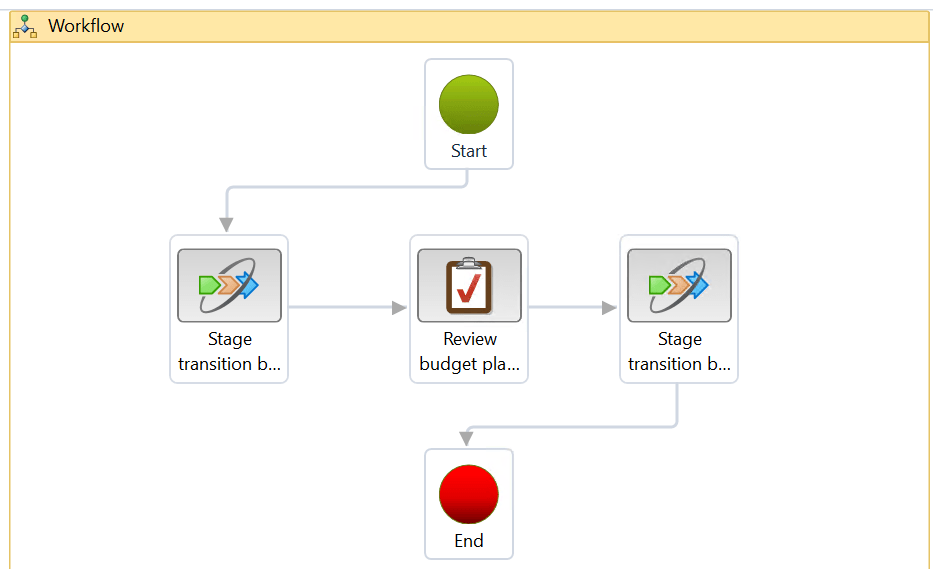
    This workflow consists of “Budget planning stage allocation” task to perform the allocation and Stage Transition elements to automatically change the stages of Budget plan when action is performed by the user.

    For this scenario, there will two Budgeting workflows, one for the Organization level to distribute and aggregate and budget and other for the Department level to review and finalize the departmental budgets

    Budgeting > Setup > Budget Planning > Budgeting Workflows

    Organization level Workflow:

    Advanced Budget Planning_00

    Department level Workflow:Advanced Budget Planning_000

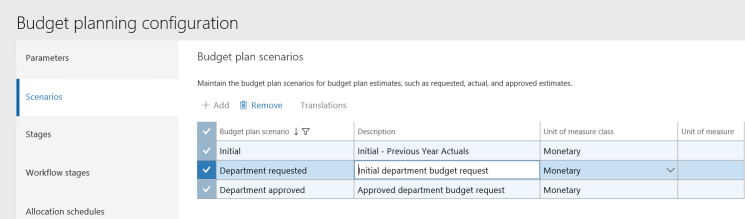
    Scenarios:

    Budget plan scenario Description Unit of measure class
    Initial Initial – Previous Year Actual Monetary
    Department requested Initial department budget request Monetary
    Department approved Approved department budget request Monetary

    Advanced Budget Planning_01

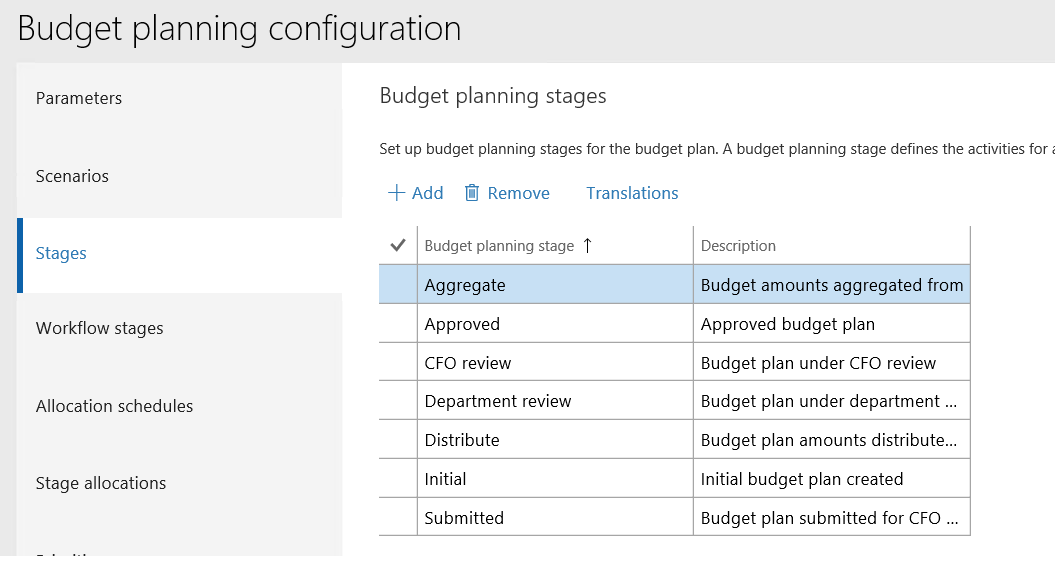
    Stages:

    Budget planning stage Description
    Aggregate Budget amounts aggregated from child budget plans
    Approved Approved budget plan
    CFO review Budget plan under CFO review
    Department review Budget plan under department manager review
    Distribute Budget plan amounts distributed from the parent budget plan
    Initial Initial budget plan created
    Submitted Budget plan submitted for CFO review

    Advanced Budget Planning_02

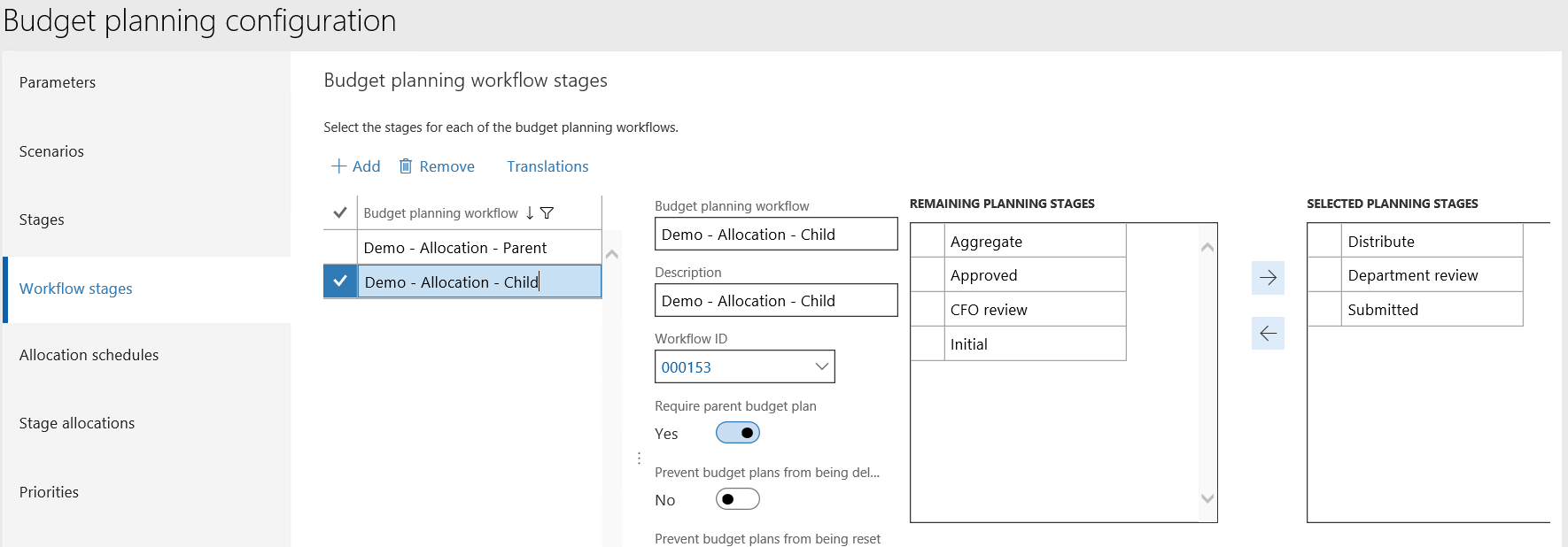
    Work flow stages:

    As we have two different workflows to be defined for Organization level and department level, there will be two different workflow stages to perform the workflow tasks independently in different stages.

    Budget planning workflow Workflow ID Stages
    Demo – Allocation – Parent 000152 Initial
    Aggregate
    CFO review
    Approved

    Advanced Budget Planning_04

    Budget planning workflow Workflow ID Require Parent Budget plan Stages
    Demo – Allocation – Child 000153 Yes Distribute
    Department review
    Submitted

    Advanced Budget Planning_03

    Columns:

    Name Budget plan scenario Column time period
    Department Approved Department approved All
    Department Requested Department requested All
    Initial PYA Initial All

    Advanced Budget Planning_0.2

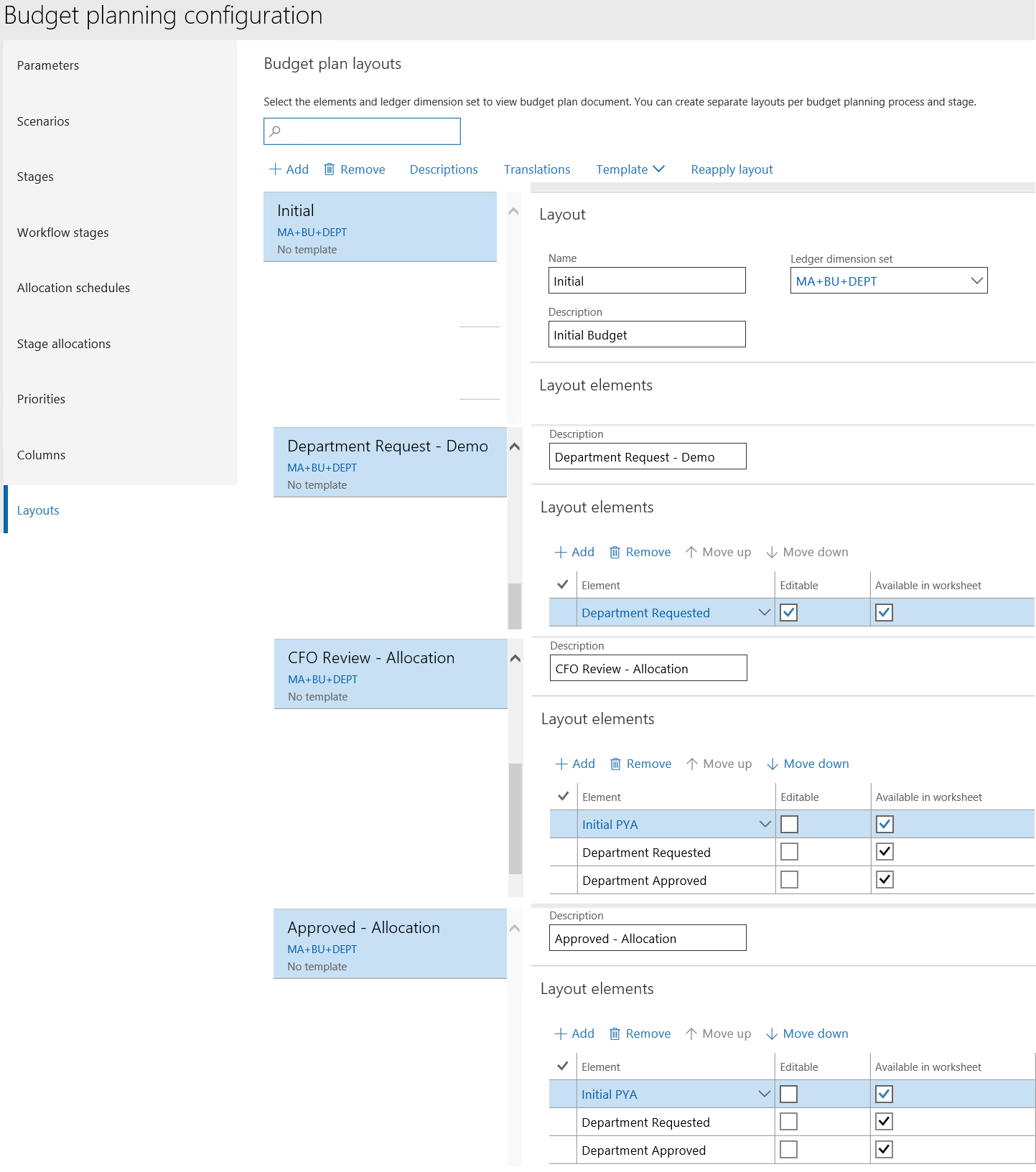
    Layouts:

    Name Ledger dimension set Elements
    Initial MA+BU+DEPT Initial PYA
    CFO Review – Allocation MA+BU+DEPT Initial PYA
    Department requested
    Department approved
    Department Request – Demo MA+BU+DEPT Department requested
    Approved – Allocation MA+BU+DEPT Initial PYA
    Department requested
    Department approved

    Advanced Budget Planning_0.3

    Allocation Schedules:

    Allocation schedule helps you to distribute, aggregate etc. from one budget plan scenario to another budget plan scenario. There are multiple allocation methods which can be used for allocations.

    Considering the above scenario, I will discuss the Aggregate and Distribute functions on this post

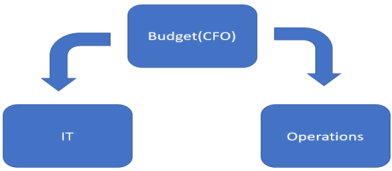
    Distribute: To distribute the Budget plan lines of the proposed plan from Organization level to the department level.

    Advanced Budget Planning_0.6

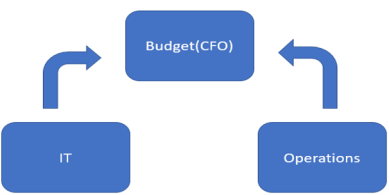
    Aggregate: To Aggregate the Budget plan lines from the department level to Organization level.

    Advanced Budget Planning_0.7

    Below are the Allocation schedules created to cater the above scenario,

    Budgeting > Setup > Budget Planning > Budgeting Planning Configuration > Allocation Schedules

    Allocation schedule Allocation method Source Scenario Destination Scenario Multiply by
    Demo – Distribute Distribute Initial Department Requested 1.1
    Demo – Aggregate requested Aggregate Department Requested Department Requested 0.00
    Demo – Aggregate approved Aggregate Department Requested Department Approved 0.00

    Advanced Budget Planning_0.8

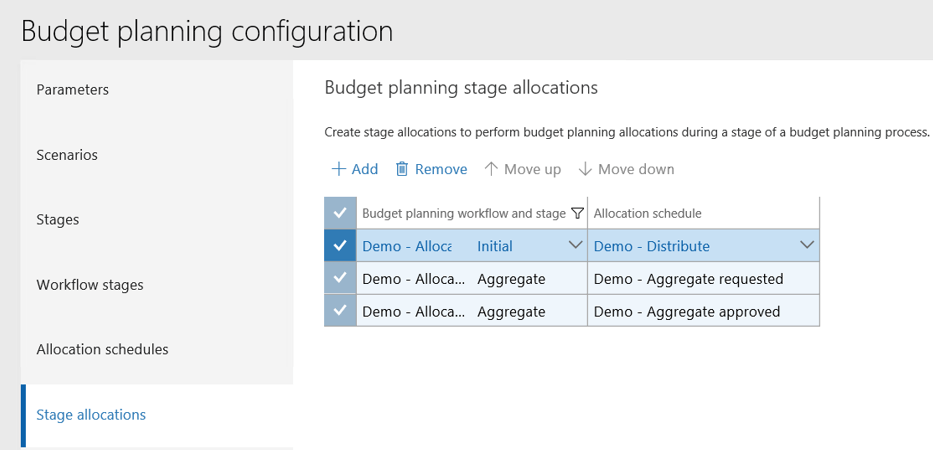
    Stage Allocation:

    Stage allocations are used to automate the allocation process during the workflow processing. The budget planning workflow and stages will be associated with allocation schedules.

    Budget planning workflow uses the Budgeting workflow automated task “Budget planning stage allocation” to automatically perform the allocation when the workflow reaches the specified stage.

    Below are the stage allocations created to cater the above scenario,

    Budgeting > Setup > Budget Planning > Budgeting Planning Configuration > Stage Allocation

    Budget planning workflow Budget planning stage Allocation schedule
    Demo – Allocation – Parent Initial Demo – Distribute
    Demo – Allocation – Parent Aggregate Demo – Aggregate requested
    Demo – Allocation – Parent Aggregate Demo – Aggregate approved

    Advanced Budget Planning_0.9.png

    Budget Planning Process:

    This is the last step of the Budget planning configuration, please refer to my previous post for more information on Budget Planning process,

    Budgeting > Setup > Budget Planning > Budgeting Planning Process

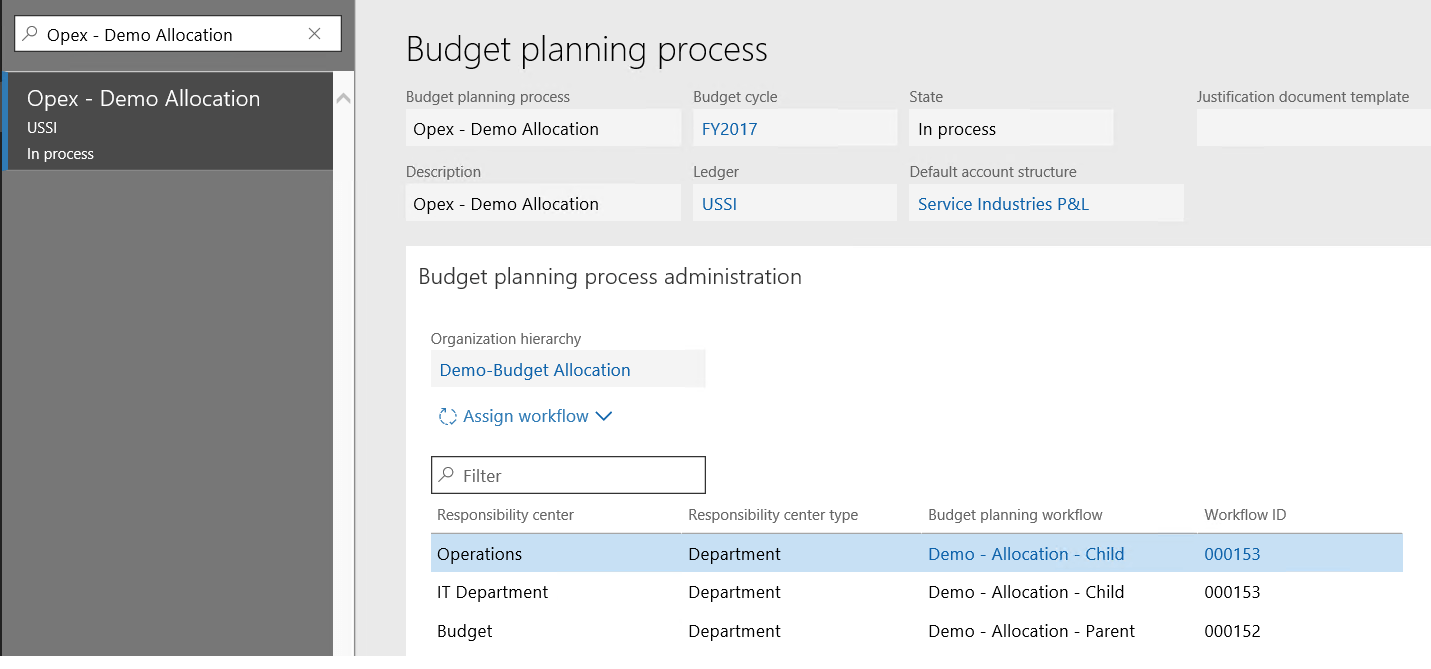
    Budget Planning Process Administration:

    Organization Hierarchy Responsibility center Responsibility center type Budget planning workflow Workflow ID
    Demo-Budget Allocation Operations Department Demo – Allocation – Child 000153
    IT Department Department Demo – Allocation – Child 000153
    Budget Department Demo – Allocation – Parent 000152

    Advanced Budget Planning_0.4Budget Planning Stage rules and Layouts:

    Demo – Allocation – Parent:

    Budget planning stage Associate budget plans Add lines Modify lines Layout
    Initial Yes Yes Yes Initial
    Aggregate No Yes Yes CFO Review – Allocation
    CFO review No Yes Yes CFO Review – Allocation
    Approved No No No Approved – Allocation

    Demo – Allocation – Child:

    Budget planning stage Associate budget plans Add lines Modify lines Layout
    Distribute Yes Yes Yes Department Request – Demo
    Department review Yes Yes Yes Department Request – Demo
    Submitted No No No Department Request – Demo

    Advanced Budget Planning_0.5

    Creation of Budget plan:

    Actual Entries:

    Verify the previous year expense of account “600014”- Expenses

    Main Account Business Unit Department Opening balance Debit Credit Closing balance
    600014 003 023(Operations) 0.00 50,000.00 0.00 50,000.00
    600014 004 025(IT) 0.00 60,000.00 0.00 60,000.00

    Advanced Budget Planning_0.10

    Create Initial Budget Plan from Previous Year Actuals:

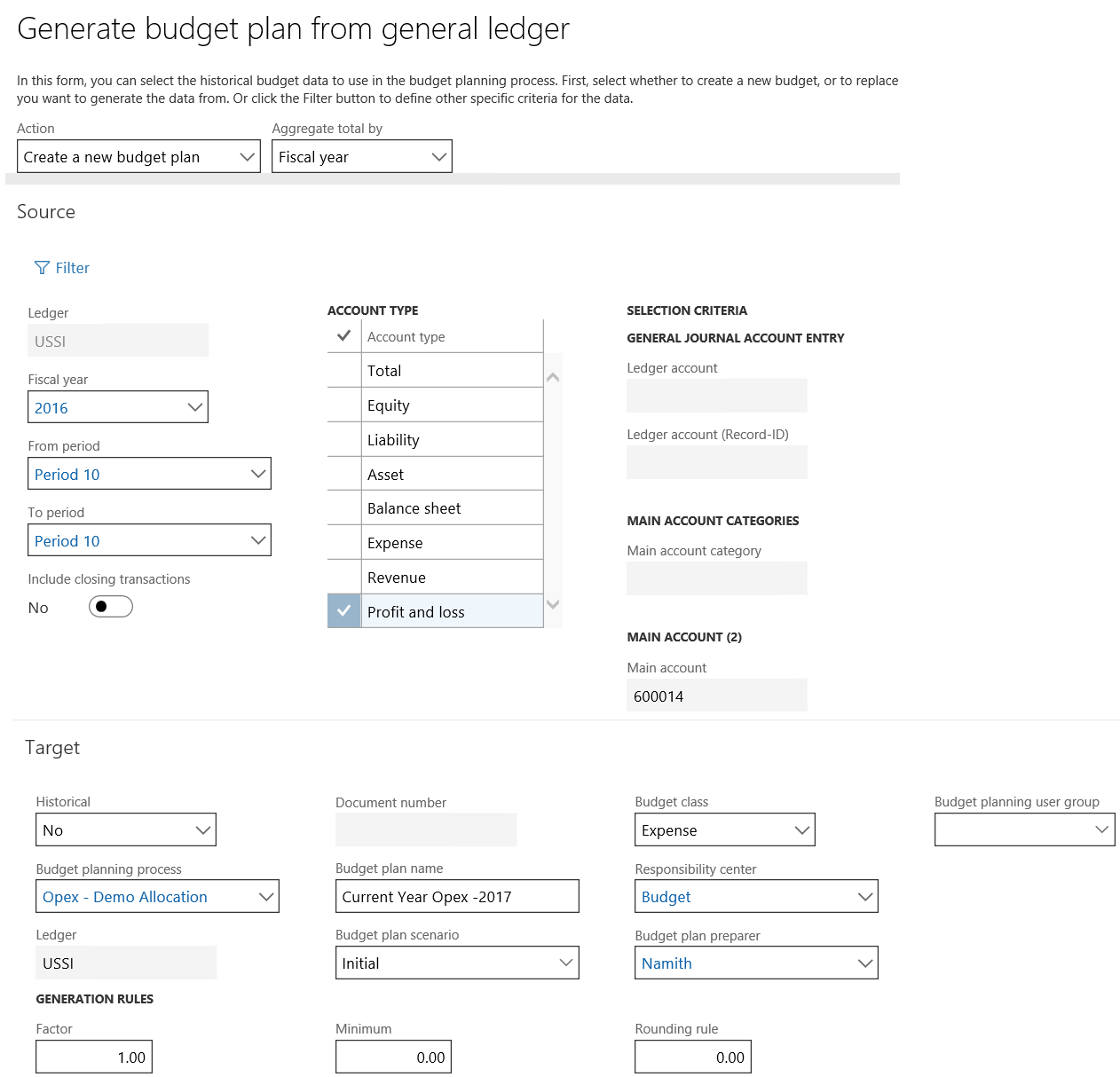
    Budgeting > Periodic > Generate budget plan from general ledger

    • Action: Create a new budget plan, Aggregated total by: Fiscal year
    • Then select the source data information,
    • Fiscal Year: 2016
    • From Period: Period 10(As per the period when actual transactions are posted)
    • To Period: Period 10(As per the period when actual transactions are posted)
    • Account type: Profit and loss (As per the account type used in the actual transaction)
    • Then select the target data information,
    • Budget Planning Process: “Opex– Demo Allocation”
    • Enter Budget plan name: Current Year Opex -2017
    • Budget Plan Scenario: Initial
    • Verify other information like Budget class, Responsibility center is automatically populated.
    • Click on Generate

    Advanced Budget Planning_05

    Budgeting > Budget Plans

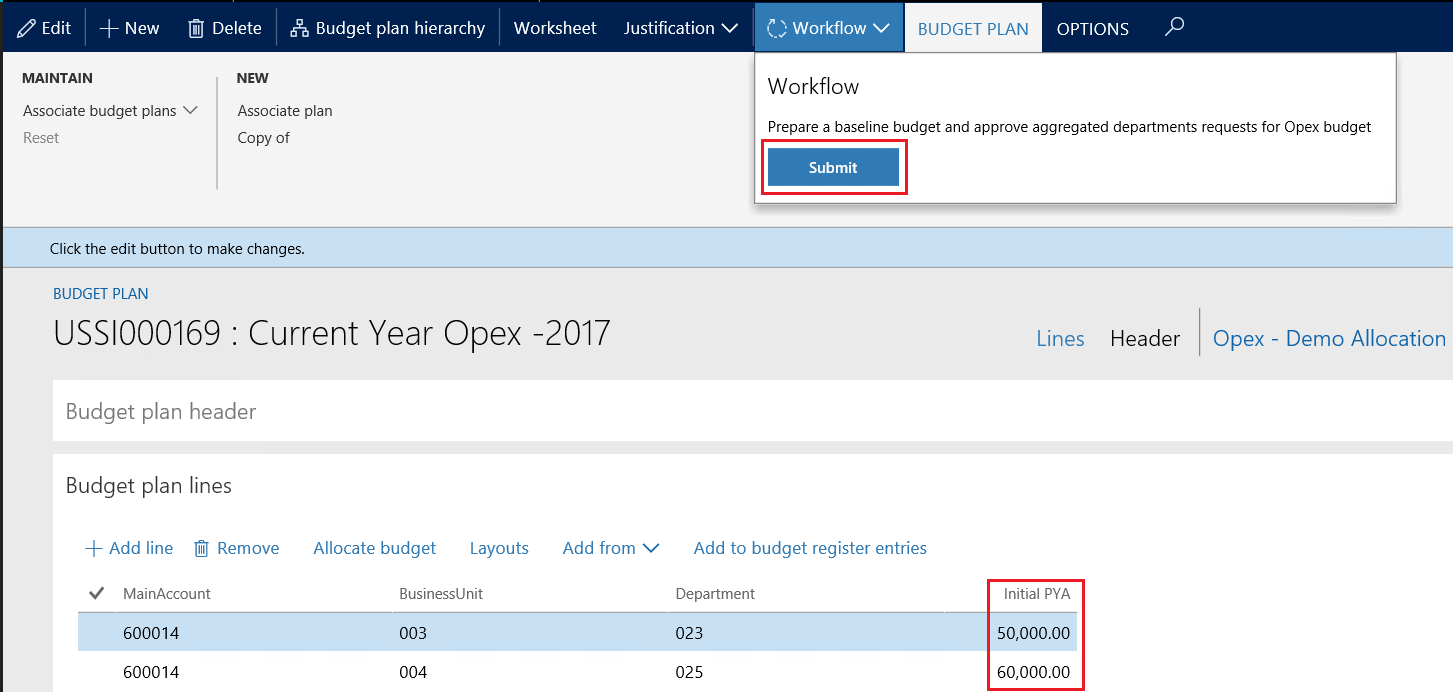
    Verify the Initial PYA column in the budget plan is updated with 50000 USD for Operations department and 60000 USD for IT department respectively.

    Then Submit the workflow to distribute the Plan to respective departments.

    Advanced Budget Planning_06

    Verify the new child budget plans is automatically created for Operations and IT department.

    Advanced Budget Planning_07

    Initial Budget plan created for each department with 10% increase from the actual expense.

    Respective department managers can review, edit and complete the Budget plan.

    Advanced Budget Planning_08

    Go back to the Parent budget plan and click on complete to aggregate the budget plans from department level.

    Advanced Budget Planning_09

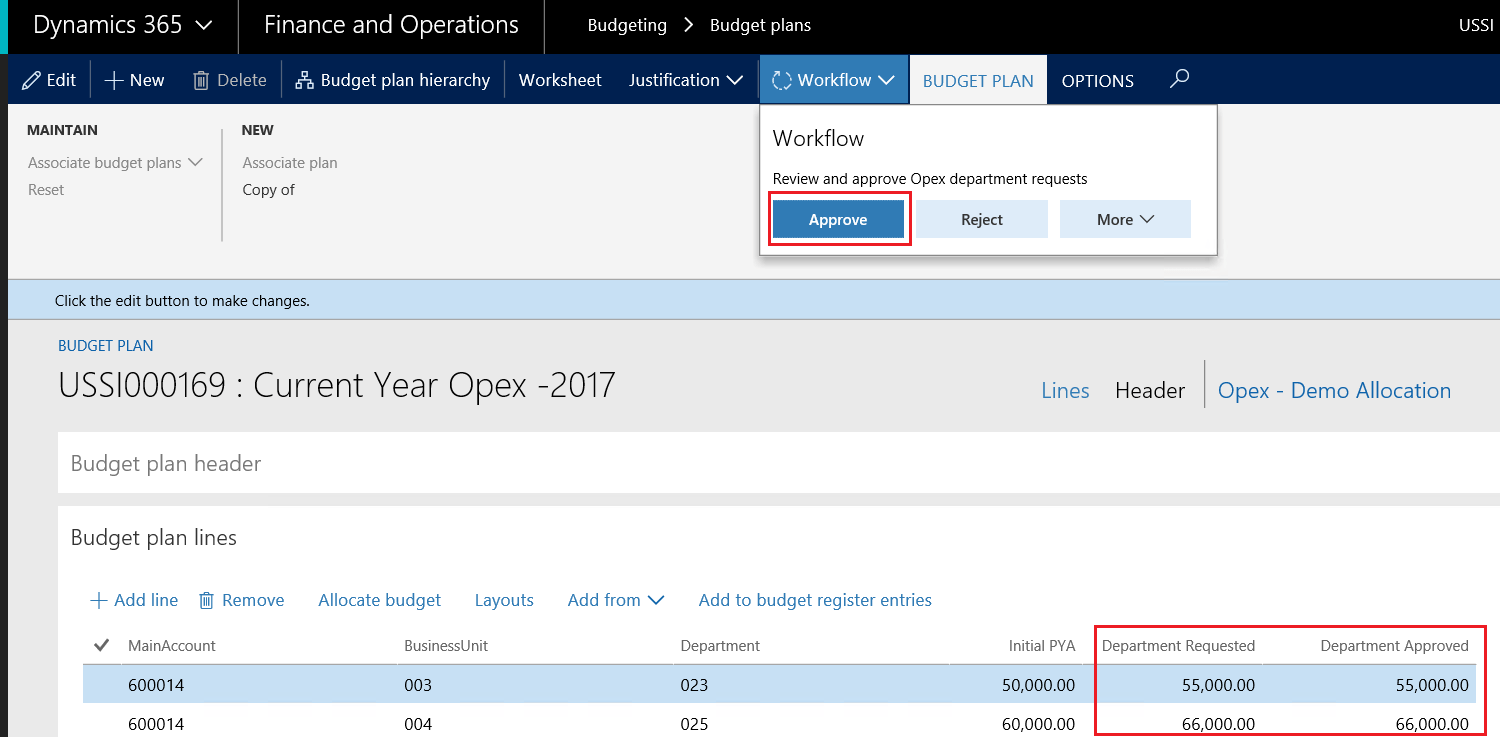
    Verify the Department requested and Department approved columns are updated from the child plans.

    Approve the Budget plan

    Advanced Budget Planning_10

    Verify the budget plan is approved.

    **Approved budget plans can be further used to create budget register entries to manage and control the budgets in each department**

    Advanced Budget Planning_11

    Best Regards,

    Namith


  • Basics of Budget Planning in Dynamics 365 for Finance and Operations.

    INTRODUCTION:

    Budget planning is decisive in any organization to plan the future income and expenditures in different elements of business operations.

    Dynamics 365 for Finance and Operations brings in extensive features to plan your budgets in different models,

    • Top down approach:

    Creating your budgets at the organization level and allocate to a department or lower levels of your organization.

    • Bottom up approach:

    Create your budgets from department level (lower level) and aggregate at the organization level to prepare final budget plan.

    KEY ELEMENTS AND CONFIGURATION:

    00-Budget Planning.png

    In this blog, I will explain the key elements with basic configuration involved to work with Budget planning in Dynamics 365 for Finance and Operations.

    1. Organization Hierarchy:

    First and fore most element and configuration of Budget planning is Organization Hierarchy, we need to have at least one organization hierarchy defined with Budget planning purpose to work with Budget panning in Dynamics 365 for Finance and Operations.

    The organization hierarchy is used to aggregate and allocate the budgets at different levels of your organization.

    I have created hierarchy with just one Department as Budget’ to create simple flow and easy to understand,

    Organization Administration > Organization > Organization Hierarchy

    01-Budget Planning.png

    2.  Responsibility Center:

    Responsibility centers are those who administer and create Budget plan for respective department,

    the department should be associated with Manager who is worker holding the position in that Department.

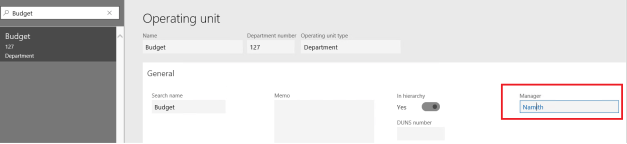
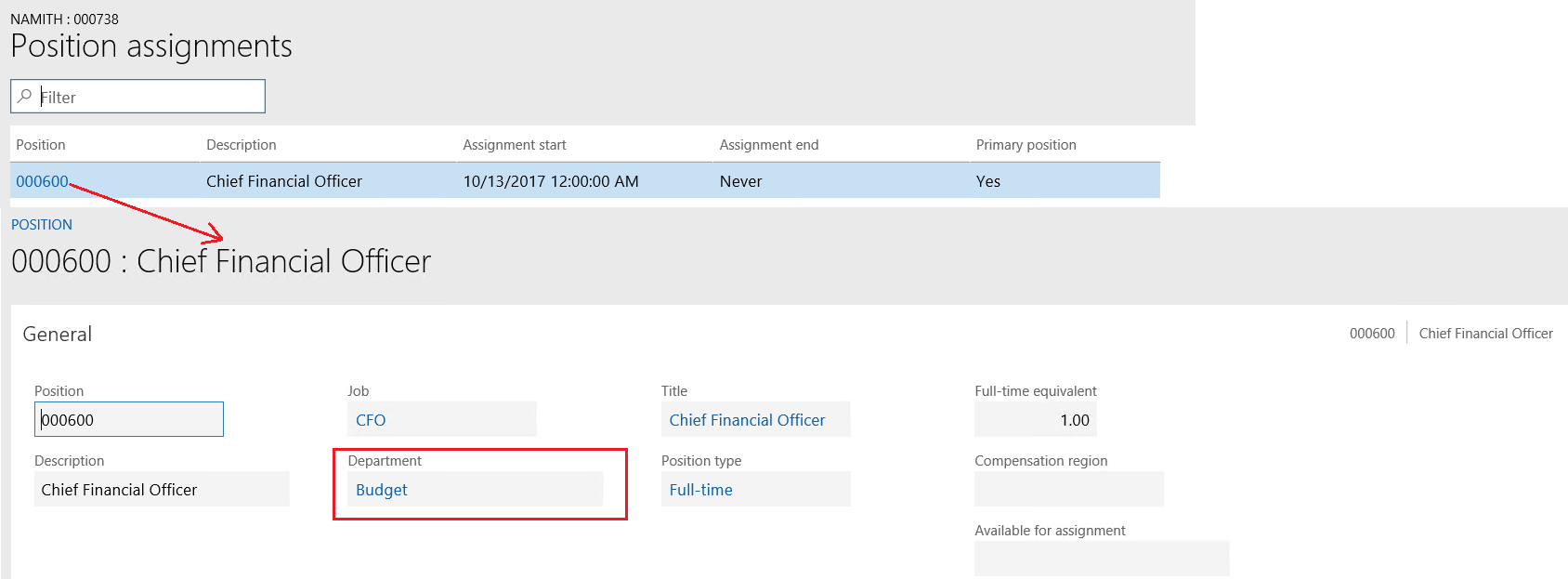
    In this post, ‘Budget’ department is defined with Worker (Myself) and the Position(CFO) is associated with ‘Budget’ Department

    1. Organization Administration > Organization > Operating Units
    2. Select the Department “Budget”
    3. Select Manager of the Department02-Budget Planning.png
    4. Drill down to worker clicking on the Hyperlink
    5. Click on the Work Position Assignment in the Action pane.
    6. Further drill down to Positions clicking on the Hyperlink
    7. Make sure the Position is assigned with ‘Budget’ Department for which the budget plan will be created.03-Budget Planning.png

    Notes:

    • This is important setup if the security model is defined as “Based on worker positions” in the Budget Planning Configuration.
    • If you are using the Security model as “Based on security organization” you should also add the Security purpose for the Organization hierarchy.
    • We will discuss more about the security model further in this post.

    3. Budget Planning Workflow:

    Budget planning workflow are used together with Budgeting workflows stages to manage the creation and progress of budget plans.

    This workflow consists of Stage Transition elements to automatically change the stages of Budget plan when action is performed by the user.

    The process resembles the process for creating other workflows in Finance and Operations. I have created basic Workflow with two Stage Transition automated task and an approval task.

    We will discuss more on how this works together with Budget planning workflow stages further in my post

    Note: It is mandatory to at least have one Workflow configured for Budget planning

     Budgeting > Setup > Budget Planning > Budgeting Workflows

    04-Budget Planning

    4. Budget Planning Configuration:

     Budgeting > Setup > Budget Planning > Budgeting Planning Configuration

     Parameters:

    Security model: Security model defines the security rules to be applied to access the budget plans,

    1. Based on Worker position: As I have described in responsibility center section, if this option is selected the access to create the budget plan will managed based on the worker position defined for the operating unit which are assigned to Organization hierarchy.
    2. Based on Security Organization: If this option is selected, the access for the budget plan will be managed based on the security roles assigned to the users.

    For this post, security model has been set to “Based on Worker position”

    05-Budget Planning.png

    Scenario’s:

    Budget plan scenarios are used to maintain the multiple versions of budget plan to compare, analyze and prepare the final budget for the organization.

    Budget plan scenarios can be defined as monetary or quantity based unit of measure, non-monetary scenarios such as Previous year support calls, number of FTE’s etc..

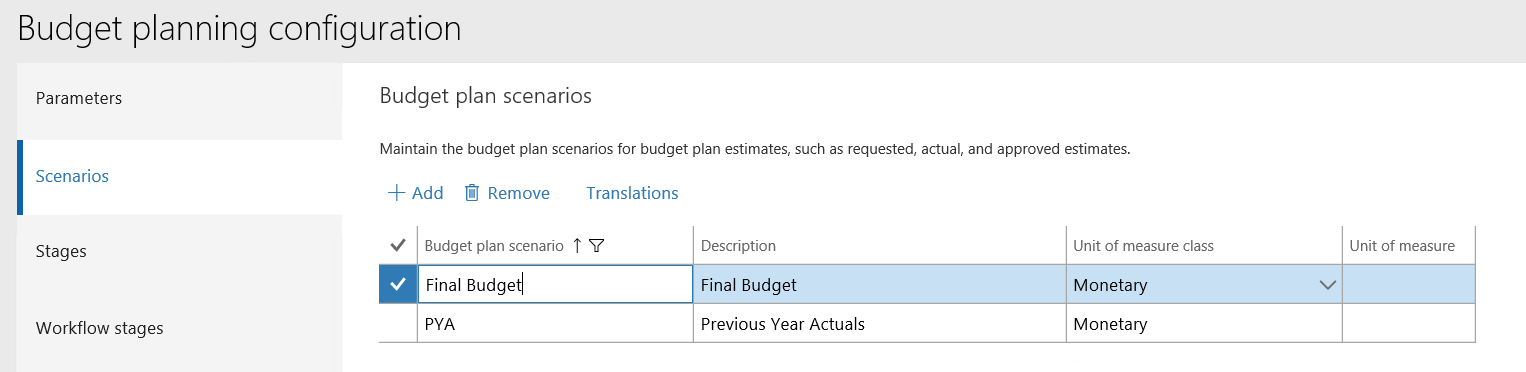
    For this post, I have created two scenarios for monetary unit of measure,

    1. PYA: Previous year actuals to analyze the actuals posted in general ledger from previous year to prepare the final budget
    2. Final budget: To create the Final budget based on the previous year actual s posted in general ledger. This scenario will be used to create the budget entries in AX.

    06-Budget Planning.png

    Stages:

    Budget planning stages defines the various levels of activities to be performed in budget plan process to determine the final budget for the organization.

    I have created three stages for the Budget plan,

    1. Initial: Initial budget prepared for CFO review.
    2. CFO review: CFO review stage to review and approve the budget plan.
    3. Approved: Final stage of the budget plan.

    06.01-Budget Planning.png

    Workflow Stages:

    Workflow stages is the platform to combine the stages and Budgeting planning workflow configuration. This configuration helps the Stage transition tasks added in the Workflow to determine the various stages in the Budget panning.

    I have created “Demo- Budgeting” workflow stage,

    1. Budget planning workflow: Workflow created earlier in this post will be assigned to this form.
    2. Select Planning stages: Stages created above in this post will selected in this workflow stages.

    With this configuration, AX will automatically change the workflow status of the budget plan.

    06.02-Budget PlanningExample: Once the Initial budget plan is submitted, AX will automatically change the status of budget plan to ‘CFO review’.

    07-Budget Planning.png

    Columns:

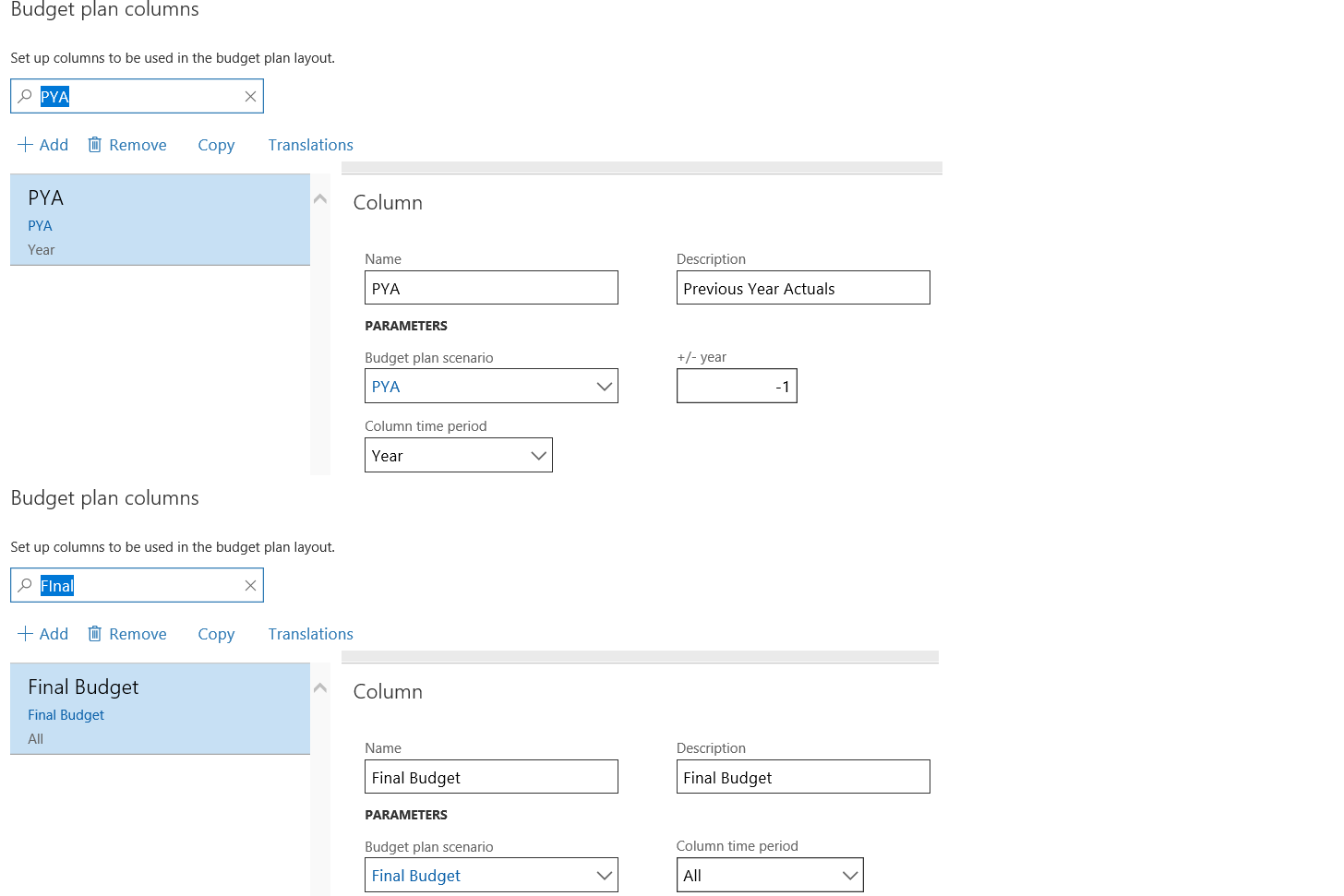
    Columns are used to define the budget figures in the Budget plan. To define a column, budget plan scenario created in earlier section of this post will be selected. The line amounts from that scenario are shown on the budget plan.

    I have created two new columns for the two-budget plan scenarios created above,

    1. PYA: Previous year actuals amounts posted in general ledger.
    2. Final budget: Final budget amount column based on the previous year actual s.

    09-Budget Planning.png

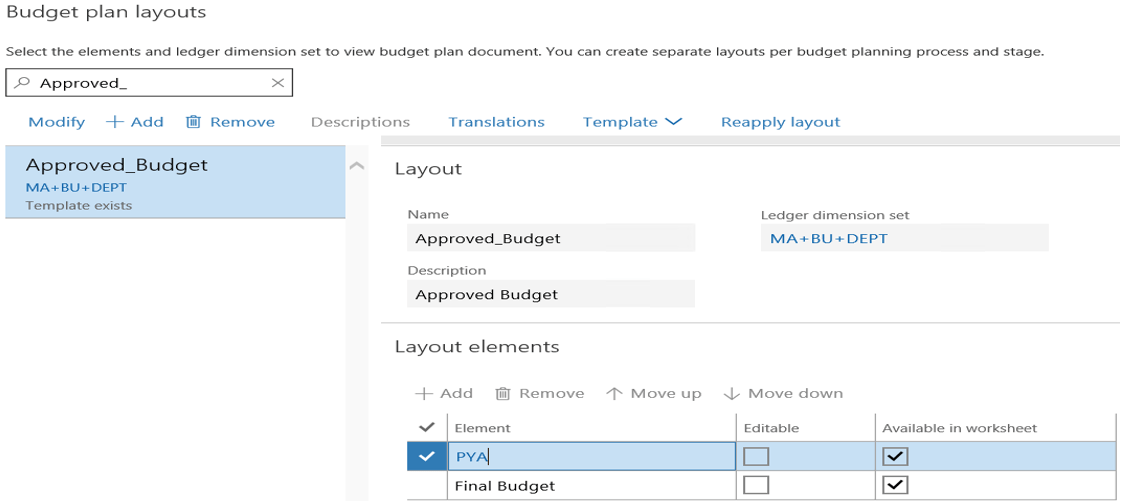
    Layouts:

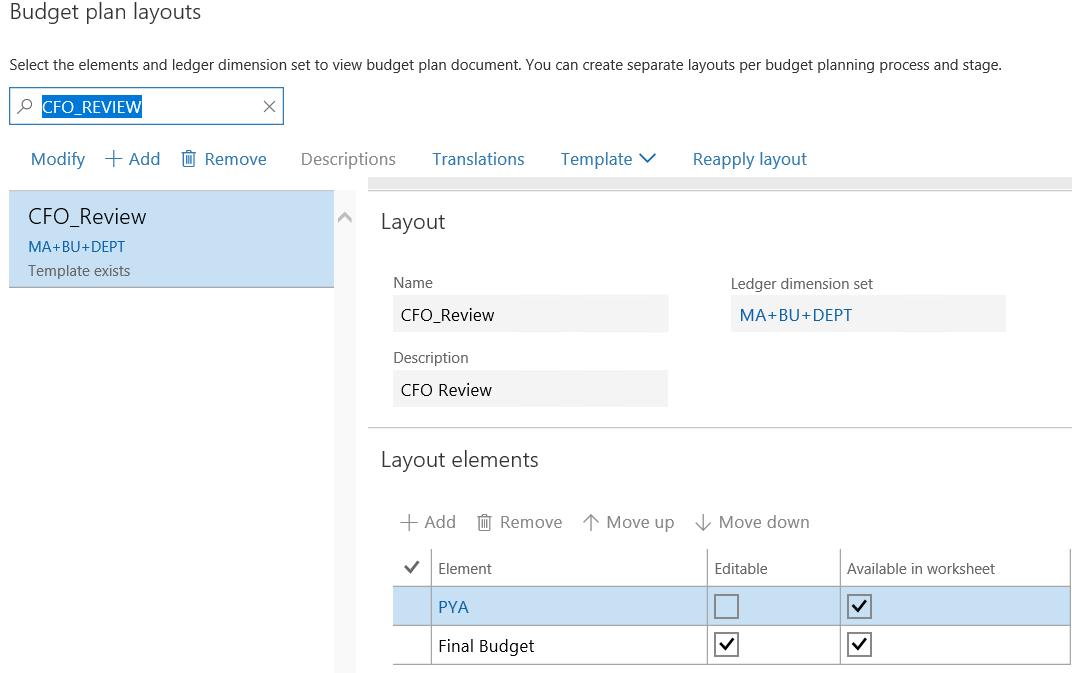
    Layouts can be used to present the columns at various stages of Budget plan. ledger dimension set can be used to create the budget plan rows that you want to display, and select the columns as layout elements.

    You can also designate whether each layout element (column) is editable, and whether it’s available in any worksheet template that is created for that layout.

    I have created multiple layouts at different stages of Budget plan,

    Initial Budget: Initial budget layout with both previous year actual and Final budget columns.

    Element Editable Available in worksheet Ledger Dimension Set
    PYA No Yes MA + BU + DEPT
    Final Budget Yes Yes MA + BU + DEPT

    10-Budget Planning.pngCFO review: CFO review layout with both previous year actual and Final budget columns.

    Element Editable Available in worksheet Ledger Dimension Set
    PYA No Yes MA + BU + DEPT
    Final Budget Yes Yes MA + BU + DEPT

    11-Budget PlanningApproved: Final stage with both previous year actual and Final budget columns.

    Element Editable Available in worksheet Ledger Dimension Set
    PYA No Yes MA + BU + DEPT
    Final Budget Yes Yes MA + BU + DEPT

    12-Budget Planning

    5. Budget Planning Process:

    Budget planning process is the last step for setting up the Budget planning in Dynamics 365 for Finance and Operations.

    This setup combines all the above set of configurations created above in this post that determine how budget plans can be updated, routed, reviewed, and approved in the budgeting organization hierarchy.

    Additionally, for every budget plan process we first need to select the budget cycle, legal entity and the account structure

    I have created new Budget planning process “Current Year Budget- Demo”

    Budgeting > Setup > Budget Planning > Budgeting Planning Process

    Budget Planning Process Administration:

    Organization Hierarchy Budget Planning Workflow
    Demo-Budget Demo-Budgeting

    13-Budget Planning

    Budget Planning Stage rules and Layouts:
    Budget planning stage Associate budget plans Add lines Modify lines Layout
    Initial Yes Yes Yes Initial Budget
    CFO review Yes Yes Yes CFO_Review
    Approved No No No Approved_Budget

    14-Budget Planning

    CREATION OF BUDGET PLAN:

    1.  Actual Entries:

    Verify the account “600013”- Expenses has actuals posted with 50000 USD for the Fiscal year 2016

    15-Budget Planning

    2. Create Initial Budget Plan from Previous Year Actual s:

    Budgeting > Periodic > Generate budget plan from general ledger

    • Action: Create a new budget plan, Aggregated total by: Fiscal year
    • Then select the source data information,
    • Fiscal Year: 2016
    • From Period: Period 10(As per the period when actual transactions are posted)
    • To Period: Period 10(As per the period when actual transactions are posted)
    • Account type: Profit and loss (As per the account type used in the actual transaction)
    • Then select the target data information,
    • Budget Planning Process: “Current Year Budget – Demo”
    • Enter Budget plan name: Current Year -2017
    • Budget Plan Scenario: PYA
    • Verify other information like Budget class, Responsibility center is automatically populated.
    • Click on Generate

    16-Budget Planning

    Budgeting > Budget Plans

    Verify the PYA column in the budget plan is updated with 50000 USD

    17-Budget Planning

    3. Create Final Budget Plan based on Previous Year Actuals:

    `Budgeting > Periodic > Generate budget plan from general ledger

    • Action: Update the existing budget plan scenario, and append new data, Aggregated total by: Fiscal year
    • Then select the source data information,
    • Fiscal Year: 2016
    • From Period: Period 10 (As per the period when actual transactions are posted)
    • To Period: Period 10 (As per the period when actual transactions are posted)
    • Account type: Profit and loss (As per the account type used in the actual transaction)
    • Then select the target data information,
    • Budget Planning Process: “Current Year Budget – Demo”
    • Enter Budget plan name: Current Year -2017
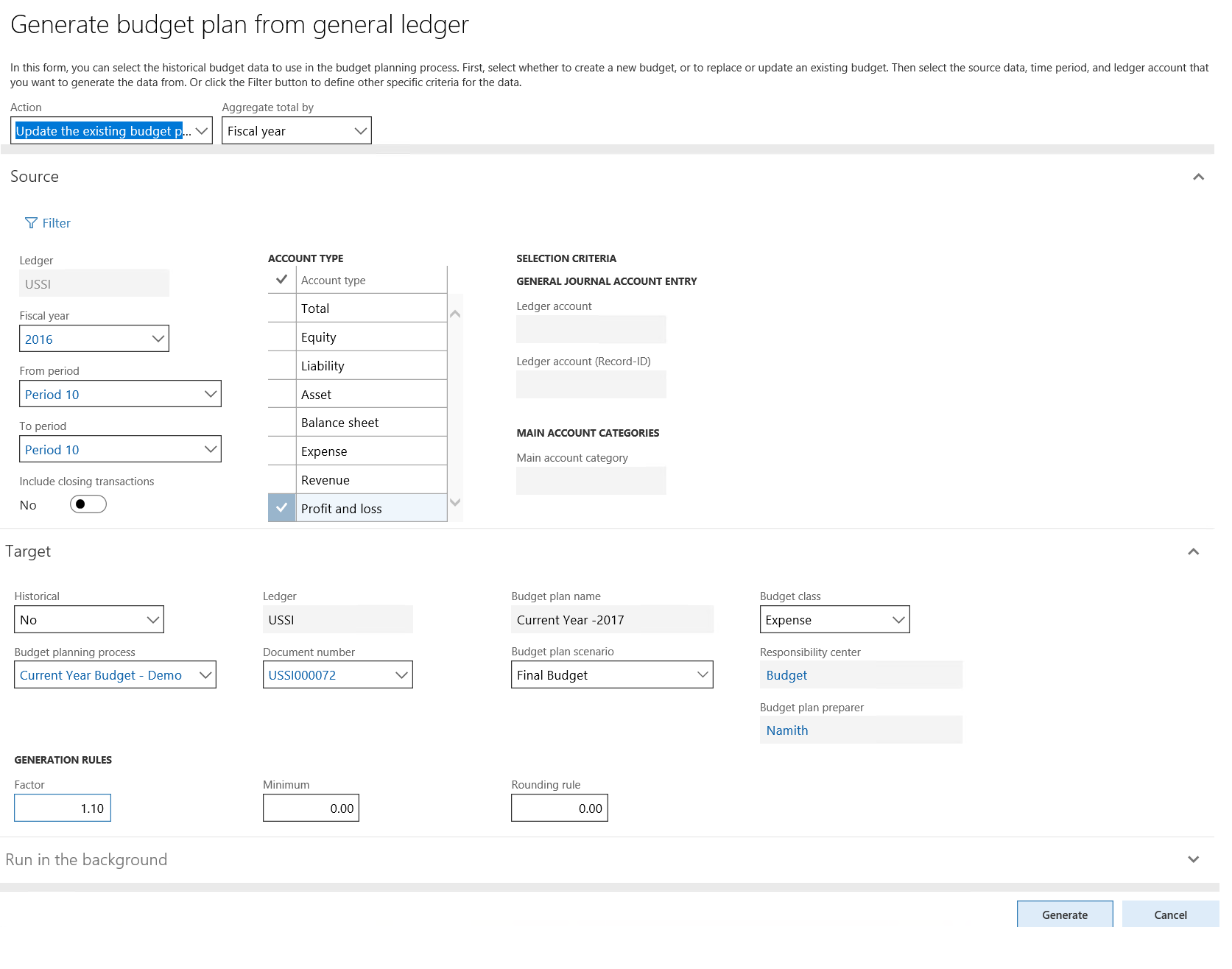
    • Select the Document number: USSI000072 (Initial Budget Plan #)
    • Budget Plan Scenario: Final budget
    • Verify other information like Budget class, Responsibility center is automatically populated.
    • Generation rules, Factor: 1.10 (To give the 10% increase in the budget from PFA).
    • Click on Generate

    18-Budget Planning

    Budgeting > Budget Plans

    Verify the Final budget column in the budget plan is updated with 55000 USD

    19-Budget Planning

    Stay tuned…

    Best Regards,

    Namith

    Disclaimer:
    This is a personal blog. Any views or opinions represented in this blog are personal and belong solely to the blog owner and do not represent those of people, institutions or organizations that the owner may or may not be associated with in professional or personal capacity, unless explicitly stated. All content provided on this blog is for informational purposes only. This blog makes no representations as to the accuracy or completeness of any information on this site.