
In my previous post I explained about the basics of Budget planning with key elements and configurations. In this post, will discuss the advanced topics of budget planning with the business scenario.
**It is important to review my previous post for the better understanding of the topics discussed in this post.
Scenario:
Company ABC is preparing the Annual budget plan for its IT and Operations department. Budget manager or CFO plans the budget based on the criteria below,
- The Previous year expenses incurred for IT and operations department.
- CFO prepares the proposed budget plan with 10% increase on actual for each department and distributes to department level.
- Respective IT and Operations department managers reviews and finalize the budget at department level.
- CFO aggregates the budgets of both the department at the organization level.
- CFO review and approves the final budget plan.

Key Elements and Configuration:
Let’s now see how to automate the above business scenario with some key elements and configurations in Dynamics 365 for Finance and Operations.
Basic Budget Planning Configuration:
Below is some basic configuration required to cater the above the scenario,
Organization Hierarchy:
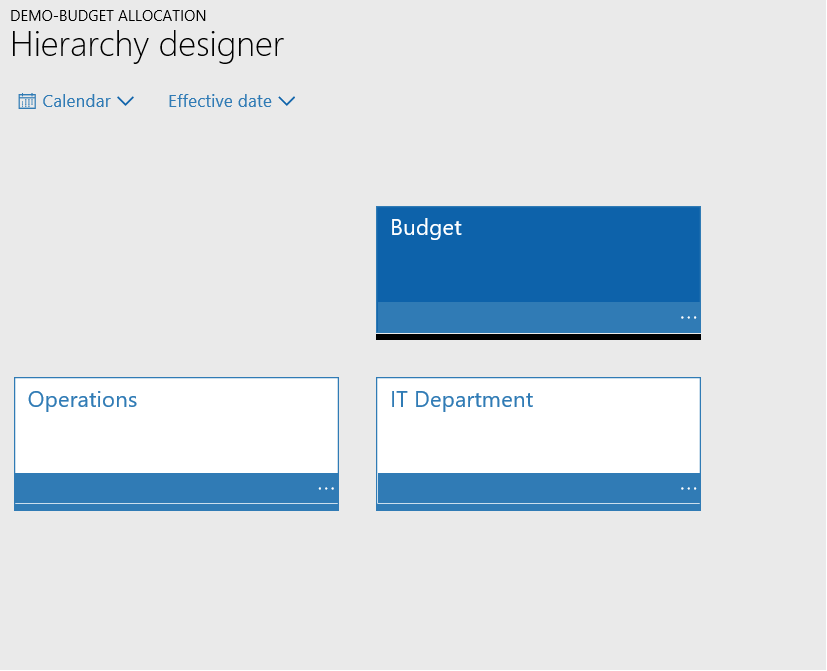
As explained in my previous post, organization hierarchy is important part of Budget planning configuration. From the scenario explained above, below Organization hierarchy has been created.
Organization Administration > Organization > Organization Hierarchy
Budgeting Workflows:
Budgeting workflow uses the automated tasks to perform the allocations and stage transitions. Please refer to my previous post for more information on Budgeting workflows.
This workflow consists of “Budget planning stage allocation” task to perform the allocation and Stage Transition elements to automatically change the stages of Budget plan when action is performed by the user.
For this scenario, there will two Budgeting workflows, one for the Organization level to distribute and aggregate and budget and other for the Department level to review and finalize the departmental budgets
Budgeting > Setup > Budget Planning > Budgeting Workflows
Organization level Workflow:

Department level Workflow: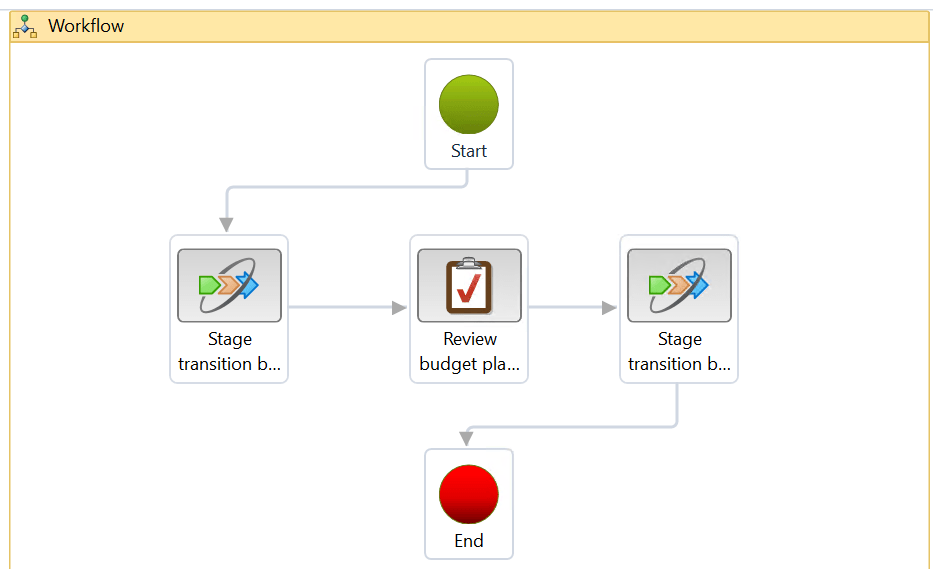
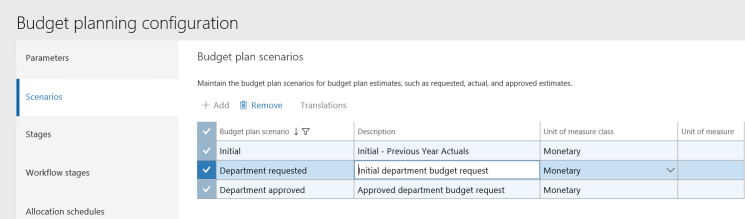
Scenarios:
| Budget plan scenario | Description | Unit of measure class |
| Initial | Initial – Previous Year Actual | Monetary |
| Department requested | Initial department budget request | Monetary |
| Department approved | Approved department budget request | Monetary |
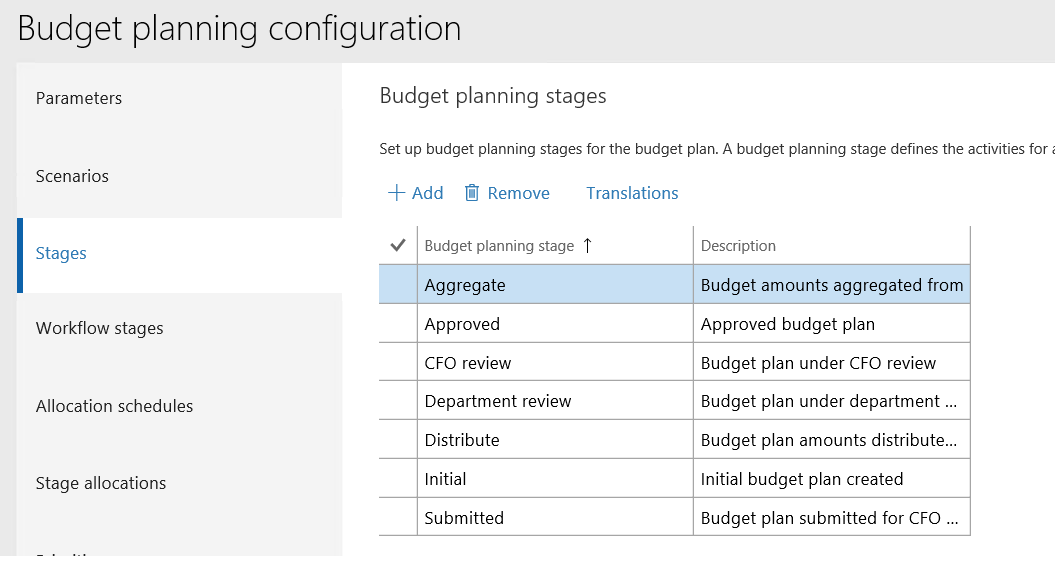
Stages:
| Budget planning stage | Description |
| Aggregate | Budget amounts aggregated from child budget plans |
| Approved | Approved budget plan |
| CFO review | Budget plan under CFO review |
| Department review | Budget plan under department manager review |
| Distribute | Budget plan amounts distributed from the parent budget plan |
| Initial | Initial budget plan created |
| Submitted | Budget plan submitted for CFO review |
Work flow stages:
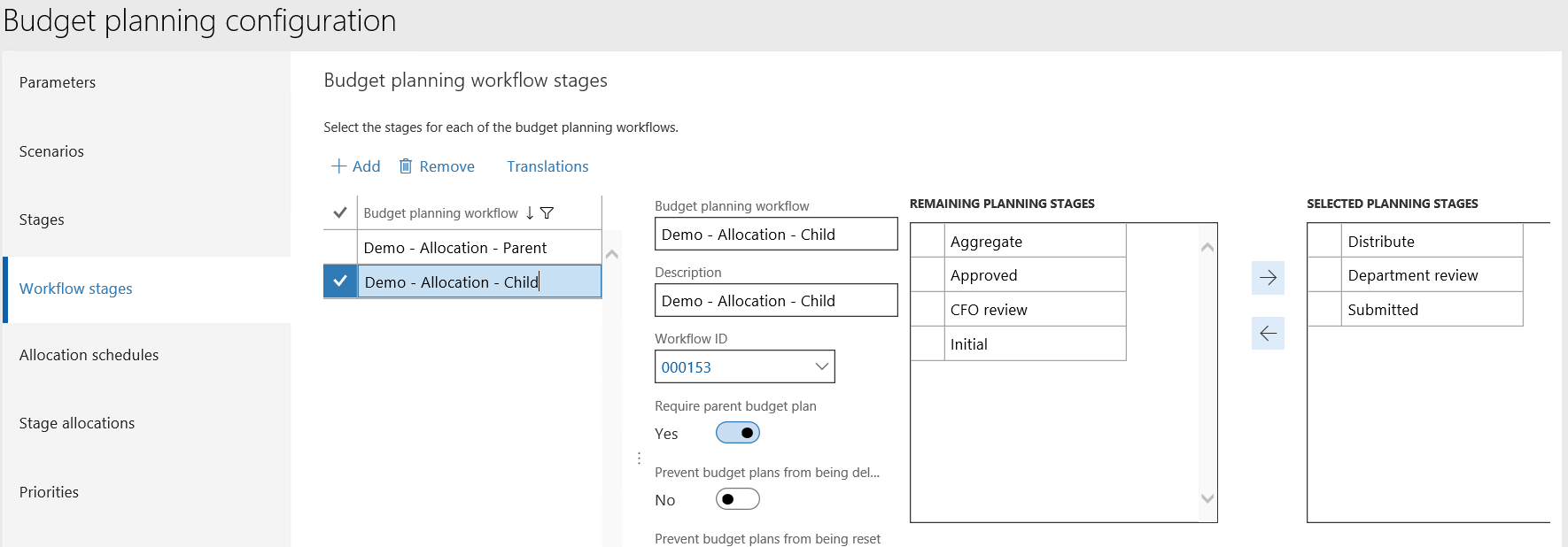
As we have two different workflows to be defined for Organization level and department level, there will be two different workflow stages to perform the workflow tasks independently in different stages.
| Budget planning workflow | Workflow ID | Stages |
| Demo – Allocation – Parent | 000152 | Initial |
| Aggregate | ||
| CFO review | ||
| Approved |

| Budget planning workflow | Workflow ID | Require Parent Budget plan | Stages |
| Demo – Allocation – Child | 000153 | Yes | Distribute |
| Department review | |||
| Submitted |
Columns:
| Name | Budget plan scenario | Column time period |
| Department Approved | Department approved | All |
| Department Requested | Department requested | All |
| Initial PYA | Initial | All |

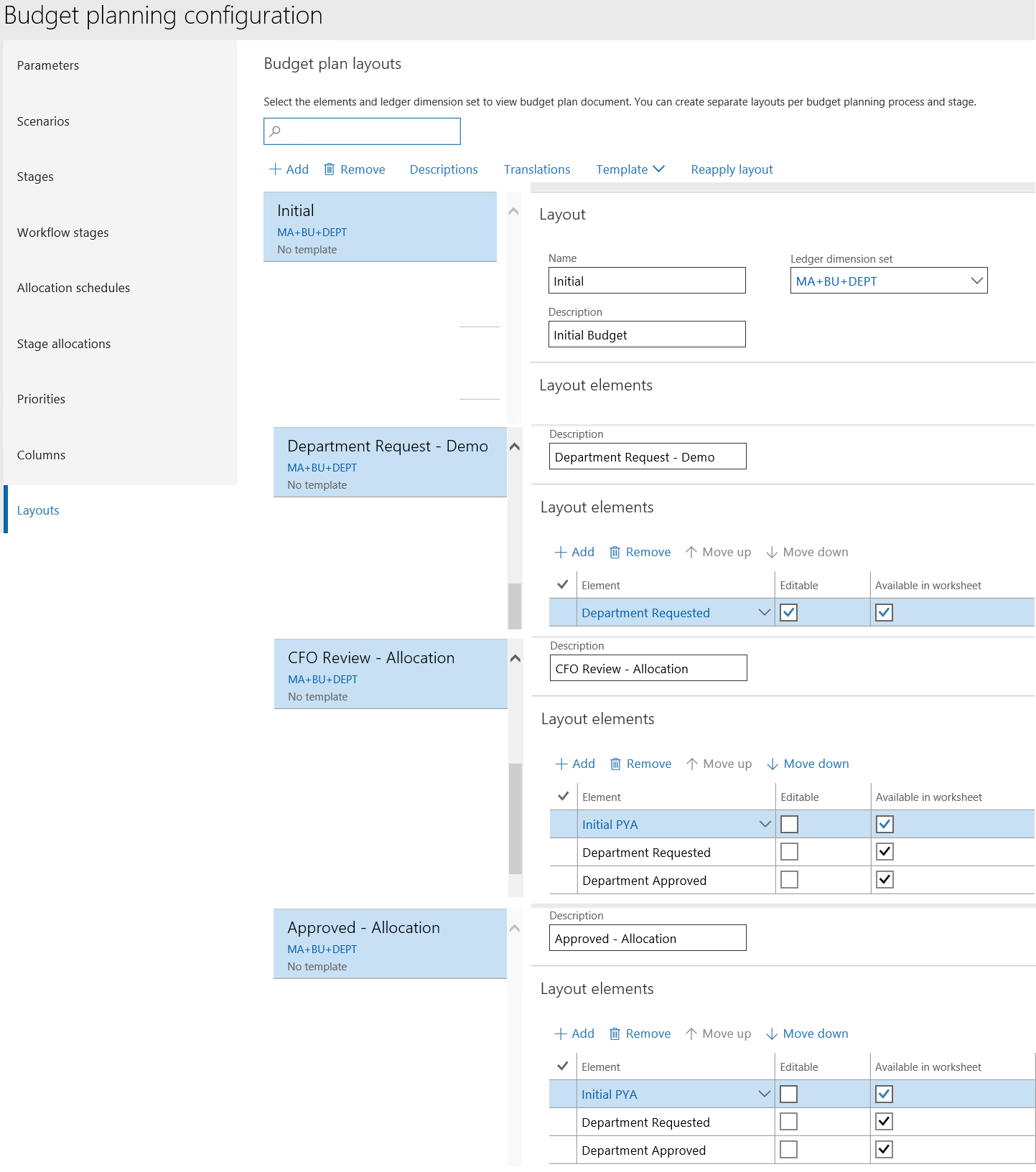
Layouts:
| Name | Ledger dimension set | Elements |
| Initial | MA+BU+DEPT | Initial PYA |
| CFO Review – Allocation | MA+BU+DEPT | Initial PYA |
| Department requested | ||
| Department approved | ||
| Department Request – Demo | MA+BU+DEPT | Department requested |
| Approved – Allocation | MA+BU+DEPT | Initial PYA |
| Department requested | ||
| Department approved |
Allocation Schedules:
Allocation schedule helps you to distribute, aggregate etc. from one budget plan scenario to another budget plan scenario. There are multiple allocation methods which can be used for allocations.
Considering the above scenario, I will discuss the Aggregate and Distribute functions on this post
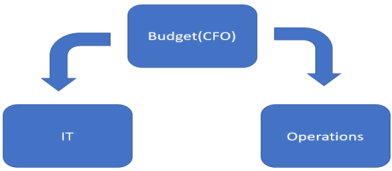
Distribute: To distribute the Budget plan lines of the proposed plan from Organization level to the department level.
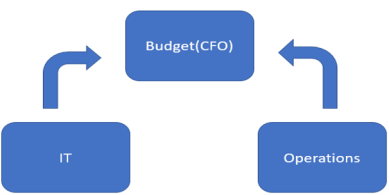
Aggregate: To Aggregate the Budget plan lines from the department level to Organization level.
Below are the Allocation schedules created to cater the above scenario,
Budgeting > Setup > Budget Planning > Budgeting Planning Configuration > Allocation Schedules
| Allocation schedule | Allocation method | Source Scenario | Destination Scenario | Multiply by |
| Demo – Distribute | Distribute | Initial | Department Requested | 1.1 |
| Demo – Aggregate requested | Aggregate | Department Requested | Department Requested | 0.00 |
| Demo – Aggregate approved | Aggregate | Department Requested | Department Approved | 0.00 |

Stage Allocation:
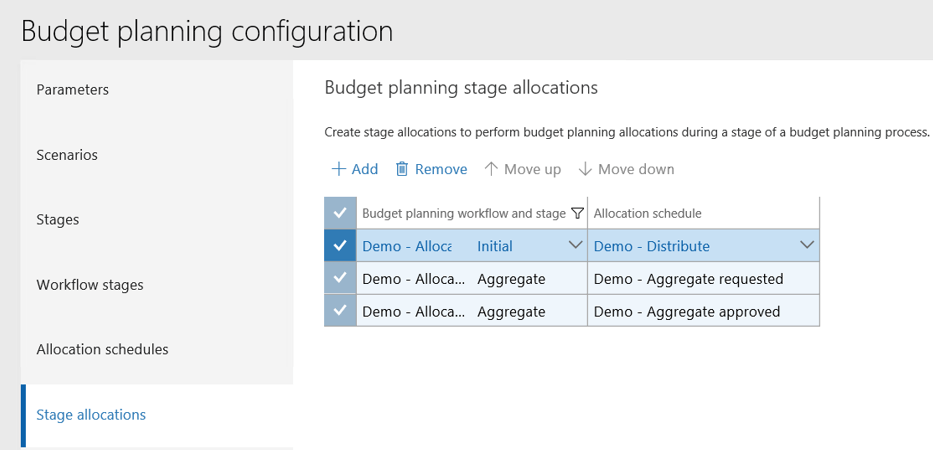
Stage allocations are used to automate the allocation process during the workflow processing. The budget planning workflow and stages will be associated with allocation schedules.
Budget planning workflow uses the Budgeting workflow automated task “Budget planning stage allocation” to automatically perform the allocation when the workflow reaches the specified stage.
Below are the stage allocations created to cater the above scenario,
Budgeting > Setup > Budget Planning > Budgeting Planning Configuration > Stage Allocation
| Budget planning workflow | Budget planning stage | Allocation schedule |
| Demo – Allocation – Parent | Initial | Demo – Distribute |
| Demo – Allocation – Parent | Aggregate | Demo – Aggregate requested |
| Demo – Allocation – Parent | Aggregate | Demo – Aggregate approved |
Budget Planning Process:
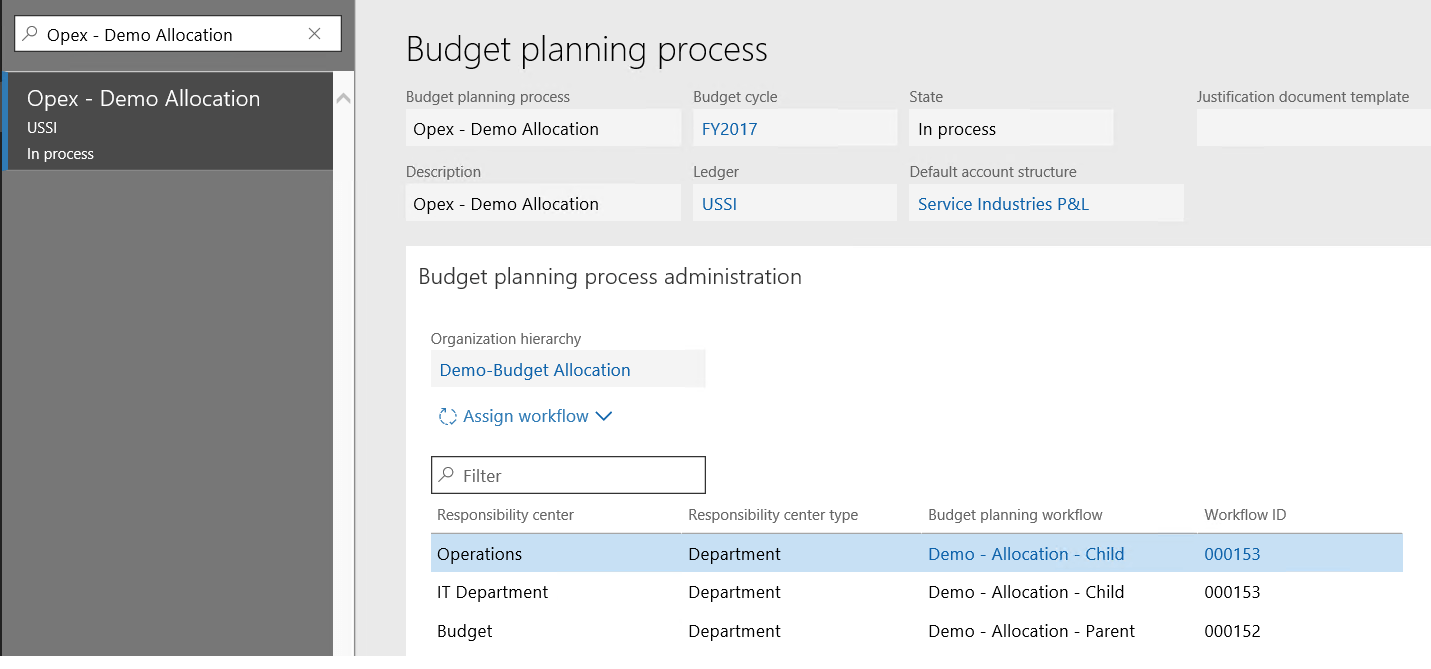
This is the last step of the Budget planning configuration, please refer to my previous post for more information on Budget Planning process,
Budgeting > Setup > Budget Planning > Budgeting Planning Process
Budget Planning Process Administration:
| Organization Hierarchy | Responsibility center | Responsibility center type | Budget planning workflow | Workflow ID |
| Demo-Budget Allocation | Operations | Department | Demo – Allocation – Child | 000153 |
| IT Department | Department | Demo – Allocation – Child | 000153 | |
| Budget | Department | Demo – Allocation – Parent | 000152 |
 Budget Planning Stage rules and Layouts:
Demo – Allocation – Parent:
| Budget planning stage | Associate budget plans | Add lines | Modify lines | Layout |
| Initial | Yes | Yes | Yes | Initial |
| Aggregate | No | Yes | Yes | CFO Review – Allocation |
| CFO review | No | Yes | Yes | CFO Review – Allocation |
| Approved | No | No | No | Approved – Allocation |
Demo – Allocation – Child:
| Budget planning stage | Associate budget plans | Add lines | Modify lines | Layout |
| Distribute | Yes | Yes | Yes | Department Request – Demo |
| Department review | Yes | Yes | Yes | Department Request – Demo |
| Submitted | No | No | No | Department Request – Demo |

Creation of Budget plan:
Actual Entries:
Verify the previous year expense of account “600014”- Expenses
| Main Account | Business Unit | Department | Opening balance | Debit | Credit | Closing balance |
| 600014 | 003 | 023(Operations) | 0.00 | 50,000.00 | 0.00 | 50,000.00 |
| 600014 | 004 | 025(IT) | 0.00 | 60,000.00 | 0.00 | 60,000.00 |

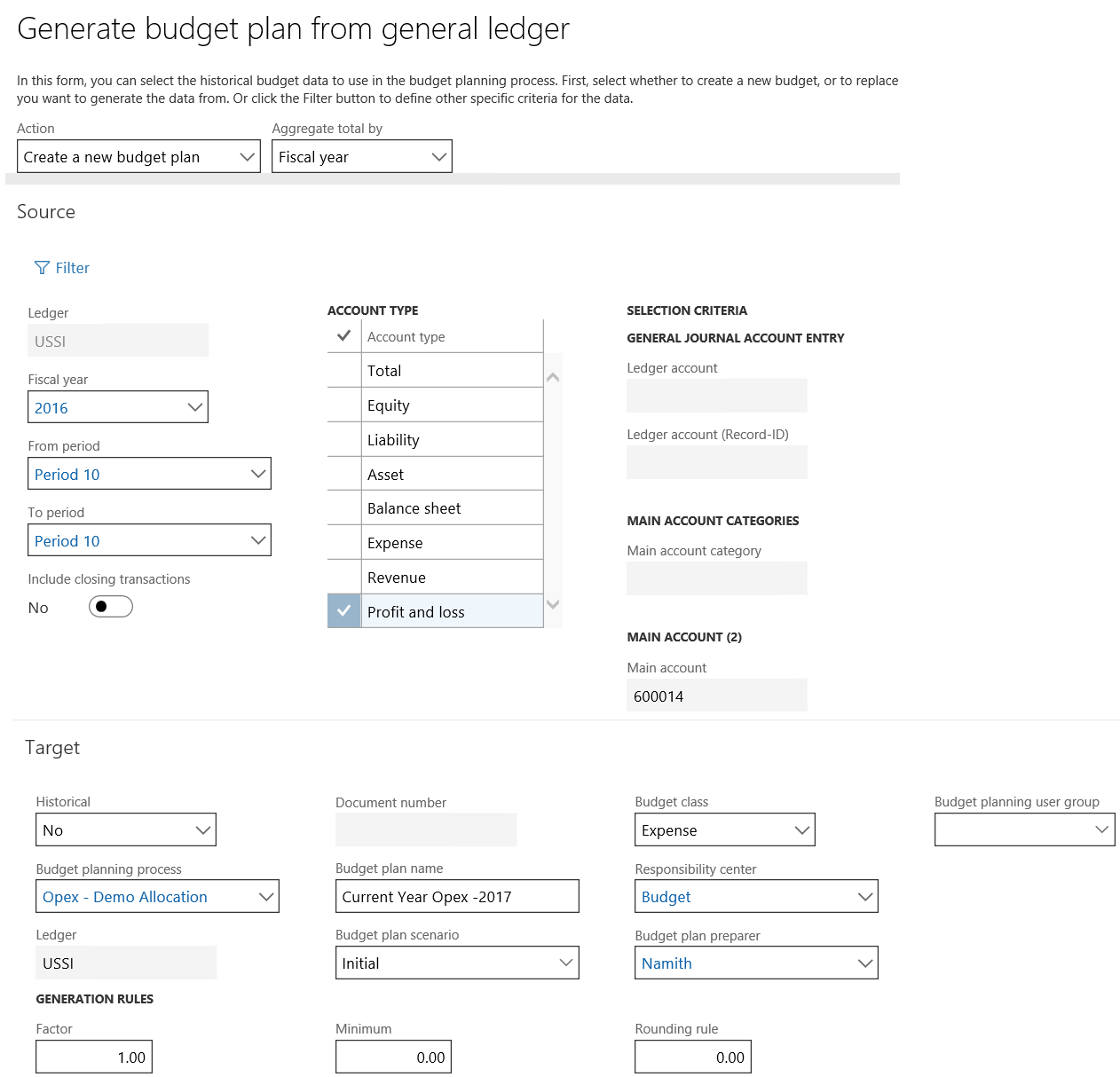
Create Initial Budget Plan from Previous Year Actuals:
Budgeting > Periodic > Generate budget plan from general ledger
- Action: Create a new budget plan, Aggregated total by: Fiscal year
- Then select the source data information,
- Fiscal Year: 2016
- From Period: Period 10(As per the period when actual transactions are posted)
- To Period: Period 10(As per the period when actual transactions are posted)
- Account type: Profit and loss (As per the account type used in the actual transaction)
- Then select the target data information,
- Budget Planning Process: “Opex– Demo Allocation”
- Enter Budget plan name: Current Year Opex -2017
- Budget Plan Scenario: Initial
- Verify other information like Budget class, Responsibility center is automatically populated.
- Click on Generate
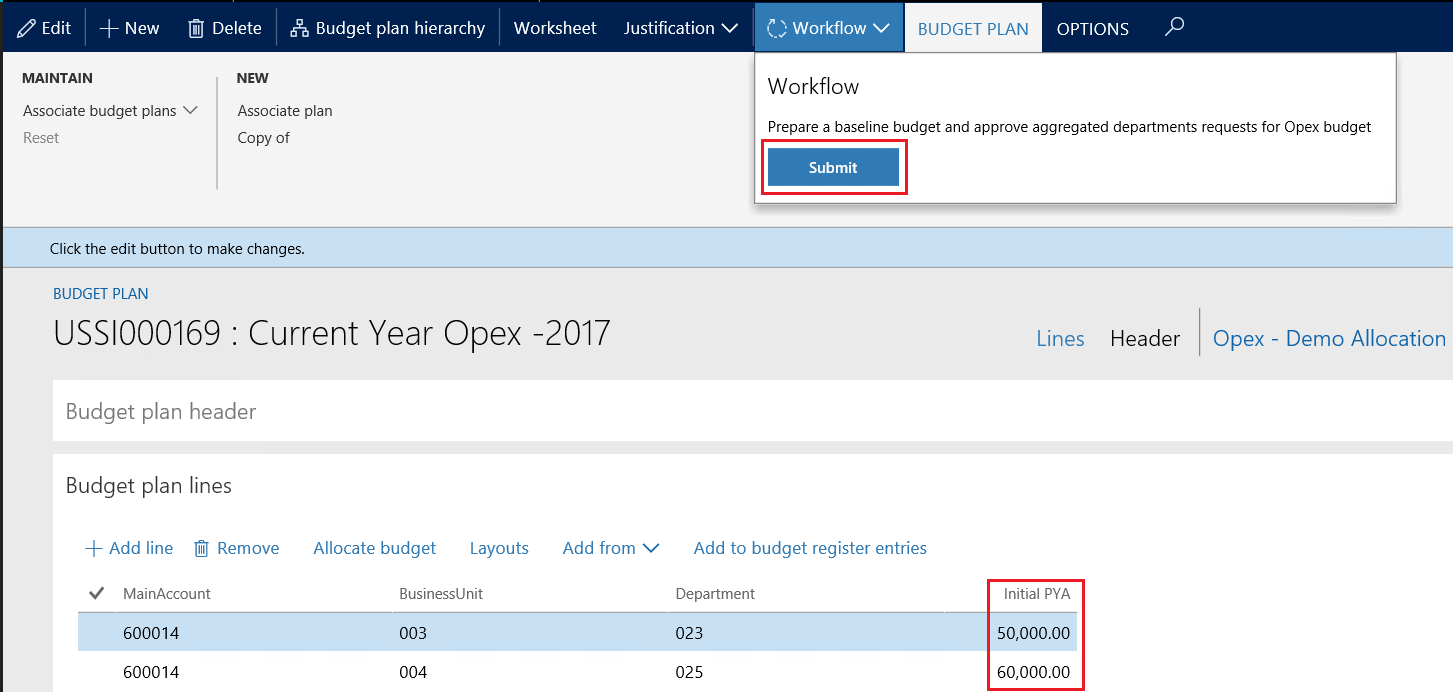
Budgeting > Budget Plans
Verify the Initial PYA column in the budget plan is updated with 50000 USD for Operations department and 60000 USD for IT department respectively.
Then Submit the workflow to distribute the Plan to respective departments.
Verify the new child budget plans is automatically created for Operations and IT department.

Initial Budget plan created for each department with 10% increase from the actual expense.
Respective department managers can review, edit and complete the Budget plan.

Go back to the Parent budget plan and click on complete to aggregate the budget plans from department level.

Verify the Department requested and Department approved columns are updated from the child plans.
Approve the Budget plan
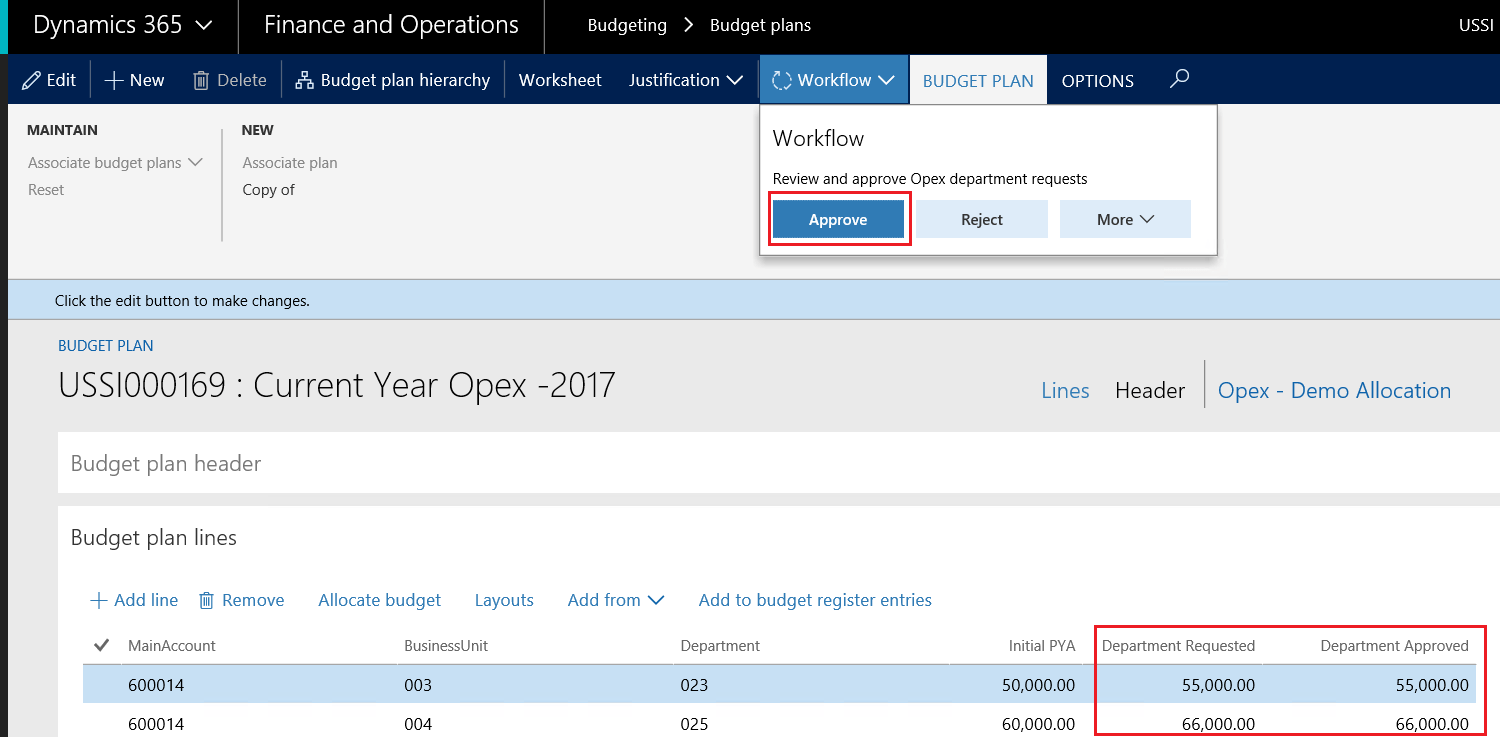
Verify the budget plan is approved.
**Approved budget plans can be further used to create budget register entries to manage and control the budgets in each department**

Best Regards,
Namith
 Namith Hosmane's Blog
Leave a comment